

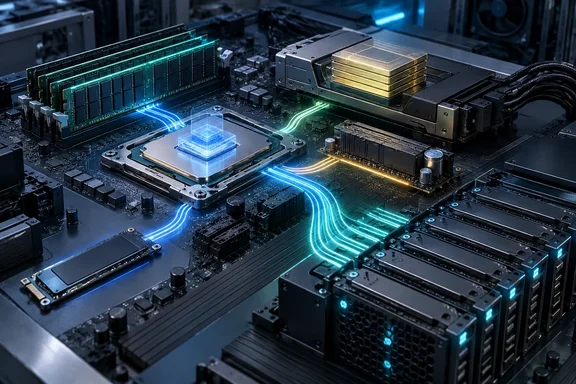
How-To Geek’s examination of five unusual storage technologies highlights that distinction. Its examples—CPU cache, RAM disks, high-bandwidth memory, backup-powered DRAM, and large NVMe arrays—are useful, but calling them all “storage devices faster than any SSD” needs qualification.
These are five ways to beat a single SSD at particular tasks, not five interchangeable replacements for your Windows boot drive. Some are memory rather than file-storage devices; another is a system built from many SSDs.
First, what does “faster” mean?
Two measurements matter especially:
- Latency: How long a request waits before data arrives.
- Bandwidth: How much data can move per second.
Intel distinguishes these explicitly in its memory-performance documentation. A component can offer enormous bandwidth without making every individual operation equally quick. Capacity and persistence are separate considerations again.
For a concrete consumer-storage reference, Samsung specifies sequential reads of up to 14,800 MB/s and writes of up to 13,400 MB/s for its 9100 PRO series. Those are advertised sequential-performance figures—not a promise that every application or small-file operation runs at that rate.
That distinction keeps the following comparisons honest.
1. CPU cache: speed where computation happens
Processor caches hold instructions and data near the cores that need them. Intel describes private and shared caches along the path between L1 cache and main memory, with persistent devices such as SSDs sitting beyond main memory. Accessing nearby cached data avoids the slower journey to those more distant components.
The catch is its role. Cache is a hardware-managed part of computation, not a persistent volume where Windows can keep your Documents folder. Its contents depend on power, and its capacity is small compared with ordinary file storage.
The practical interpretation is straightforward: cache helps the processor reuse working data; an SSD keeps the data available between sessions. Asking one to replace the other is rather like asking a kitchen countertop to replace the pantry.
2. RAM disks: an actual drive, with a disappearing act
A RAM disk gets closer to the familiar storage experience. Software exposes a portion of system memory as a disk-like volume that applications can access.
PassMark’s OSFMount documentation confirms that it can create RAM disks in Windows and identifies temporary application data, including cache files, as possible uses. Its documentation also states that RAM-disk contents do not persist through system shutdown.
That makes a RAM disk potentially useful for disposable or reproducible working files, rather than the only copy of something important. Any required results must reach persistent storage before the RAM disk disappears.
There is also a less obvious Windows consideration: the operating system already uses RAM to accelerate file access. Microsoft’s documentation, covering Windows 10, Windows 11, and supported Windows Server releases, explains that Windows caches file reads and writes in system memory. Frequently accessed file data can therefore be served from memory without creating a separate RAM drive.
The resulting practical inference is that a RAM disk should be judged against an already-cached workload—not merely against an SSD’s first uncached read. A spectacular synthetic result is not necessarily a spectacular improvement in your actual task.
3. HBM: extraordinary bandwidth, the wrong kind of storage
High-bandwidth memory achieves its throughput through stacked DRAM and an unusually wide interface positioned alongside a processor. Micron describes HBM as memory for AI, high-performance computing, and other data-intensive workloads.
Micron lists:
- HBM3E: More than 1.2 TB/s per stack.
- HBM4: More than 2.8 TB/s per stack.
Those figures dwarf a consumer SSD’s roughly 15 GB/s sequential-read specification, but the endpoints are different. HBM bandwidth describes transfers within an accelerator’s memory subsystem; SSD throughput describes access to persistent storage.
HBM is still DRAM, not a durable file-storage substitute. Intel’s memory-hierarchy discussion distinguishes powered memory from devices that preserve data after power loss.
The takeaway: HBM keeps an accelerator supplied with working data. It does not turn that accelerator into a replacement for your PC’s storage drive.
4. Backup-powered DRAM: persistence through a safety mechanism
This example tackles the central weakness of ordinary RAM: what happens when power disappears?
How-To Geek describes SMART Modular’s approach as combining DRAM, NAND flash, and an onboard energy source. Normal access uses DRAM; during a power failure, the backup mechanism preserves its contents in flash, then restores them when power returns. SMART Modular identifies the relevant product as the NV-CMM-E3S, a non-volatile CXL memory module—not a conventional consumer SSD.
The important distinction is architectural: the backup system supplies persistence; it does not make ordinary DRAM inherently non-volatile.
That also explains why this is not a routine desktop upgrade. A specialized CXL memory module belongs to a different hardware and software environment from an ordinary storage drive. Its value is in bringing persistence to memory-oriented workloads, rather than offering a universally compatible place to install Windows.
5. Large NVMe arrays: many SSDs sharing the work
The fifth example is genuine persistent storage—but the comparison changes from one device to an entire system.
DDN provides a concrete enterprise example. Its AI400X3M appliance uses NVMe drives and is specified at 190 GB/s sequential reads and 110 GB/s sequential writes, in a two-rack-unit enclosure with a 2.5 kW power rating. These are vendor-reported system figures, not measurements of one unusually fast SSD.
The principle is parallelism: distribute work across multiple devices instead of asking one drive to do everything. Microsoft describes the same basic striping concept in Storage Spaces, where data distributed across drives can increase throughput.
Unlike volatile memory, an NVMe array really can serve as permanent file storage. The obstacle for an ordinary PC is the scale and infrastructure required to reproduce enterprise performance—not an inability to retain files.
There is a crucial Windows warning here: striping alone is not redundancy. Microsoft states that a Simple Storage Space provides no fault tolerance and that a drive failure can cause data loss. Mirror and parity configurations address different reliability requirements.
Why the SSD still belongs in your PC
These examples do not reveal a neglected miracle drive. They reveal different engineering priorities:
- CPU cache minimizes the distance between working data and computation.
- RAM disks expose volatile memory through a storage-style interface.
- HBM maximizes bandwidth within specialized processor systems.
- Backup-powered DRAM adds a persistence mechanism to memory.
- NVMe arrays increase storage throughput by combining devices.
The most useful Windows lesson is that these technologies are complementary. Microsoft’s file-cache documentation shows that Windows already combines persistent disk storage with faster memory access, while its Storage Spaces documentation explains how multiple drives can trade capacity, performance, and resilience.
An SSD does not have to beat CPU cache at being CPU cache. It has to keep your files, provide usable capacity, and deliver them through the storage interface your PC expects. “Faster” only becomes meaningful once you finish the sentence: faster at what?
References
- 5 unusual storage devices that are faster than any SSD (and why we don't use them for PC storage) How-To Geek · 2026-09-30T11:30:15+00:00
- High-bandwidth memory (HBM) | Micron Technology Inc. micron.com
- Performance Tuning for Cache and Memory Manager Subsystems | Microsoft Learn learn.microsoft.com