

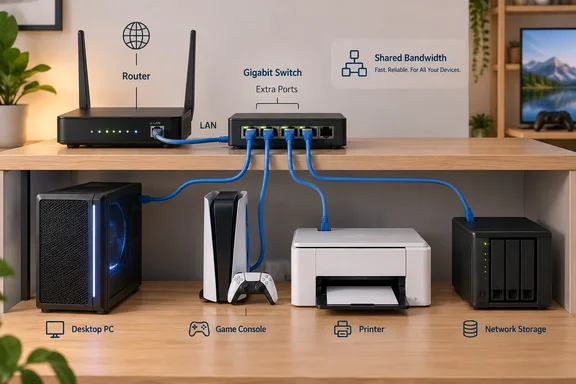
Engadget’s Ethernet-expansion guide describes this straightforward upgrade, and How-To Geek independently gives the same core advice: connect an Ethernet switch to an existing router port. Cisco, Linksys and TP-Link document the installation procedure in their own support material. The useful distinction is between expanding a working network and rebuilding it—running out of sockets usually calls for the former.
An unmanaged Ethernet switch keeps your existing router in charge
A router connects networks and lets multiple devices share an internet connection. A switch connects devices within a local network. Microsoft’s small-business networking guidance explicitly identifies an additional switch as an answer when a router lacks enough ports.
For a typical home installation, the connection order is:
Router LAN port → Ethernet switch → PCs and other wired devices
If you have a separate modem, its existing connection to the router’s WAN or Internet port stays where it is. Connect the switch on the router’s LAN side. You are expanding the part of the network that serves your devices, not rearranging the connection to your internet provider.
An unmanaged switch is the simplest version of this equipment: it handles Ethernet traffic without requiring you to configure it. Cisco describes its Business 110 Series installation as requiring no configuration, while TP-Link’s unmanaged-switch guidance says these devices have no management interface or management IP address. There is normally no switch dashboard to find and no Windows application to install.
The switch also handles traffic more intelligently than an old Ethernet hub. Microsoft explains that a hub repeats information to all connected devices, whereas a switch can identify the intended destination and direct information accordingly. For this upgrade, the product category to look for is an Ethernet switch.
That leaves your existing router in place and avoids introducing another router just to obtain more sockets. A second router has other uses, but it adds decisions that a basic port-expansion job does not need.
Count Ethernet ports after reserving the router connection
The number printed on the switch includes the port used to connect it to your router. On a typical five-port unmanaged switch, that leaves four ports for devices; on an eight-port model, it leaves seven.
There is a second piece of arithmetic when the router is already full. The switch also occupies one router port that previously served a device. That device must move to the switch, so the number of additional devices you can connect is smaller than the number of available switch sockets.
Assuming one ordinary port on each device is used for the router-to-switch connection:
| Switch size | Switch ports available for devices | Net increase over connecting devices directly to the router |
|---|---|---|
| Five ports | Four | Three |
| Eight ports | Seven | Six |
| Sixteen ports | Fifteen | Fourteen |
For example, suppose every router port is occupied and you want to add four more wired devices. A five-port switch leaves four device sockets, but one is needed for the device displaced from the router. You would still be one socket short. An eight-port switch provides room for that displaced device and the four additions, with two switch ports remaining.
This is why “a five-port switch adds four ports” needs qualification. It provides four device connections at the switch, but increases the whole network’s device capacity by three when it replaces an occupied router connection.
For speed, a Gigabit Ethernet switch is a sensible starting point for ordinary wired expansion. Look for 10/100/1000 Mbps support on the ports you will use. Linksys’s unmanaged-switch installation guidance describes auto-sensing ports that adjust to the connected device, with supported connections operating at up to gigabit speed.
Port count and speed answer different questions. More ports let you connect more equipment; faster supported links provide more capacity for traffic. Buying extra sockets alone does not remove a bottleneck elsewhere.
How-To Geek highlights the router connection as a bandwidth limit. More precisely, traffic that needs to cross the cable between the switch and router shares that link’s capacity. Adding several gigabit switch ports does not give each connected device a separate gigabit internet connection.
Connect the Ethernet switch without disturbing the internet connection
Before starting, have the switch, its power supply, a cable for the router connection and a cable for each device you intend to attach. Decide which occupied router connection you will move if there are no free LAN ports. That device will briefly lose its wired connection during the change.
Cisco’s setup instructions place a small switch on a stable surface and connect a router LAN port to any switch port. Linksys likewise begins with power and an Ethernet connection to the existing network. TP-Link confirms that, on the unmanaged switches covered by its guidance, any port can serve as the connection to the upstream router.
For a basic unmanaged model, the installation is:
- Place the switch where its power cable and Ethernet connections can reach without strain. A location near the router is straightforward, but a switch can also sit beside the devices it will serve.
- Connect the switch’s supplied power adapter to the switch and a working power outlet.
- Identify a LAN port on the router. Leave the existing WAN or Internet connection alone.
- If necessary, unplug one device’s Ethernet cable from that LAN port and connect the device’s cable to the switch instead.
- Run the new Ethernet cable from the freed router LAN port to an available switch port.
- Connect the remaining PCs, consoles, printers or other wired devices to the switch’s available ports.
- Check for power and link activity, then verify that the connected devices can reach the services they normally use.
You do not need a special “uplink” socket on the unmanaged switches described by Cisco and TP-Link. Uplink simply describes the connection back toward the router in this arrangement. If you choose equipment with differently specified ports, however, their capabilities matter; the any-port guidance should not be stretched into a claim that every switch on sale has identical sockets.
Status lights provide an initial check, but their meanings vary. Cisco documents separate power and link/activity indicators for its Business 110 models, along with additional indicators on some versions. Do not assume a particular light colour means the same thing on another manufacturer’s switch.
A lit link indicator confirms something narrower than working internet access: an Ethernet link has been established. Finish by checking actual connectivity from the attached device. On a Windows PC, open a website and, if relevant, access the printer or network storage you already use. Those checks establish whether the upgrade preserved the work you wanted the network to do.
Cisco also documents a command-line connectivity check using ping followed by the destination device’s IP address. A reply confirms that the devices can communicate. There is no need to invent static addresses for an otherwise working home network merely to install the switch.
A remote Ethernet switch can expand one cable, but cannot replace it
The switch does not have to sit beside the router. If an Ethernet cable already runs to a home office or entertainment centre, the switch can go at its far end, with several short cables connecting nearby devices.
The layout becomes:
Router LAN port → existing Ethernet run → remote switch → nearby devices
This is a useful consequence of the same router-to-switch arrangement documented by the manufacturers. Instead of running a separate cable from every office device back to the router, you expand the wired connections where they are needed. Remember that traffic crossing the existing run still shares that connection.
A switch alone cannot solve the absence of a cable between rooms. Microsoft’s networking guidance identifies this as a basic trade-off of wired networking: Ethernet requires physical connections, which can be difficult to install when equipment is spread across a building.
If new cabling is impractical, Wi-Fi remains an option for devices that support it. Microsoft describes hybrid networks that combine wired and wireless connections, allowing stationary devices to use Ethernet while mobile equipment remains wireless. You do not have to choose one connection type for the entire household.
Moving a suitable device to Wi-Fi may also free an existing router port without buying anything. The trade-off is that wireless performance depends on conditions including interference and obstructions. A switch is most useful when you actually want more wired endpoints and have, or can install, the necessary cable path.
A different problem arises when the computer itself lacks Ethernet. Microsoft identifies an external USB network adapter as one way to add network connectivity to a PC. That adapter supplies the computer-side connection; it does not expand the router. Depending on the setup, you may need both an adapter for the laptop and a switch for the network.
Power requirements deserve a separate check, too. Power over Ethernet, or PoE, allows supported switch ports to supply power as well as data to compatible equipment. It is a model-specific capability, not something supplied by every Ethernet switch. Cisco’s Business 110 documentation shows that even within a PoE-capable model, only some ports may provide it.
For an ordinary PC or console with its own power supply, adding Ethernet sockets does not itself create a need for PoE. If the purpose is to connect powered network equipment, confirm the particular switch’s supported ports and power capabilities before buying.
What this means for your router upgrade
Keep the router if it is doing its existing job and the only problem is a shortage of LAN ports. Choose an unmanaged switch sized for the devices you need to connect, reserve a port for the router connection and verify connectivity before considering more extensive changes.
- Count the displaced device when expanding a router whose LAN ports are already full; a five-port switch adds capacity for three additional devices.
- Connect the switch to a router LAN port, leaving the modem-to-WAN connection in place.
- Choose port speeds to match the connections you need, while remembering that router-bound traffic shares the uplink.
- Place the switch near the devices when an existing Ethernet run already reaches that location.
- Treat missing PC Ethernet sockets, missing inter-room cabling and PoE power requirements as separate problems requiring their own solutions.
For a straightforward port shortage, the upgrade ends with more usable wired connections and the same router still serving the network. Get the port arithmetic and LAN connection right, and an unmanaged Ethernet switch provides the expansion without turning a small hardware addition into a network redesign.
References
- How to add extra Ethernet ports if your router doesn't have enough Engadget · 2026-09-22T16:30:00+00:00
- Cisco Business Basics: How to Connect an Unmanaged Switch to Your Small Business or Home Office - Cisco cisco.com
- Set up your small business network - Windows Client | Microsoft Learn learn.microsoft.com