

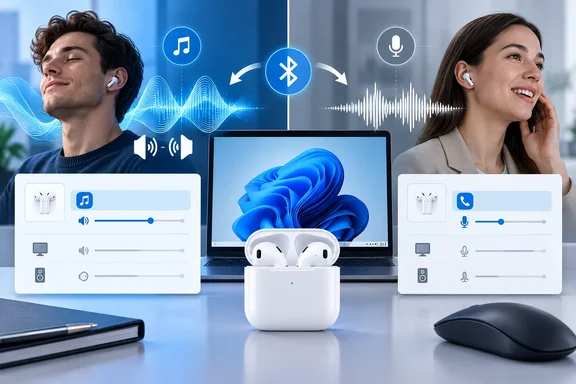
BGR’s September 22 report describes this as a default Windows setting that reduces AirPods audio quality. AppleToolBox has also documented hands-free mode as a cause of poor AirPods sound on PCs. Microsoft’s Bluetooth documentation gives the more precise explanation: Windows supports separate media and communications profiles, and selects between them according to the audio streams applications open.
The important correction is that pairing AirPods does not automatically condemn them to telephone-quality playback. Nor does every modern Bluetooth configuration have the same limitation. Windows 10, Windows 11 using Bluetooth Classic, and compatible Windows 11 systems using Bluetooth LE Audio require different advice.
Windows switches AirPods between stereo playback and hands-free audio
Microsoft documents two principal profiles for Bluetooth Classic audio. The Advanced Audio Distribution Profile, or A2DP, carries high-quality stereo playback from the PC to the headphones. The Hands-Free Profile, or HFP, supports simultaneous microphone capture and playback, with both operating in mono.
A profile defines the kind of connection being used. That is a different decision from choosing a codec—the method used to encode audio within that connection. Windows can support several music-playback codecs, but choosing a better media codec does not give A2DP a microphone channel. Microsoft explicitly states that accessing a Bluetooth Classic headset’s microphone requires HFP.
The difference reaches beyond losing left-right separation. Microsoft documents narrowband HFP operation at an 8 kHz sampling rate and wideband operation at 16 kHz, depending on the PC, Bluetooth radio, drivers and headset. These are speech-oriented modes. A music stream that normally plays through the stereo profile must fit the active communications format while HFP is in use.
On Windows 11, Microsoft gives a concrete example: if an application plays 48 kHz audio while a voice call has placed the headset into an 8 kHz or 16 kHz HFP mode, Windows resamples that playback to match. The music application does not have to change its own settings for the listener to hear the difference. Its output is passing through a different device mode.
This explains a particularly confusing symptom: a call application can change the sound of another application. The profile belongs to the Bluetooth audio connection, so music, video or game sound sent to that connection is affected by the active mode. Turning up the volume cannot restore the stereo channels or playback format that the connection is no longer carrying.
The boundary is Bluetooth Classic audio, not the AirPods brand or the physical size of the headphones. Another headset using the same A2DP/HFP arrangement faces the same trade-off. Buying larger Bluetooth headphones, by itself, does not address the mechanism.
Windows 10 exposes the choice that Windows 11 makes automatically
The difference between Windows 10 and Windows 11 is central to troubleshooting. Advice to select “AirPods Stereo” can be useful on Windows 10 and confusing on Windows 11, where that separate output may not exist.
Microsoft says Windows 10 can create up to three audio endpoints when a Bluetooth Classic device is paired. An endpoint is the input or output that Windows and applications expose as a selectable audio device.
| Windows 10 endpoint | Its purpose | Its limitation |
|---|---|---|
| Device name followed by “Stereo” | A2DP playback for music, video and other media. | It supplies no headset microphone input. |
| Device name followed by “Hands-Free” under output | HFP playback for two-way communications. | Playback uses the mono hands-free format. |
| Device name followed by “Hands-Free” under input | Capture from the headset microphone. | Opening it switches the device into HFP operation. |
Selecting the Stereo output is therefore useful, but it is only part of the solution. According to Microsoft, Windows 10 switches the device into HFP if audio is sent to the hands-free output or an application opens the hands-free microphone. In that situation, audio streaming to the stereo output is discarded. Selecting Stereo cannot override an application’s simultaneous demand for the AirPods microphone.
Asurion’s Windows AirPods troubleshooting guidance similarly recommends selecting the Stereo output instead of Hands-Free. That recommendation belongs with the Windows 10 endpoint model; it should not become a universal instruction to find a second AirPods playback device.
Windows 11 unifies A2DP and HFP endpoints. For a device supporting HFP, Microsoft documents a single output endpoint and a single input endpoint. The output’s visible name can stay the same while its underlying Bluetooth profile changes.
Windows 11 selects HFP under either of two documented conditions:
- An application opens the Bluetooth device’s microphone input.
- An application creates a playback stream categorized as Communications.
Otherwise, playback uses A2DP. The second trigger is important: choosing a different microphone removes the AirPods microphone trigger, but a communications-classified playback stream can still cause hands-free operation. A separate microphone is useful, not an unconditional promise of stereo sound in every calling application.
This also means that users should not interpret the absence of a separate “Stereo” device in Windows 11 as a pairing failure. The interface deliberately hides the profile split that Windows 10 exposes.
Restore AirPods playback by separating listening from microphone use
For someone who mainly wants to listen to music, watch a video or play without using the AirPods microphone, the first decision is straightforward: keep the AirPods as an output device and avoid asking their Bluetooth Classic connection to capture speech.
For someone who needs the AirPods microphone during a call, HFP is the expected operating mode. Removing that capability would also remove the microphone they need. Before changing audio inputs, have another working microphone available if the conversation must continue.
A focused troubleshooting sequence follows from Microsoft’s documented profile-selection rules:
- Establish a listening-only baseline. End the call or recording session and close applications that may still be using the AirPods microphone. Play media without an active voice session. On Windows 11, A2DP should be used when neither a microphone stream nor a Communications-category playback stream is active.
- Select the intended playback device. Open Settings > System > Sound and select the AirPods under Output. On Windows 10, if separate Stereo and Hands-Free choices are present, choose Stereo for media playback.
- Choose another microphone where available. In the calling, recording or game application, select the PC’s built-in microphone or another available input instead of the AirPods microphone. The exact controls vary by application; the important distinction is between its input choice and its playback choice.
- Compare listening before and during the voice session. If playback quality returns after the session ends but drops when it starts again, that pattern is consistent with the documented switch into communications mode.
- Keep the Windows 11 communications trigger in view. If the application uses a Communications-category output stream, switching its microphone alone may leave HFP active. Do not assume the alternative microphone failed merely because the playback mode remains unchanged.
This is a way to distinguish the documented profile behavior from a persistent sound problem, not a measurement of the connection’s negotiated format. Success means that listening-only playback returns to the expected stereo quality, and that any application needing speech input is using the microphone you intended.
On Windows 10, both sides of the application’s configuration deserve attention. A program configured to play through Hands-Free can trigger HFP even when it uses another microphone. For a listening-only task, the Stereo output is the appropriate choice; for a call that actually requires the AirPods microphone, the hands-free endpoints are the documented pairing.
Windows 11 removes that explicit output choice. There, the useful question is which application is opening the microphone or requesting communications playback. Repeatedly searching for a hidden Stereo entry does not address the unified-endpoint design.
If playback remains poor with no active microphone or communications stream, this particular explanation has reached its limit. The evidence here supports troubleshooting a profile switch; it does not establish the cause of every AirPods sound-quality problem, connection fault or audio glitch.
Bluetooth LE Audio changes the trade-off on supported Windows 11 PCs
The claim that every Bluetooth headset must always lose stereo playback when its microphone is used is too broad. Microsoft documents a newer alternative: Bluetooth LE Audio, a separate audio technology that streams over the Bluetooth Low Energy radio.
Microsoft’s support guidance says some Windows 11 PCs can maintain stereo playback while a compatible LE Audio device’s microphone is active. The documented requirements include Windows 11 version 24H2 or newer, build 26100.4484 or newer, integrated Bluetooth LE support from the factory, and manufacturer drivers that support LE Audio stereo functionality. The headset or earbuds must also support LE Audio.
Those requirements are cumulative. A Windows update alone does not give an incompatible peripheral the necessary capability, and a headset’s support alone does not establish that the PC has the required audio and Bluetooth implementation.
For AirPods owners, the material caveat is model compatibility. The evidence considered here does not establish a supported AirPods model for this Windows LE Audio stereo-with-microphone feature. Treat it as an exception to the broad Bluetooth claim and a capability to verify when evaluating hardware—not as a promised AirPods fix.
Windows 11 exposes the supported LE Audio format in Sound settings
Microsoft provides a specific procedure for systems and peripherals that meet the requirements. The LE Audio device must first be paired and connected.
- Open Settings > System > Sound.
- Under Output, open the connected Bluetooth LE Audio device using the arrow to its right.
- Expand Output settings > Format.
- Find “Format when microphone is active.”
- Select “Stereo (2 channels)” for stereo playback during microphone use, or “Mono (1 channel)” for the compatibility option.
Microsoft says stereo is the default when the PC and audio device support it. If “Format when microphone is active” is absent, the current system does not expose that stereo-with-microphone capability. Microsoft recommends ensuring that Windows and the PC manufacturer’s Bluetooth drivers are up to date; the remaining hardware and driver requirements still apply.
There is also a supported fallback. If an LE Audio accessory experiences loss of sound or disruptive glitches during stereo microphone use, change that same setting to Mono (1 channel). This deliberately gives up stereo to improve compatibility and can be reversed by selecting Stereo again.
A separate accessibility setting can affect the result. Microsoft notes that the system-wide mono toggle under Settings > Accessibility > Audio produces a warning that stereo may not function correctly. If stereo is desired, turn that toggle off; users who intentionally rely on mono audio should preserve the accessibility behavior they need.
The distinction is useful even for readers staying with their current AirPods. “Bluetooth microphone means mono” describes the documented Classic Audio path. Supported LE Audio configurations can behave differently, so replacement-hardware decisions should be based on the complete PC-and-headset capability rather than a generic Bluetooth label.
Choose the AirPods microphone only when the task needs it
Start with the software’s input and output choices before deciding that your AirPods or PC need replacing. For listening, preserve the media-playback path. For calls, decide whether using the earbuds’ microphone is worth the Bluetooth Classic playback trade-off, or whether another microphone fits the task better.
- On Windows 10, select the AirPods Stereo output for media playback when that separate endpoint is available.
- On Windows 11, expect a unified AirPods output; the absence of a separate Stereo entry is normal for the documented endpoint design.
- Use another available microphone when you want to avoid activating the AirPods microphone, while remembering that Windows 11 communications playback can also select HFP.
- Expect mono, speech-oriented playback when using the AirPods microphone through Bluetooth Classic HFP.
- Consider stereo-with-microphone LE Audio only when the Windows version, PC hardware, manufacturer drivers and audio peripheral all meet Microsoft’s requirements.
AirPods audio on Windows is best understood as a connection-mode decision that applications can change while you listen. For existing Bluetooth Classic setups, the immediate choice is how to route playback and microphone capture. For future purchases, the meaningful improvement is verified simultaneous stereo-and-microphone support across both ends of the connection—not another promise that a generic “default setting” will unlock it.
References
- Bluetooth Classic Audio - Windows drivers | Microsoft Learn learn.microsoft.com
- Configuring Bluetooth LE Audio quality settings on Windows 11 | Microsoft Support support.microsoft.com
- Detect audio format capabilities for communications scenarios - Win32 apps | Microsoft Learn learn.microsoft.com