

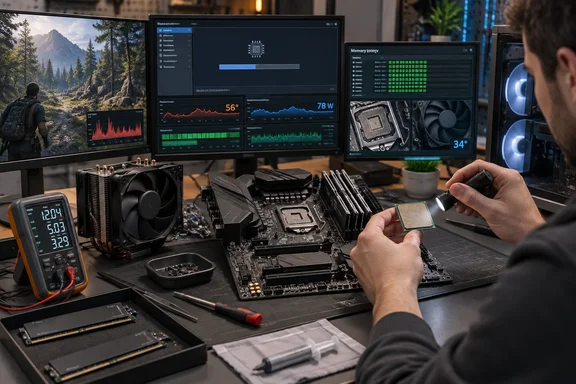
For Windows users, the strongest starting point is AMD’s own guidance: establish an updated system running at stock settings before deciding that the processor is faulty. That gives every subsequent change a meaningful baseline instead of turning the BIOS into a guessing game.
1. Gameplay stutter: investigate firmware before disabling security
AMD has documented an intermittent stutter issue affecting select Ryzen configurations running Windows 10 or Windows 11 with fTPM enabled. Its advisory explains that extended transactions involving motherboard SPI flash memory can temporarily interrupt system responsiveness. This is a configuration-specific problem, not evidence that every Ryzen processor causes gaming hitches.
The documented fix is an appropriate motherboard BIOS update. AMD identified AGESA 1207 or newer as the basis for updates addressing that particular issue, with releases originally expected from May 2022. That historical version reference is not a universal BIOS target for every newer AMD platform; use the firmware intended for your exact motherboard and processor.
A sensible diagnostic approach is to reproduce the same troublesome workload, establish stock settings, and evaluate the result after the relevant update. AMD recommends an updated, stock configuration when investigating performance problems.
Do not casually disable or replace the TPM. AMD’s alternative workaround involved a compatible discrete TPM and explicitly warned about TPM-backed encryption, including BitLocker. Microsoft also explains that firmware or hardware changes can trigger a recovery-key request. Have your recovery key available and involve IT support on a managed PC before changing security-related firmware settings.
Bottom line: Match the symptom to the advisory; do not sacrifice encryption access for an unproven performance tweak.
2. RAM compatibility: separate advertised speed from stability
BGR highlights a familiar concern: memory may not operate at the speed advertised on its packaging until a profile is enabled. However, its recommendation to treat EXPO as a general cure for RAM problems is too broad.
AMD identifies EXPO specifically with Ryzen processors for Socket AM5. That platform boundary matters: an EXPO instruction should not be presented as a procedure for every AMD desktop or laptop. The motherboard’s supported settings and the installed memory kit remain essential prerequisites.
For troubleshooting, distinguish two questions:
- Is the memory operating at the settings you intended?
- Is the system stable at those settings?
Those are different goals. As a diagnostic recommendation, establish stability at defaults before enabling a performance profile. If crashes or boot problems appear after a profile change, reverse that change and repeat the same test rather than immediately replacing the CPU. This follows AMD’s broader stock-configuration troubleshooting approach.
Bottom line: A faster setting is only useful if it survives the workload. Stability is the admission ticket, not an optional extra.
3. Socket damage: a serious incident, not ordinary overheating
Physical CPU damage deserves attention, but the evidence does not justify describing socket burnout as a routine AMD processor problem.
ASRock’s March 25, 2025 statement acknowledged boot issues involving some AMD CPUs with specific BIOS versions and a separate case involving a damaged CPU on an ASRock motherboard. The company said it was gathering information and inspecting returned boards. That establishes reported incidents and an investigation—not an AMD-wide failure rate or proof that normal operating heat caused the damage.
The important distinction is between performance troubleshooting and damaged-hardware handling. If a system shows visible burning or another indication of physical damage, the prudent recommendation is to stop using it and seek manufacturer assessment, not run another benchmark.
Do not assume a larger cooler will resolve an unidentified electrical or firmware problem. Nor should the existence of a reported incident become a blanket claim that X3D owners face a substantially higher risk; the inspected manufacturer statement does not establish that comparison.
Bottom line: Treat physical damage seriously without turning an investigated case into a diagnosis for every Ryzen PC.
4. High temperatures: use the exact processor’s limits
Temperature needs context. AMD’s performance guidance identifies cooling, operating temperature, system power, and custom settings as factors affecting processor clock speeds. It recommends comparing behavior against the processor’s specifications, beginning with an updated system at stock settings.
There is no single temperature threshold that should be casually applied to every Ryzen model. For example, AMD lists a maximum operating temperature of 89°C for the Ryzen 7 7800X3D. That is a specification for that processor, not a universal AMD limit.
A practical investigation should therefore record:
- The exact CPU model.
- The workload producing the reading.
- Whether performance changes as temperature rises.
- Whether the system is using stock or custom settings.
Use those observations to decide whether cooling needs investigation. AMD’s guidance supports systematic troubleshooting rather than judging processor health from an isolated temperature reading.
Bottom line: Compare like with like. A temperature number without a model and workload is only half a diagnosis.
5. Power consumption: identify what the number measures
BGR’s assertion that Ryzen processors can consume more than 100 watts at idle lacks a named processor, configuration, and measurement method in its report. It should not be repeated as a general characteristic of AMD CPUs.
Even software power figures need interpretation. AMD’s uProf documentation describes power metrics as estimates based on platform activity, with core and package measurements. A CPU-related estimate is not automatically a measurement of the entire computer’s electrical consumption.
Before treating power as the cause of a shutdown, establish what was measured and return custom settings to a known baseline. AMD’s troubleshooting guidance explicitly includes system power among the factors affecting CPU operation and recommends beginning at stock settings. It does not support treating undervolting as a universal first repair.
Bottom line: “High power” needs a measurement boundary, just as “high temperature” needs a processor model.
Diagnose the configuration, not the logo
These five topics are useful troubleshooting categories, but they are not five proven defects shared by all AMD processors. The practical lesson is narrower: identify the exact hardware, preserve access to encrypted data before firmware changes, establish stock behavior, and test one change at a time. AMD’s troubleshooting guidance and Microsoft’s BitLocker documentation support that evidence-first approach.
Start with the symptom. Leave the brand verdict until there is evidence—and preferably leave it out altogether.
References
- 5 Common Problems With AMD Processors bgr.com · 2026-10-03T03:32:00+00:00
- Troubleshooting CPU Performance and Temperature Issues amd.com
- Intermittent System Stutter Experienced with fTPM Enabled on Windows® 10 and 11 amd.com