

What the script reportedly does
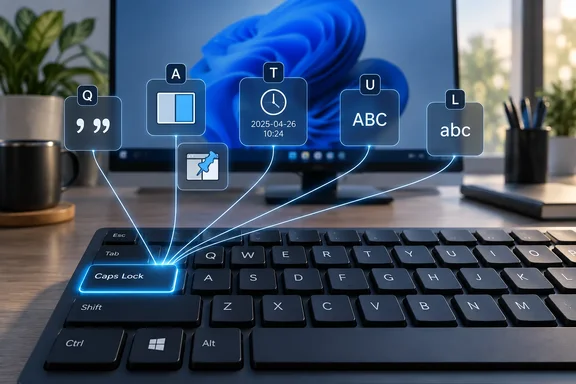
According to Onyimadu's MakeUseOf piece, holding Caps Lock and pressing a second key now triggers custom actions:
| Shortcut | Action |
|---|---|
| Caps Lock + A | Toggle Always on Top for the active window |
| Caps Lock + T | Insert the current date and time at the cursor |
| Caps Lock + U | Uppercase the selected text |
| Caps Lock + L | Lowercase the selected text |
| Caps Lock + Q | Wrap the selected text in quotation marks |
The author says the full script is on GitHub Gist. We couldn't retrieve that Gist, so we can't confirm the "12 lines" figure or the exact code. The function list and the workflow anecdotes are the author's own account. They are not something we tested.
Why Caps Lock works as a prefix
The trick is AutoHotkey's custom-combination syntax, which joins two keys with an ampersand. AutoHotkey's documentation says you can combine any two keys or mouse buttons into a custom hotkey, and it gives holding CapsLock while pressing another key as an example. The same page notes that CapsLock's on/off state is not changed when it is used to launch the hotkey.
That is why the author can say the key keeps working normally. Ordinarily, the prefix key loses its native function, unless it is a standard modifier key or a toggleable key such as CapsLock. Caps Lock is on that exception list, so you aren't forced to give up the key to use it as a modifier.
Some boundaries from the documentation:
- Custom combinations support exactly two keys or mouse buttons. They can't be combined with Alt, Win, Ctrl or Shift modifiers. So Caps Lock + Shift + A isn't a thing under this approach.
- Custom combinations fire on release by default when the prefix key has its own hotkey, and don't fire at all if another key is pressed. That matters if you also assign a standalone action to Caps Lock.
- AutoHotkey's docs say that if three-key combinations aren't supported, hardware-supported ones can sometimes be detected with GetKeyState, but results may be inconsistent. Don't build anything critical on that.
"Things Windows won't do": a correction
The headline is a bit generous. Window pinning, at least, is already covered by Microsoft's own tooling. Microsoft Learn documents PowerToys Always On Top as a utility that pins the active window above others. Its default shortcut is Win+Ctrl+T, and the shortcut is customizable. Pressing it again, or closing the window, unpins it.
So Caps Lock + A is a personal alternative to an existing tool, not a missing Windows capability. PowerToys must be installed and the utility enabled. Microsoft also lists some compatibility caveats. Windows that are themselves topmost, such as some Citrix, RDP and VMware windows, may still appear above a pinned window.
If pinning is all you want, PowerToys is the lower-effort route. The AutoHotkey version makes more sense if you want pinning, a timestamp and text transforms under one key you can reach without moving your hand.
The AutoHotkey side of the toggle is simple. The documented WinSetAlwaysOnTop function accepts -1 to toggle the setting to the opposite of its current state. That matches the author's description of pressing the shortcut again to unpin. We haven't seen the author's actual code, though.
The clipboard detail that matters
The author says the text shortcuts work by briefly borrowing the clipboard:
- Copy the current selection.
- Transform the text (upper, lower or quoted).
- Send the result back into the active app.
- Restore the previous clipboard contents.
Step 4 is the one to check. Without it, every case change would silently overwrite whatever you had copied. If you adapt this idea, test these cases:
- Empty selection: what happens when nothing is highlighted?
- Rich clipboard content: does an image or formatted text survive the round trip?
- Multi-line selections: do quotes land at the start and end of the block?
- Restricted apps: some applications, such as elevated windows or apps that filter simulated input, may not accept the sent text or keystrokes the same way.
The source doesn't establish how the script handles any of these. Treat them as things to check, not as known behavior.
One more practical note: AutoHotkey hotkeys generally can't interact with windows running at a higher privilege level than the script. That is general AutoHotkey experience rather than something stated in the source, so test it in your own environment.
Trying it yourself
A minimal version of the idea looks like this in AutoHotkey v2 syntax:
CapsLock & a::WinSetAlwaysOnTop -1, "A"
That is an illustration based on the documented function signature, not the author's script. The "A" target means the active window. A timestamp shortcut can use SendText with a formatted time. The author says their script does exactly that for Caps Lock + T. The text-transform shortcuts need the clipboard handling described above, so build those carefully.
Is it worth it?
- For tinkerers: yes. It's a low-cost way to get a personal shortcut layer without remapping hardware or touching the registry.
- For people who hit Caps Lock by accident: a prefix approach means you still get the key's normal behavior, though you won't gain protection from accidental SHOUTING.
- For managed or locked-down PCs: check policy before installing scripting tools. Many IT departments restrict them.
The article's real point holds up: Windows' built-in shortcuts leave gaps, and a small script can fill them. The strongest takeaway is that Caps Lock can be a clean prefix key. Just don't assume Windows itself can't pin a window. PowerToys already does that.
References
- I wrote 12 lines of code and made my keyboard do things Windows won't MakeUseOf · 2026-10-03T19:30:14+00:00
- github.com github.com
- PowerToys Always On Top Utility for Windows | Microsoft Learn learn.microsoft.com