

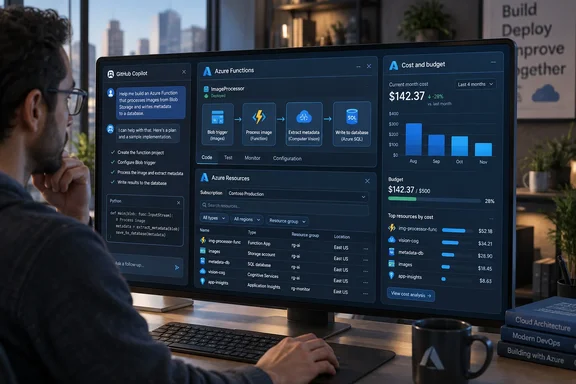
The idea is straightforward: let chat handle the conversation, while a purpose-built interface keeps the work visible. Nobody should need to excavate a chat transcript just to find the dashboard they were using.
Three canvases for different Azure tasks
Microsoft’s initial collection covers three distinct workflows:
| Canvas | Documented purpose |
|---|---|
| Azure Functions Hosted Skills | Build, run, and deploy hosted skills using Azure Functions. |
| Azure Resources Query | Browse resources across selected subscriptions in a read-only view. |
| Azure Cost Health Check | Examine costs, forecasts, budgets, governance, and AI billing in a shared dashboard. |
These are not interchangeable tools. In particular, the resource browser’s read-only scope differs from the Functions canvas’s deployment capabilities. For an initial evaluation, that makes resource discovery the more conservative starting point—an editorial recommendation based on those documented boundaries, not a claim that every canvas has identical permissions or safeguards.
What a canvas adds to Copilot
GitHub’s documentation describes canvases as bidirectional work surfaces: the agent can update the interface while it works, and the user can interact with that same surface. A plugin can package a canvas together with skills or MCP servers, but those components serve different purposes. The canvas is the visible workspace, rather than merely another data connection.
That distinction matters when evaluating the announcement. A successful experience should provide something you can inspect and steer, not just a longer answer in chat. GitHub documents canvases opening in the app’s right-side panel, with people and agents interacting through UI controls and agent-callable capabilities.
Microsoft also says routine interface operations can execute in code without another model request. That offers a plausible route to lower latency and reduced AI-credit consumption, but the announcement provides no measured savings. Treat it as a design benefit, not a benchmark.
How to start using Azure canvases
Microsoft documents this installation path:
- Install the Azure CLI, then authenticate with
az login. - In the GitHub Copilot app, open Customize → Plugins.
- Select the Awesome Copilot marketplace, find the Azure canvas you want, and choose Install.
- Start a new session to make the installed canvas and skills available.
- Ask Copilot to begin the corresponding Azure task.
The expected result is a canvas opening beside the conversation when the workflow starts.
For the app itself, GitHub’s quickstart lists a GitHub account, Git installed locally, and either a Copilot plan or a configured model provider as prerequisites. GitHub says the app is available across all Copilot plans; that statement does not establish that Azure workloads or model usage carry no additional costs.
The enterprise policy detail worth checking
There is one useful administrative wrinkle beyond the launch announcement: the GitHub Copilot app policy is separate from the Copilot CLI policy. GitHub says Business and Enterprise users need the app policy enabled, even though it is enabled by default. Administrators should therefore check app access rather than assuming that permission to use Copilot CLI settles the question.
For developers and cloud administrators, the practical takeaway is modest but meaningful: Azure canvases give selected cloud workflows a visible interface inside the Copilot app. Start with a clearly scoped task, confirm that the intended canvas appears, and evaluate whether the shared surface makes the work easier to inspect. The strongest promise here is not autonomous cloud management—it is less scrolling and a clearer place to collaborate with the agent.
References
- Announcing: Azure canvases for GitHub Copilot Azure Updates · 2026-09-30T17:09:51Z
- Working with canvas extensions in the GitHub Copilot app - GitHub Docs docs.github.com
- Getting started with the GitHub Copilot app - GitHub Docs docs.github.com