

The short version
| Tool | Best for | Someone at the PC must act? | Persistence |
|---|---|---|---|
| Quick Assist | One-off fixes with a capable user | Yes, every session | None |
| Chrome Remote Desktop | Repeat access to a PC you look after | Only during setup | Stays available once configured |
| RustDesk | Fuller control and more settings | Not if you set a permanent password | Optional |
Quick Assist: temporary and approval-based
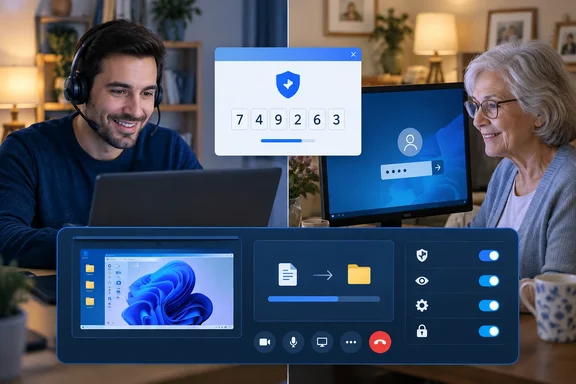
Hein's usual first choice is Quick Assist, for a regular Windows user who can follow basic instructions and doesn't need ongoing access. The helper signs in with a Microsoft account and gets a code. The other person enters it under Get Help and approves the connection. The helper can then see the screen but not change anything until they request control and the user approves that too.
Microsoft's documentation matches this. Microsoft says it covers Windows 11 and Windows 10, and the app comes from the Microsoft Store. The helper chooses Help someone and shares a 6-digit code. After the code is entered, the helper waits for the person to allow the connection and share their screen. Full control is a separate request. The person being helped can end it with Cancel control, and either side can finish by selecting Leave. Microsoft also lists a laser pointer, annotation and chat as in-session tools.
Hein calls the multi-step flow friction for less confident users, and for his mother it can take longer than the repair. I'd call it a feature too. Approval at every step means nobody can quietly slip into the PC later.
Quick Assist caveats
- Managed PCs: Microsoft says a work or school PC may block the Store install because of organizational policy.
- WebView2: Microsoft Edge WebView2 is required. It should already be there on Windows 11 or with Edge installed. Otherwise it installs on first launch, which may mean a longer wait.
- Older builds: Some older Windows 10 versions (LTSC 2019/1809, 20H2, 21H1, 21H2) and Windows 11 21H1 may not be able to install the Store version. Microsoft's guidance is to install the latest Windows updates to get the original version working.
- Store trouble: Microsoft suggests resetting the Store cache by running
wsreset.exefrom the Run dialog (Windows key + R). It also suggests checking for Windows updates and verifying time and region settings. - Scams: Microsoft warns that tech-support scammers abuse remote-access tools. It says to allow a helper only if you started the contact. For family support, that means a code should only go to someone you called, or who called you in a way you can confirm.
Chrome Remote Desktop: set it up once, reconnect later
Hein uses Chrome Remote Desktop when he needs to get back into the same PC without the user doing anything. Setup on the family PC takes a few steps: enable remote access, install the host component, name the computer and create a PIN. After that it appears in his device list whenever the PC is online.
Google's help page describes the same flow. On the target computer, you open Chrome, go to the remote access page and click Download under "Set up remote access". You then follow the install prompts, and you may need to enter the computer's password. To connect later, the helper opens the access page, picks the computer, enters the PIN and connects.
Two modes, not one
Google documents a separate remote support mode, which people often confuse with persistent access. In it, the person at the PC generates a one-time code and shares it. When the helper enters the code, the PC owner sees a dialog with the helper's email address and must click Share. Google says the code works only once. The sharing person is also asked every 30 minutes to confirm they want to continue. The PIN route is the standing-access option, and the code route is the attended one.
Housekeeping and troubleshooting
- Google says all sessions are fully encrypted. A helper ends one by closing the tab or choosing Disconnect.
- To revoke access, click Disable remote connections next to the computer in the list. On Windows you can also remove the Chrome Remote Desktop app through Add/Remove programs.
- If connections fail, check that antivirus allows outbound UDP, inbound UDP responses, TCP 443 and TCP/UDP 3478. Work or school networks and managed accounts may also block it.
- Most home users shouldn't change firewall rules ahead of time. Treat that list as a diagnostic checklist.
RustDesk: the full toolbox
Hein rates RustDesk as the highest-control option of the three, and likens it to the paid GoToMyPC he used years ago. Both PCs need the app installed. The family member opens it and reads out an ID and a one-time password. For ongoing access, you can set a permanent password so nobody has to approve each connection.
RustDesk's documentation says the client connects through RustDesk's public servers by default, or through a self-hosted server. The main screen shows the ID and one-time password. The Settings menu has Security (permissions, password options), Network, and Display (including clipboard sync) sections. Windows users download the installer from GitHub. File transfer, chat and session options are what Hein highlights. The documentation I could verify directly covers display settings, clipboard sync and permission controls.
Securing unattended access
A permanent password is a standing key to the PC, so handle it like one. RustDesk's own guidance says to set a strong, unique permanent password and not reuse the OS login, email password or another service's password. It also says to change the password immediately if it may have been disclosed. RustDesk offers TOTP two-factor authentication for incoming connections on the controlled device, which is worth enabling for a machine you plan to leave open.
RustDesk's unattended-access guide adds that a permanent password removes the need for someone to accept the prompt, while running RustDesk as a service lets it work independently of a logged-in user. For attended help, RustDesk prefers a temporary one-time password or explicit click approval when practical.
One more detail: RustDesk says controllers must log in on the public server, using a third-party identity provider such as Google or GitHub. That is a recent policy, so check the current login requirement before telling a relative it's a no-account tool. Self-hosting is optional and adds maintenance that occasional family support rarely justifies.
Choosing, and cleaning up afterward
- One-time fix, user can follow prompts: Quick Assist.
- Same relative, repeated problems, little tech comfort: Chrome Remote Desktop with a PIN, then remove access when no longer needed.
- You need file transfer, clipboard sharing or finer permissions: RustDesk, with a strong password and 2FA if access is unattended.
Whichever you pick, explain to the person what you can see and do. Agree on who holds the PIN or password, and revoke access when the job is done. Persistent access trades consent for convenience. That is a reasonable trade within a family, as long as you both know you made it.
These are not enterprise management tools. Organizational policy, network rules and a user's comfort level can decide whether a connection works at all, and Hein's own mother is the proof.
References
- 3 free tools I use to fix my family's Windows PCs without leaving home How-To Geek · 2026-10-07T16:30:14+00:00
- Access another computer with Chrome Remote Desktop - Computer - Google Chrome Help support.google.com
- FAQ · rustdesk/rustdesk Wiki · GitHub github.com