

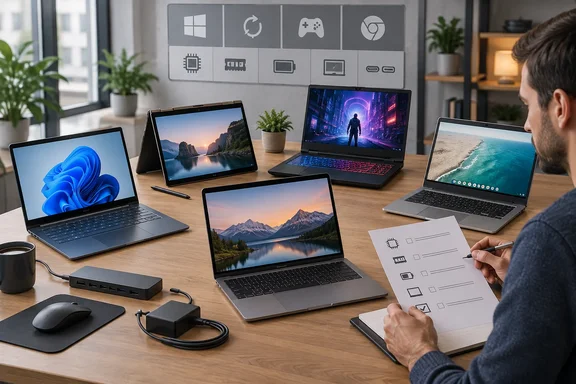
PCMag’s 2026 laptop guide combines tested recommendations with a broader buying framework covering Windows notebooks, MacBooks, Chromebooks, gaming systems, and mobile workstations. Its most useful principle is straightforward: compare individual configurations against your needs, rather than choosing by brand reputation alone.
For Windows buyers, one particularly important distinction deserves more attention than a processor badge: Windows 11 on Arm supports many conventional Windows applications through emulation, but that support does not extend to every driver or peripheral. Microsoft’s documentation makes that boundary explicit.
Start with the job, not the specification sheet
Before comparing laptops, write down three things:
- Your essential applications and devices. Include work software, games, plug-ins, printers, docks, and specialist peripherals.
- Your normal working location. A daily commute demands different compromises from a laptop that rarely leaves a desk.
- Your complete budget. Include accessories, storage, software, and any support coverage you actually need.
PCMag separates laptops into several overlapping categories. General-purpose notebooks suit everyday computing; ultraportables emphasize mobility; convertibles and detachables add tablet-style use; gaming laptops prioritize graphics; and business systems and workstations address organizational or professional requirements.
Those categories are starting points, not sealed compartments. A business laptop can also be an ultraportable or a convertible. Choose the capabilities first and let the category follow.
What PCMag’s recommendations illustrate
The inspected PCMag guide identifies several category winners. These are PCMag’s selections, not results from WindowsForum testing, and should be treated as candidates to investigate rather than universal answers.
| PCMag selection | Category | Question to settle before buying |
|---|---|---|
| HP OmniBook 5 14 | Windows laptop for most people | Does its Snapdragon-based platform support your complete workflow? |
| LG Gram Pro 2-in-1 16 (2025) | Convertible 2-in-1 | Will you regularly use the touch screen and convertible design? |
| Asus ProArt PZ13 | Detachable Windows tablet | Does a removable keyboard suit where and how you type? |
| Framework Laptop 16 | Desktop replacement | How much do repairability and component flexibility matter to you? |
| Dell Pro Max 18 Plus | Mobile workstation | Does your professional workload justify a large workstation? |
| MSI Prestige 14 Flip AI+ | Long battery life | How closely does the battery-test workload resemble your day? |
The takeaway is not that everyone should buy from this table. It is that “best” changes with the task.
Windows on Arm: check the whole workflow
Windows on Arm is not a separate operating-system alternative to Windows 11. It is Windows running on a different processor architecture.
Microsoft states that Windows 11 on Arm can emulate both x86 and x64 applications. Windows 11 version 24H2 introduced the Prism emulator, with performance optimizations for emulated software. Native Arm applications remain preferable where available.
That makes Arm laptops viable candidates—not machines to reject automatically. Microsoft lists native Arm versions of applications including Word, Excel, Outlook, Teams, Chrome, and Zoom. However, an application’s availability does not establish compatibility for every associated add-in or specialist workflow.
Drivers are the critical exception. Microsoft says application emulation does not support drivers; kernel-mode components must be compiled for Arm64. An application that opens successfully can therefore still depend on hardware or software components that do not work.
Before buying an Arm laptop, use this checklist:
- Confirm support for the exact versions of your essential applications.
- Check required plug-ins, add-ins, and hardware utilities separately.
- Ask peripheral manufacturers about Arm64 driver support.
- Confirm compatibility for security software required by your employer.
- Check individual games, including their anti-cheat requirements.
Microsoft specifically warns that some games relying on incompatible anti-cheat drivers, some third-party antivirus products, and certain Windows-customization tools may not work on Arm PCs.
Our buying recommendation: if a non-negotiable component remains unconfirmed, resolve that uncertainty before purchasing. A return policy is useful protection, but it is not a substitute for compatibility research.
Memory and storage: buy for your workload
PCMag recommends 16GB of RAM as a more comfortable target for heavier multitasking and gaming, while acknowledging that lighter Windows workloads can function with 8GB. Its storage guidance centers on a 512GB SSD for mainstream use and considering 1TB for gaming.
These are buying recommendations, not universal system requirements.
A practical way to apply them is:
- Light everyday use: Consider a modest configuration only after checking the applications you actually run.
- Several applications open together: Prioritize memory rather than spending the entire upgrade budget on the processor.
- Development or content creation: Size memory and storage around your projects, tools, and concurrent workloads.
- Gaming: Estimate the space required by your actual library, not merely the operating system.
Before choosing a cheaper memory configuration, ask whether that exact model permits an upgrade. Likewise, establish whether additional storage can be installed internally or whether you would need an external drive.
The useful question is not “How much RAM is enough for everybody?” It is “What happens when my normal workload gets busier?”
Match the display and graphics to each other
PCMag’s display advice starts with full-HD-class resolution for everyday use, with higher-resolution, OLED, and mini-LED options offering different premium choices. For gaming, it emphasizes matching refresh rate to achievable graphics performance.
Apply that advice in two stages.
First, assess the screen you will live with. Consider readability, reflections, brightness, touch requirements, and whether you prefer more workspace or a smaller machine.
Second, assess what drives it. Compare gaming or creation benchmarks for the actual laptop configuration and your intended resolution. A high-refresh display does not, by itself, establish that the machine can deliver the frame rates you want.
Processor and GPU family names help organize a shortlist, but they should not finish the decision. PCMag itself qualifies its processor-number and suffix rules. Our recommendation is to compare the complete laptop, not promote a chip label into a performance guarantee.
Battery life: compare methods before numbers
PCMag describes its battery test as continuous playback of a locally stored video at medium brightness. That is useful for comparing systems tested under the same procedure, but it is not a promise of identical endurance during meetings, software builds, or gaming.
Manufacturer estimates require the same scrutiny. Apple’s March 11, 2026 announcement describes battery testing for the MacBook Neo using specific web-browsing and streaming procedures, and explicitly says endurance varies with use and configuration.
When judging a battery claim, ask:
- What task was running?
- Which configuration was tested?
- What display settings were used?
- Is the figure a manufacturer estimate or an independent measurement?
For your own shortlist, favor comparable results over isolated headline numbers. Also decide whether you are willing to carry the supplied charger every day. Portability should describe the equipment you carry, not just the laptop sitting on a scale.
Macs, Chromebooks, and the cost of switching
A broad laptop comparison should not exclude alternatives to Windows, but the operating system should be an early decision—not an afterthought.
Apple’s 2026 lineup includes the MacBook Neo, M5 MacBook Air, and MacBook Pro models with M5 Pro and M5 Max. Apple announced their availability on March 11, 2026. Those are established product releases, rather than speculative additions to a buying guide.
Our recommendation is to evaluate a MacBook or Chromebook against the same essential-software list you use for a Windows laptop. Include offline requirements, file exchange, organizational policies, and the cost of replacing applications or accessories.
Do not assume that a lower hardware price makes switching cheaper overall.
Ports, refurbished systems, and warranties
PCMag’s connectivity guidance is refreshingly practical: match the laptop to the devices you already own.
Before ordering, list your external displays, USB accessories, memory cards, wired-network requirements, and audio equipment. Then check the exact configuration’s specifications. If the setup requires adapters or a dock, add them to both the budget and the compatibility checklist.
For a refurbished purchase, ask the seller to document:
- Cosmetic condition and battery condition.
- Included charger and accessories.
- Warranty length and exclusions.
- Return period, fees, and shipping responsibilities.
PCMag notes that refurbishment grades vary between sellers. Treat a grade as a prompt for questions, not a standardized guarantee.
Apply similar discipline to extended warranties. Compare what is covered, how repairs are handled, and how much downtime you can tolerate. Do not assume accidental damage is included—or that your credit card provides protection—without reading the applicable terms.
The final buying test
Once you have a shortlist, compare exact configurations, not product-family names. Record the processor, memory, storage, display, graphics, ports, operating system, warranty, and total purchase cost.
Then test the winner during the return window with your real workload: install essential software, connect peripherals, try your normal multitasking, and use it away from power.
That is the strongest way to choose the best laptop for 2026. Start with compatibility, spend on the capabilities you will use, and judge the complete machine. The right laptop should make your work easier—not give you a second job managing its compromises.
References
- The Best Laptops for 2026 PCMag UK · 2026-10-01T09:00:00+00:00
- MacBook Neo, iPhone 17e, iPad Air with M4, and more are now available - Apple apple.com
- Windows Arm-based PCs FAQ | Microsoft Support support.microsoft.com