

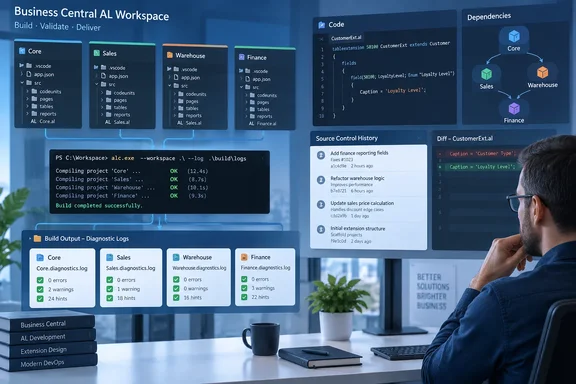
For teams maintaining several interdependent AL extensions, the opportunity is straightforward: preserve the evidence behind a build result, then use it to decide what needs attention. The logs supply the raw material; useful reporting still requires a pipeline that collects and interprets it.
What the release information establishes
Microsoft’s roadmap record identifies the change as item 573351, “Track AL compiler diagnostics in automated builds.” The record lists:
- Product: Dynamics 365 Business Central.
- Status: Launched.
- Release ring: General Availability.
- General-availability month: October 2026.
- Platform: Web.
- Cloud instance: Worldwide (Standard Multi-Tenant).
Those are the item-specific roadmap metadata, not proof of an exact rollout day. As of October 1, 2026, the record’s month-level timing does not establish when a particular development environment received the capability.
There is separate primary-source corroboration for the feature itself: Microsoft Learn’s Business Central 2026 release wave 2, update 29.0 public-preview overview describes workspace builds producing structured compiler-error logs for individual projects. That page remains explicitly labeled prerelease documentation and limits its environment guidance to online sandboxes, not production or on-premises installations. It should not be mistaken for confirmation of universal production availability.
Why the workspace boundary matters
Microsoft documents ALTool as a command-line utility for compiling and packaging Business Central AL extensions. Its workspace commands apply to Business Central 2026 release wave 1 and later. Workspace compilation reads project manifests, builds a dependency graph, and compiles projects in dependency order, with parallel compilation where possible.
That existing workspace support is distinct from the new diagnostic-log capability. The earlier applicability statement is not evidence that older ALTool versions produce the new structured output.
Consider a workspace containing a shared extension, a customer-specific extension, and tests. As an illustrative pipeline design, retaining diagnostics by project would let a team compare the shared extension’s findings between commits without folding everything into one workspace-wide total. A single count can tell you something changed; project-level evidence can help explain where.
The practical value is traceability—not an automatic quality score.
The existing controls teams can build around
Microsoft’s ALTool documentation already exposes several relevant workspace-compilation options:
| Option | Documented purpose |
|---|---|
--logdirectory | Select the directory for compilation log files. |
--loglevel | Set logging detail. |
--analyzers | Select built-in analyzers: CodeCop, AppSourceCop, PTECop, and UICop. |
--customanalyzers | Supply custom analyzer assemblies. |
--sourcerepositoryurl | Supply the workspace’s repository URL. |
--sourcecommit | Supply its source commit ID. |
Microsoft also recommends the Business Central Development Tools NuGet package for automated environments; it provides the al command without requiring a full Visual Studio Code installation.
These controls establish a useful foundation, but they do not establish the new logs’ schema, filename pattern, severity coverage, minimum tool version, or whether repository metadata is embedded automatically. The inspected documentation does not supply those implementation details.
A sensible pipeline adoption plan
The following is implementation advice, not a claim that Microsoft has supplied a ready-made reporting integration:
- Validate output before writing a parser. Confirm that the installed ALTool produces the expected project-specific files, and inspect their actual structure.
- Retain artifacts from failed builds too. Diagnostic evidence is particularly valuable when compilation fails.
- Associate each artifact set with its build. Record the commit, tool version, and analyzer configuration alongside the files rather than assuming that information is embedded.
- Keep comparisons consistent. Treat compiler or analyzer upgrades as potential baseline changes, not automatically as code regressions.
- Define an explicit reporting policy. Decide which findings block a build, which trigger review, and which are retained only for trends.
For a hypothetical warning-tracking dashboard, the useful question is not merely “Did the total rise?” It is “Which project introduced which finding under the same analysis configuration?” That distinction keeps a dashboard from becoming a very colorful argument.
Do not confuse build logs with diagnostic retrieval
Microsoft already documents a separate tool, al_getdiagnostics, available with AL Language extension 17.0 and later. In Visual Studio Code it reads the Problems panel; in AL MCP it reads compiler output. It supports errors, warnings, informational messages, and hints.
That retrieval tool defaults to 200 diagnostics, with a maximum requested limit of 500. Its Visual Studio Code response includes a truncated indicator. These are boundaries of the retrieval tool—not documented limits of the new workspace-build logs. A team using both should avoid treating a capped retrieval response as a complete historical build record.
The bottom line
Business Central’s structured workspace diagnostics are a focused developer-tooling improvement: Microsoft has documented a mechanism for retaining project-specific compiler findings that automated systems can analyze. It has not, in the inspected evidence, documented a built-in trend dashboard, alert-routing service, or complete log-format contract.
The best next step is therefore modest: verify the output in the team’s toolchain, retain it reliably, and build comparisons around a known configuration. A green build remains useful—but keeping the evidence behind it makes the next investigation considerably less archaeological.
References
- Dynamics 365 Business Central: Development - Track AL compiler diagnostics in automated builds Microsoft 365 Roadmap · 2026-09-30T23:31:03.389585Z
- ALTool - Business Central | Microsoft Learn learn.microsoft.com
- Get AL diagnostics - al_getdiagnostics - Business Central | Microsoft Learn learn.microsoft.com