

What Microsoft announced
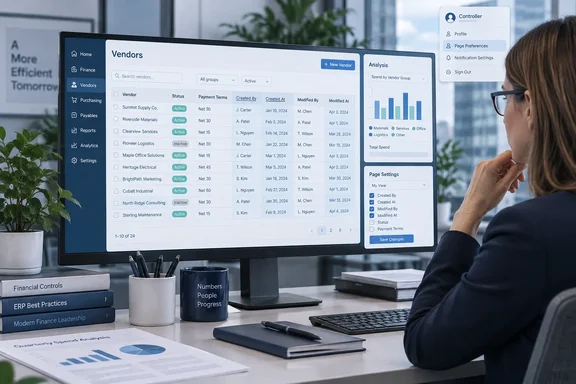
Microsoft 365 roadmap item 573322 is titled "Dynamics 365 Business Central: Reporting and data analysis – Use system audit fields in analysis mode and in profiles." It says users can work with system audit fields in analysis tabs and add those fields directly to pages in profiles.
The roadmap entry lists:
- Status: Launched
- Product: Dynamics 365 Business Central
- Platform: Web
- Release ring: General Availability
- Cloud instance: Worldwide (Standard Multi-Tenant)
- General availability: October 2026
The same feature name and description appear in Microsoft Learn's release notes for Business Central 2026 release wave 2, update 29.0, under "Reporting and data analysis." That page is still marked as prerelease documentation. It says the 29.0 public preview runs only in online sandbox environments, not in production or on-premises. Microsoft also says the preview lasts until update 29.0 reaches general availability in the first week of October, and that information about on-premises deployments will be added at GA.
"Launched" and "October 2026" are two separate facts. The roadmap gives no exact rollout day, minimum build, opt-in procedure or on-premises commitment. If your production tenant doesn't show the feature yet, check whether it has been updated to 29.0 before assuming it's broken.
Section summary: The feature ships with update 29.0 for Business Central online, worldwide multi-tenant, in the web client, with GA set for October 2026.
What "system audit fields" actually are
These aren't new fields. Microsoft's developer documentation says that from Business Central 2020 release wave 2 onward, every table has four data audit fields:
| AL field name | Data type | What it holds |
|---|---|---|
| SystemCreatedAt | DateTime | When the record was created |
| SystemCreatedBy | GUID | Security ID (SID) of the user who created it |
| SystemModifiedAt | DateTime | When the record was last modified |
| SystemModifiedBy | GUID | SID of the user who last modified it |
Microsoft describes these as four system fields "which can be used for auditing records." The platform fills them in itself. When a record is first inserted, the created and modified fields get the same values. After that, the "created" fields never change, and the "modified" fields update every time the record is saved. Developers can assign values in code, but Microsoft says the values actually written to the database always come from the platform.
The documentation lists a few exceptions:
- When you copy a company, the platform doesn't fill in fresh values. The existing values are copied into the new company.
- Table schema synchronization doesn't populate them either.
- Audit field values can't be imported with configuration packages.
So after a migration or company copy, "created at" may reflect the original source data rather than the date of the copy.
These fields have existed since 2020, so why is this news? Mostly because they were hard to get at. When the fields first appeared, Microsoft MVP Yun Zhu wrote that "we can only directly open the table to confirm Data audit system fields now. Maybe these four fields are added to better coupling with CDS. For users who only use Business Central, it does not seem to be very useful." Six years later, Microsoft is putting them in places where business users actually work.
Surface one: analysis mode
Analysis mode is Business Central's built-in pivot tool. You turn it on from a list page or query, then pick columns, filter, group, subtotal and pivot without exporting to Excel. According to Microsoft Learn, it doesn't change the underlying data or the page's normal layout. The data starts from whatever filters or view are already set on the list page.
Being able to use audit fields in analysis tabs makes questions like these quick to answer:
- Which customers or vendors were created last week, and by whom?
- Which items were modified since the last price review?
- Which user created the most master records during a data migration?
That's our reading of how the fields and analysis mode work together. The roadmap entry doesn't list these scenarios.
One thing to watch: SystemCreatedBy and SystemModifiedBy hold a user's SID, which is a GUID. A GUID column in a pivot table isn't very readable. Microsoft's developer documentation includes sample AL code that looks up the User table to turn a security ID into a user name.
Yun Zhu has written about new BC29 system flow fields named SystemCreatedByUserName, SystemCreatedByFullName, SystemModifiedByUserName and SystemModifiedByFullName. He lists ways to surface them: the Customize pages for profiles feature, the note that "you can add these fields directly in Analysis Mode," and AL customization. Going by the names, these likely solve the GUID problem by showing readable user names. Microsoft's roadmap entry doesn't mention them, though, so treat that as community reporting to confirm in your own tenant.
Existing analysis mode rules still apply
These rules come from Microsoft's current analysis mode documentation. Nothing we found says the audit field change alters them:
- Permissions: In version 23 and later, users need the DATA ANALYSIS – EXEC permission set, or execute permission on system object 9640, "Allow Data Analysis mode." Admins can withhold it.
- Not every list supports it: Developers can turn analysis mode off on specific pages with the AL
AnalysisModeEnabledproperty. Lists that use indentation, such as the Chart of Accounts, don't support it at all. - Views are personal: Analysis views are visible only to the user who created them. Shared links work only for recipients who already have permission to the company and the data.
- Large datasets: Past 100,000 rows, or when related-table fields are added, calculated field values aren't displayed.
- Date hierarchies: The automatic Year/Quarter/Month breakdown currently works only on Date fields, not DateTime fields. SystemCreatedAt and SystemModifiedAt are DateTime, so based on the current documentation, don't expect automatic quarter groupings on them.
Surface two: profiles
The second part lets admins add system audit fields directly to pages in profiles. Profile customization already lets an admin shape pages for a whole role, such as "Accountant" or "Order Processor," rather than leaving each user to personalize their own view. Yun Zhu's coverage points to the existing BC23-era ability to add table fields to pages without a page extension as the way in.
Practitioners have long recommended setting things up at the profile level. A Dynamics Communities user group post on analysis mode says that "analysis mode only analyzes fields that are already visible on the list page," and recommends a modification to the Role Center/Profile rather than relying on every user's personalization. Putting "Created By" and "Last Modified At" on a role's list pages means everyone in that role sees the audit context without having to set it up themselves.
The sources we reviewed don't give step-by-step instructions for this new profile option. They don't say whether every page supports it or how display controls behave. We won't invent menu paths. Test it in a sandbox before rolling it out to a role.
What this isn't: a change log replacement
The four fields tell you who created a record and who touched it last, and when. They don't tell you:
- what changed,
- the old and new values, or
- anything about the edits in between.
For that, Business Central has the separate Change Log. With the Change Log, you decide which tables and fields to monitor, then activate the log. Change Log Entries can also be analyzed in analysis mode, with fields such as User ID, Date and Time, Table Caption, Field Caption, Primary Key Value 2, Primary Key Value 3, Type of Change, Old Value, and New Value.
Think of the audit fields as a quick record-level trail and the Change Log as the detailed history. If your auditors want to know who set a customer's credit limit to zero, and someone else has edited the record since, SystemModifiedBy will name the most recent editor, not the person who made that change.
What admins should do now
- Check your version. The feature arrives with update 29.0. Confirm your production environment has moved to it.
- Check permissions. Users without DATA ANALYSIS – EXEC won't see analysis mode, audit fields or not.
- Try it in a sandbox first. Microsoft says preview sandboxes on 29.0 will be deleted about 30 days after GA, in early November 2026, and they can't be updated to another version. Recreate any test sandboxes you need on the GA build.
- Pick your profiles. Roles like master data stewards, AP clerks and controllers get the most out of seeing creator and modifier columns.
- Explain what the fields mean. "Modified By" means the most recent editor. For field-level history, set up the Change Log.
Bottom line: This is a small change, but it's useful. Microsoft is making existing platform data visible where business users already work. It won't satisfy a forensic auditor on its own, but it should cut down the routine "who made this?" questions.
References
- Dynamics 365 Business Central: Reporting and data analysis - Use system audit fields in analysis mode and in profiles Microsoft 365 Roadmap · 2026-09-30T23:31:03.389585Z
- Table System fields - Business Central learn.microsoft.com
- What's New or Changed in Business Central 2026 release wave 2 - Update 29.0 preview - Business Central | Microsoft Learn learn.microsoft.com