

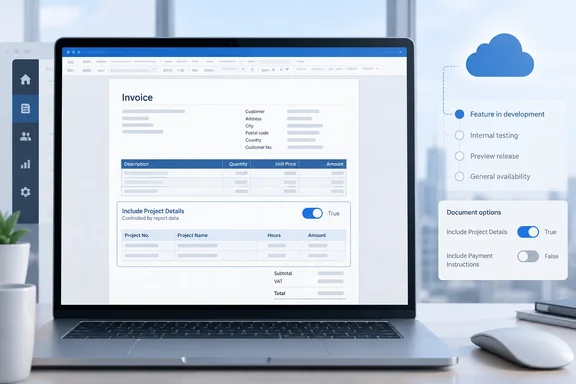
Microsoft does not yet document the control's ribbon path or its exact rules. The rest of this piece covers what has been confirmed, how HideIf fits with the existing controls, and what to test before you put it into a production invoice.
What Microsoft is shipping
The roadmap description is short:
- Feature: conditional visibility in the updated Business Central Word add-in.
- Mechanism: a new HideIf logic control.
- Condition source: Boolean fields that already exist in the report's dataset.
- Scope: document report layouts, which means quotes, orders, invoices and similar outbound documents.
- Availability: listed as launched, GA in October 2026, on worldwide standard multi-tenant cloud.
A community source confirms the release timing. Belgian Business Central blog Think About IT, reviewing the 2026 release wave 2 (update 29.0) public preview, says the updated Word add-in gets matching design components for document reports, header and footer layouts, and report themes, plus conditional visibility through a new HideIf control. That places HideIf in the BC29 wave, alongside "composable layouts." According to the same post, composable layouts let you apply a report theme and a header or footer layout independently across document reports, with defaults settable at global, company, report or layout level.
Two caveats apply. The AI at Work roadmap says its dates are estimates and that all information is subject to change. October 2026 also started only hours ago, so "GA in October" is a schedule. It does not mean every tenant has the feature today.
Section summary: HideIf is a Boolean-driven show/hide control for Word document layouts. It arrives with Business Central 2026 release wave 2, and the roadmap targets October 2026 GA on the worldwide cloud.
Why this matters: the long road from RDLC expressions
Word layouts have been easier to edit than RDLC layouts for a long time, but much less capable.
In the RDLC era, conditional output was a property you set. Microsoft's NAV 2018 developer documentation explains that to specify conditional visibility in an RDLC report layout, use an expression on the Visibility property of the report item or table row. Its standard example is a request-page option: if the request page for the report has a Show Address Details check box, then the address details are printed only if the check box is selected.
Word layouts had no equivalent for years. When a community member asked whether a table row could be hidden conditionally in a Word layout, the suggested answer was blunt: "I think the only way to do is to exclude it from the dataset." The fix was to change the AL report code, not the layout.
Business Central 2024 release wave 2 (BC25) started to close that gap. Zhang Yun (yzhums.com) summarised the BC25 preview as adding a new Word add-in [that] lets you control conditional visibility of text, tables, or table rows/columns. Those controls are all "hide if empty" controls. HideIf adds an explicit true/false condition, which is the Word-side counterpart of the old RDLC Hidden expression. My inference is that it is less flexible than RDLC, because the condition must already exist as a Boolean column in the dataset rather than being written as an expression in the layout.
The current toolbox: what HideIf joins
Microsoft Learn's Word add-in page applies to Business Central 2024 release wave 2 and later. It says the add-in includes a comment control, and that other controls let you encode a layout file with conditional visibility of fields, tables, table rows, and table columns based on data.
| Control | What triggers it | What it does at runtime |
|---|---|---|
| Hide Field if Zero | Field value is 0 | Turns the zero into a blank string; works on standalone fields or fields in a repeater |
| Hide Empty Table | Data item has no rows | Removes the table (apply it to the table, not the repeater) |
| Hide Empty Table Row | Selected field in the repeater has no value | Leaves that row out |
| Hide Empty Table Column | Field has no values across all rows | Removes the column; Microsoft's example is a discount column on invoices |
| HideIf (new) | Boolean dataset field | Controls whether the enclosed content is visible |
The existing controls sit under Business Central > Hide if empty on the ribbon. They all react to missing data: blank, zero or no rows. HideIf reacts to a business condition. Examples include a dataset flag saying whether a customer is in a particular segment, or whether an order carries a certain attribute. The flag has to be a Boolean column that the report's AL dataset already exposes.
Section summary: the "Hide if empty" controls cover missing data. HideIf covers conditions you define, provided the condition is already a Boolean in the dataset.
Getting the add-in and a layout ready
Microsoft hasn't published a HideIf how-to yet, so I won't guess at its menu path. The documented setup steps still apply.
Install the add-in in Word
- In Word, go to Home > Get Add-ins.
- Search for Dynamics 365 Business Central Word Add-in.
- Pick a version and select Add. A Business Central tab appears in the ribbon.
There are two versions. The stable release has the core functionality. The (preview) version has features that aren't in the stable release yet, and Microsoft warns that these may change or never ship. You can install both and switch between them. Microsoft hasn't said which version carries HideIf at launch, so if you can't find it in one, check the other.
Export the layout correctly
- In Business Central, search (Alt+Q) for Report Layouts.
- Select the Word layout.
- Choose Actions > Update and Export Layout to download the .docx file.
Don't skip the "Update" part. Microsoft says this action embeds the layout metadata the add-in needs. If you export without it, the add-in shows a message when you try to use it.
Re-import and test
After editing, go back to Report Layouts, select the layout, use Replace Layout to upload the modified file, and then run the report (Run Report > Print) to check the output.
A practical test plan for HideIf layouts
This is general report-QA advice, not a Microsoft procedure:
- Check the Boolean exists. HideIf only reads fields that are in the dataset. If the flag isn't there, someone has to add it to the report or a report extension in AL. The add-in can't create it.
- Test both outcomes. Run the report against a record where the flag is true and one where it's false, and compare the PDFs.
- Watch for empty space. Hiding a block can leave blank space or awkward page breaks in a tightly formatted invoice.
- Mark hidden logic with layout comments. The add-in's Insert layout comment control adds notes that appear in Word but never print. They're a good place to explain why a section disappears for some customers.
- Keep a rollback copy. Keep the previous .docx so you can restore it quickly if the new layout misbehaves in production.
What we still don't know
These points aren't established yet:
- the exact ribbon location and steps for applying HideIf
- whether it ships in the stable add-in, the preview add-in, or both
- whether the condition can be reversed (show only when true) or only hides when true
- which kinds of content it can wrap: text, tables, rows, images, or nested controls
- whether it works on on-premises deployments; the roadmap lists only worldwide multi-tenant cloud
The bottom line
HideIf adds the missing "if" to Business Central Word layouts. Authors no longer have to keep near-identical layout copies or ask a developer to filter the dataset just to show a paragraph for some documents and not others. Together with composable layouts in the same wave, it moves Word layouts closer to what RDLC could always do, while keeping editing in Word.
The limit is that HideIf only works with Booleans the dataset already provides. Business users can design the layout, but developers still decide which conditions are available. Until Microsoft publishes the full documentation, test both outcomes and keep the old layout file handy.
References
- Dynamics 365 Business Central: Reporting and data analysis - Use conditional visibility in the updated Word add-in Microsoft 365 Roadmap · 2026-09-30T23:31:03.389585Z
- Business Central 2024 wave 2 (BC25): Use improved features for report documents (New Word add-in……) yzhums.com
- Work with Word Layouts - Business Central | Microsoft Learn learn.microsoft.com