

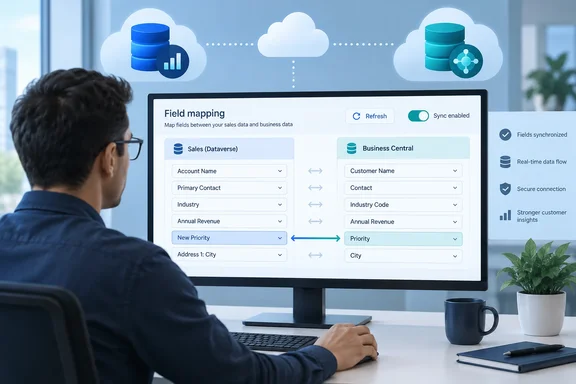
The change is small, but it removes a lot of routine work. Here is what changed, how the workflow runs, where it stops, and one date conflict in Microsoft's own documentation that admins should know about.
What Microsoft shipped
Microsoft says the feature makes it easier to keep Business Central and Dataverse aligned as Dataverse schemas change. Until now, if you wanted to expose a new or existing custom Dataverse field to Business Central, you had to create or update a per-tenant extension (PTE) table extension in the integration layer. Microsoft says it removed that requirement after feedback from partners and customers.
The new workflow runs from the Integration Table Mappings page. Microsoft lists five steps:
- Refresh the Dataverse field list.
- Add the new field to an existing mapping.
- Select the matching Business Central field.
- Set the synchronization direction.
- Enable the field for synchronization.
After that, Microsoft says, the field takes part in sync without changes to extensions and without rebuilding the mapping. Microsoft's example is a custom field added in Dynamics 365 Sales. The company says organizations that customize Dataverse often will benefit most.
Microsoft's AI at Work roadmap record lists the feature as Launched, in the General Availability release ring, for the Web platform and the Worldwide (Standard Multi-Tenant) cloud, with general availability in October 2026.
Section summary: Business Central admins can now map a new Dataverse field into an existing table mapping from the UI instead of waiting for a developer to ship an extension update.
Which date is right?
Microsoft's two sources disagree on timing:
| Source | Public preview | General availability |
|---|---|---|
| Learn release-plan page (2026 release wave 1), last updated August 27, 2026 | April 1, 2026 | April 1, 2026 |
| AI at Work roadmap item 573365 | Not stated | October 2026 |
Independent coverage points to the earlier date. Business Central blogger Yun Zhu published a hands-on walkthrough months ago that described the feature as part of 2026 release wave 1 (BC28) . Daxly's connection guide also says that starting with version 28.0 (2026 release wave 1), you can map custom Dataverse fields and tables directly from the Integration Table Mappings page without writing AL code.
The calendar may offer one explanation. Microsoft's Learn page says it stopped publishing Release Plans in September 2026 and now puts new Dynamics 365, Power Platform and Dataverse capabilities on the AI at Work roadmap instead. Items that were released earlier may therefore show up on the roadmap with new dates. Microsoft hasn't said that, though, and the roadmap page itself says its dates are estimates and subject to change.
In practice, if your tenant runs version 28 or later, check the Integration Table Mappings page before you assume you have to wait until October.
Why admins should care
This builds on earlier work. In 2024 release wave 1, Microsoft let admins add table and field mappings to existing Dataverse integration tables through a guided setup. That release had a catch: to add additional or custom Dataverse tables, you'd need help from a developer to create and deploy them through an extension. Microsoft's mapping documentation adds that in version 27.0 (2025 release wave 2) and earlier, admins couldn't map new or custom fields through the Integration Table Field column.
So every new custom column added in Sales could become a small development project. Someone had to update the PTE, test it, deploy it, and then make sure it survived the next upgrade. Alister Jackson, whose azurecurve blog covers each Business Central release wave, described it this way: "every new custom Dataverse field required a table extension PTE, which added development cost and upgrade risk."
Microsoft's current mapping documentation goes further than field mapping. From 2026 release wave 1 (v28), it says, new and custom Dataverse tables also show up in the lookup on the Integration Table column. That table-level capability is a related change, not the subject of roadmap item 573365. Yun Zhu's testing also suggested that newly created tables don't yet appear everywhere in the guided setup. Treat custom table mapping as something to verify in your own tenant rather than assume.
Section summary: For field-level changes, a developer ticket becomes an admin task. Fewer PTE changes also means fewer things that can break during an upgrade.
How the workflow looks in practice
Yun Zhu's walkthrough shows the process end to end. In the default settings, BC Customer table integrates the Dataverse Account table. He added a test column, VAT Registration No., to the Account table in Dataverse. Then he went back to the Integration Table Mappings page in Business Central, chose Fields, and selected New Field Mapping .
The screen is laid out in two columns. The Field Name on the left represents all the table fields in Business Central, while the Integration Field Name on the right represents the table fields in Dataverse. He reports that in BC28 no code is required, the newly added field in Dataverse is already visible and can be mapped. The default status is Disabled.
The disabled default matches Microsoft's documentation, which says new field mappings added to an existing table mapping start out disabled and can be turned on later with Edit List.
Based on that, a sensible run-through for a new field looks like this:
- Create the column in Dataverse first, for example in the Account table behind Dynamics 365 Sales.
- Make sure a matching Business Central field exists. Daxly notes that custom field mapping requires that the field exists in both systems, in BC as a standard or extension field, and in Dataverse as a standard or custom column. This feature removes the integration-layer extension for the Dataverse side. It doesn't create a Business Central field for you.
- Open Integration Table Mappings, select the table mapping, choose Fields, then New Field Mapping, refreshing the Dataverse field list if your new column isn't shown.
- Pair the fields and choose a direction. Don't accept a default without thinking about which system owns the data.
- Enable the mapping with Edit List. A disabled mapping syncs nothing, which is a common cause of "I mapped it and nothing happened."
- Test on coupled records before relying on the field in production.
Limits and failure points
Microsoft's mapping guide comes with restrictions that are easy to miss:
- Field types are limited. The guide supports BigInteger, Boolean, Code, Date, DateFormula, DateTime, Decimal, Duration, GUID, Integer, Option and Text.
- No FlowFields or FlowFilters. The guide can't map these calculated Business Central fields.
- Fields must be enabled to be mapped.
- Values may need transforming. Microsoft's example is the US language code, which is "U.S." in Dynamics 365 Sales and "US" in Business Central. You may need a transformation rule, and the new feature doesn't create one for you.
- Option sets need checking. Microsoft says unmapped Dataverse options are ignored during sync and sent to a system table for someone to handle manually.
Also be careful how you test. Microsoft says syncing an individual table mapping covers coupled records, and by default only those modified since the last sync. A full synchronization is different: it can create and couple new records for anything not yet coupled. Microsoft warns that this can leave you with unwanted or duplicate records unless you really want a matching row for every source record. Don't run a full sync just to check one new column. Use Synchronize Modified Records on the individual mapping, then check the results on the Integration Synchronization Jobs page.
Finally, the scope. The roadmap entry covers the Worldwide multitenant cloud on the web. On-premises installations store field mappings in table 5336, but nothing in this announcement says the feature is available on-premises.
Section summary: The feature removes the extension step, but you still have to check field types, transformations and sync direction.
The bigger picture
This is one more step in Microsoft's long-running effort to turn Dynamics 365 integration work into configuration work that admins can do themselves. The 2024 guided setup let admins map tables and fields for out-of-the-box integrations. The 2026 wave extends that to custom Dataverse fields. Microsoft's documentation also points to custom tables, though one tester found that support still uneven.
There is a trade-off. Each change admins can make on their own is a change that may skip code review and source control. Teams that used to manage every mapping change in an AL project should decide who is allowed to add field mappings in production, and how those changes get recorded. It is now easier to add a mapping that syncs the wrong data in the wrong direction.
Overall this is a welcome improvement. Organizations that add Sales columns every quarter will see the most benefit. Organizations with tightly controlled schemas may barely notice it. Either way, it's worth confirming whether your tenant already has it, given that Microsoft's own documentation lists both April and October.
References
- Dynamics 365 Business Central: Adapt faster with Power Platform - Map new Dataverse fields in Business Central Microsoft 365 Roadmap · 2026-09-30T23:31:03.389585Z
- New Functionality In Microsoft Dynamics 365 Business Central 2026 Wave 1: Map New Dataverse Fields in Business Central azurecurve.co.uk
- How to Connect Business Central to Dataverse and Dynamics 365 daxly.io