

Here's what has changed, what's specific to Windows, and how to decide where your chats should live.
Two desktop apps now carry the ChatGPT name
The biggest thing the comparison leaves out is that "the ChatGPT desktop app" can now mean two different programs.
In July, OpenAI announced that the updated ChatGPT desktop app is available globally today for Mac and Windows, with Chat, Work, and Codex available to users on every plan, including Free. In the same announcement, OpenAI said the existing version of the ChatGPT desktop app will be renamed ChatGPT Classic. OpenAI's Learn site puts the date at July 9, when the Codex app merged into the ChatGPT desktop app for macOS and Windows.
Existing desktop users can install the new app when prompted. According to OpenAI's help center, the new app may install alongside your current app. If both remain installed, you will see: ChatGPT: The new app with Chat and Work under ChatGPT, plus Codex. The old app shows up as ChatGPT Classic, and you can continue using it; no migration is required at launch. OpenAI says Classic still gets model updates, bug fixes, security patches and support for its existing Enterprise features. However, new agent features such as Work and Codex are only in the new app.
This matters because "does the desktop app have X?" depends on which app you're running. Two people can look at their Start menus and give opposite answers, and both can be right.
Section summary:
- The new ChatGPT app combines Chat, Work and Codex. It's available on every plan, including Free.
- ChatGPT Classic is the older app. It's still supported, but it won't get the new agent features.
- Both can be installed at the same time, so check which one you're actually opening.
What happened to Projects, Pins and Scheduled
The Analytics Insight piece cites a July 2026 review that found the redesigned desktop app lacked Projects, Pins and the Scheduled page. That may have been true when the review was written. OpenAI's current documentation says otherwise for the new app.
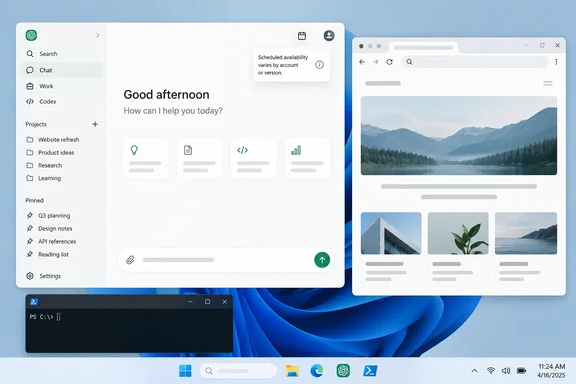
Projects and pinning are now on desktop. OpenAI's help center says Chat and Work chats appear together in Recents, where you can sort, filter, and pin chats. Your existing ChatGPT Projects also appear under Projects. From a project, choose Chat to start a new chat, or choose Work to start a Work chat using the project's context. OpenAI's release notes list these desktop changes as live for all plans on macOS and Windows.
Some work now moves between devices. Per OpenAI, Cloud Work chats sync across web, mobile, and desktop. Work chats started on web or mobile appear in the desktop app, and cloud Work chats started on desktop can be continued on web or mobile. There's a catch: OpenAI's Work documentation says local chats run on your computer. Messages and task context may be stored in the cloud, even when work runs locally. Running locally, in other words, doesn't guarantee your data never leaves the machine.
Scheduled is a "maybe." This is the one part of the old claim that still partly holds. OpenAI's scheduled tasks help page says the Scheduled page's availability depends on the app, the app version and your account. If it doesn't appear in the desktop app, OpenAI tells you to use the web. The desktop app can show existing event-triggered tasks, but it can't create them or edit their trigger conditions. That has to be done on the web or in a supported mobile app.
Deep research PDF export should be treated as history. Analytics Insight says web users could export deep research reports as PDFs, while the desktop app couldn't when that feature launched in May 2025. That was a comparison at launch time. None of the documentation reviewed here confirms whether the gap still exists, so don't rely on it either way.
Early rollouts can also be rough. In a GitHub issue opened last week, one user reported that the desktop app no longer shows existing ChatGPT Projects in the dedicated Projects section, even though the projects still exist server-side and remain visible through other surfaces. The same report says codex-windows-sandbox-service.exe continues running after the desktop app is fully exited and blocks Windows app maintenance operations such as Update, Repair, and Reset until it is manually terminated. This is one user's report, not a confirmed widespread bug. Still, if your Projects vanish on Windows, check chatgpt.com before you assume anything is lost.
Section summary:
- Projects and pinned Recents are in the new desktop app, according to OpenAI's documentation.
- Scheduled depends on account and app version. Event-triggered tasks still have to be created and edited on web or mobile.
- The PDF export gap dates from 2025 and hasn't been rechecked here.
The Windows details that matter
Analytics Insight only gives the Mac shortcut (Option + Space). The Windows app works a little differently, and PC users should know the specifics.
System requirements. OpenAI's Windows help article lists Windows 10 (x64 and arm64), version 17763.0 or higher. That covers Windows 11, and Arm-based Copilot+ PCs are officially supported. That help page still describes an "early version" for paid plans, which is out of date. OpenAI's July announcement says the new app is available on every plan, including Free.
The companion window. On Windows, OpenAI documents Alt + Space as the shortcut that opens a companion window while the ChatGPT app is running. From there you can ask questions, upload files, generate images or start new chats. Two practical points:
- OpenAI says the shortcut won't work if another Windows app has already claimed it. (Alt + Space also opens the standard window menu in Windows, and utilities like PowerToys have used it, so conflicts do happen.)
- You can change it under Settings > App > Companion window hotkey.
That guidance comes from the Windows help article, which appears to describe the Classic-era app. In the new app, OpenAI's Learn documentation says for a quick question, point to New chat and select the Quick chat icon on its right. OpenAI's release notes confirm that Quick Chats are still available after the redesign.
On the Mac, the Chat Bar opens with Option + Space by default, and its plus menu can attach files or photos or take a screenshot. Screenshot capture needs macOS screen-recording permission. The shortcuts and capture options differ between the two platforms, so don't assume a Mac tutorial applies to your PC.
Local files and apps. The new app does more than the browser tab here. OpenAI's announcement says that on desktop, ChatGPT can use your local files and apps to get work done. Its Work documentation adds that when allowed by your plan and workspace, Work in the desktop app can also use local files and desktop apps with your permission.
Developers get a PowerShell-native agent. According to OpenAI's Windows Learn page, by default, the ChatGPT desktop app uses the Windows-native Codex agent. That means the agent runs commands in PowerShell. The app can still work with projects that live in Windows Subsystem for Linux 2 (WSL2) by using the wsl CLI when needed. The same page includes a clear warning: running Codex in full access mode means Codex is not limited to your project directory and might perform unintentional destructive actions that can lead to data loss. Keep the sandbox turned on.
Resetting a misbehaving install. OpenAI's documented steps:
- Open Settings.
- Go to Apps > Installed Apps.
- Find ChatGPT.
- Click the three-dot menu and choose Advanced Options.
- Click Reset.
If Reset won't run, the GitHub report above describes a Codex sandbox service process that stayed running and blocked maintenance until it was ended manually.
For IT admins: Store policy and the account matter more than the app
Analytics Insight says "many firms find the browser easier to control." That may be true for some shops, but the piece offers no evidence. What OpenAI actually documents is more useful.
- Distribution follows Store policy. OpenAI says the Windows app comes through the Microsoft Store, so access follows your existing Store policies. If users can't install Store apps directly, admins can deploy it with MDM/MAM tools such as Microsoft Intune.
- Winget works. For Enterprise workspaces, OpenAI publishes a winget install using Store package ID 9NT1R1C2HH7J from the
msstoresource, with the package and source agreement flags plus a silent switch. OpenAI's copy of the command shows the silent flag with a typographic dash, so type it as--silentif you paste it into a script. - Governance lives with the account. OpenAI says the desktop navigation update does not change your workspace's existing access permissions, security settings, governance controls, or spend model. Retention, data controls and admin visibility come from your managed ChatGPT workspace, not from whether someone uses the app or a browser tab.
What the app does change is the local footprint. Work and Codex can reach local files, desktop apps and terminals when permissions allow. Browser-based DLP and SSO setups weren't built with that in mind. Before a broad rollout, review what your workspace settings allow for local file and app access. That point comes from general enterprise practice rather than an OpenAI statement, but the difference between a sandboxed browser tab and a desktop agent is real.
So which should you use?
Some of Analytics Insight's advice holds up. The app doesn't make the model smarter, a hotkey saves time if you're constantly switching between an editor, a spreadsheet and Slack, and the browser still gives you tabs, bookmarks, extensions and easy link sharing. Treat claims that the app is "faster" or that the web is "better for research" as opinions. Nobody has published measurements for them.
The old idea that the desktop app is for quick questions and the web is for organized work no longer fits the new app. It now has Projects, pinning and synced Work chats. It can also do things a browser tab can't, like working with local files and running Codex in PowerShell.
A rough guide:
| If you... | Lean toward |
|---|---|
| Want hotkey access over any Windows app | Desktop app |
| Need Work to handle local files or desktop apps | New desktop app |
| Code on Windows or WSL2 with an agent | New desktop app (Codex view) |
| Need to create or edit event-triggered scheduled tasks | Web or supported mobile app |
| Can't find Scheduled in the desktop app | Web (per OpenAI's guidance) |
| Are on a locked-down PC with no Store access | Browser, or ask IT to deploy through Intune/winget |
| Rely on Classic-era Enterprise features | ChatGPT Classic, which is still supported |
Also note that OpenAI's Learn site now lists downloads for macOS, Windows, or Linux, so Analytics Insight's "Mac and Windows" description is already out of date too.
The bottom line
Analytics Insight gets the basics right: it's the same account, it needs an internet connection, the desktop app is good for short, frequent tasks, and you should only download it from OpenAI or the Microsoft Store. Its feature comparison was out of date soon after it went up. Projects and pins are now on desktop, Scheduled depends on your account and app version, and "the desktop app" now means two different programs.
Before you pick an app based on any feature list, including this one, check three things:
- Are you running ChatGPT or ChatGPT Classic?
- What does your plan and workspace allow?
- Is your app version current?
ChatGPT features change every few weeks, so treat any comparison chart as a snapshot and check it against your own install.
References
- ChatGPT Desktop App: Features, Uses, & How It Compares With the Web Version - Analytics Insight Analytics Insight · 2026-09-30T01:30:00+00:00
- Windows desktop: ChatGPT Projects missing while server data remains; sandbox service survives app exit · Issue #47587 · openai/codex github.com
- Moving to the new ChatGPT desktop app | OpenAI Help Center help.openai.com