

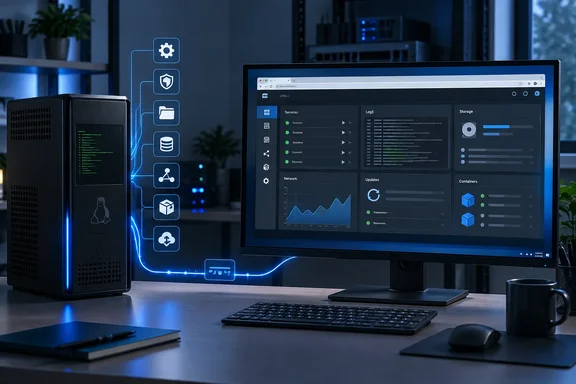
In a September 20 feature, XDA Developers describes using Cockpit to make minimal Debian and Ubuntu Server installations easier to manage. The Cockpit Project’s documentation supports the central approach: the interface uses existing Linux system tools and APIs, works alongside command-line administration, and runs on demand through systemd socket activation. The useful distinction is architectural, however; XDA’s account does not provide measurements establishing a particular memory saving over a desktop.
A management console instead of a desktop session
Cockpit’s interface runs in a web browser, while administration takes place on the Linux server. The project supports access from major browsers on Windows and other operating systems, so the machine being managed does not need its own graphical desktop for these tasks.
After Cockpit has been installed and enabled on the server, its documented access point is the server’s address on port 9090. Installation and enablement remain prerequisites; a minimal Linux installation does not automatically include a running Cockpit console.
The important design choice is that Cockpit works with the server’s existing management interfaces. It uses systemd for services, the systemd journal for logs, and other components for networking, storage, and package updates. According to the Cockpit Project, administrators can continue using command-line tools or Ansible alongside it.
That makes Cockpit useful as an additional way to inspect and change a system. An administrator can investigate a service graphically, then use a shell for a task the interface does not cover. Cockpit’s storage documentation explicitly says it detects changes made through command-line tools, including logical-volume management commands.
For a Windows administrator learning Linux, this reduces the number of commands that must be memorized immediately without hiding the underlying system. It also preserves an established terminal workflow for someone who only wants a more convenient overview.
What the interface can manage—and what it depends on
XDA describes the attraction as bringing routine administration into one place. The official documentation confirms those capabilities, but also shows why the available interface can differ between servers: Cockpit’s controls depend on the installed Linux components and the user’s permissions.
| Task | Documented mechanism | Practical consequence |
|---|---|---|
| Inspect services and logs | Cockpit uses systemd and reads journal data through journalctl. | It provides a graphical view of those system facilities, rather than replacing them. |
| Configure networking | Cockpit uses NetworkManager when available. | Interfaces marked as unmanaged by NetworkManager are not displayed in that interface. |
| Configure the firewall | Cockpit integrates with firewalld. | The firewall configuration interface is absent when firewalld is not installed. |
| Manage storage | Cockpit’s storage package connects to the host’s storage-management services. | Available storage operations depend on the backend and installed components. |
| Apply package updates | Cockpit uses the PackageKit API. | The update view covers packages exposed through that system, rather than being a universal updater for every application. |
| Manage local accounts | Cockpit uses standard tools such as useradd, usermod, and passwd. | These are the server’s real Linux accounts, not a separate Cockpit-only account database. |
These dependencies are particularly relevant on stripped-down server installations. A missing firewall page, for example, can reflect the absence of firewalld rather than a broken Cockpit installation. Similarly, a server’s network configuration is not necessarily available to Cockpit simply because the server has working connectivity.
The log view also deserves a narrower description than “all system logs.” Cockpit’s documented source is the systemd journal. It makes that indexed log data available on the Journal page and elsewhere in the interface, including when working with services, networking, and storage. That is useful integration, but it does not establish that every application’s separate log files will automatically appear there.
For updates, the same boundary applies. PackageKit supplies information about available package updates and applies them through its API. The documentation also explicitly allows continued use of distribution-specific package commands. Cockpit does not require an administrator to abandon those tools.
Graphical access keeps Linux permissions intact
By default, Cockpit uses the system’s normal user logins and privileges. Its documentation describes PolicyKit authorization for several underlying services, including systemd, NetworkManager, and storage management. Logging into the web interface does not automatically grant unrestricted administrative access.
This is an important qualification to the idea that a graphical console makes permission problems easy to fix. It can expose supported account-management controls, but the logged-in account still needs authorization to perform consequential actions.
The integrated terminal follows the same principle. Cockpit provides a standard shell whose processes have the privileges the user would have when logging in through SSH. That makes it a convenient way to run commands from a Windows browser, without creating a separate privilege model.
The terminal also has an availability limit worth keeping in mind: because it is inside Cockpit, it is useful when a graphical page cannot express a task, but it cannot be assumed to remain accessible if Cockpit itself is unreachable. Its role is an integrated shell, not an independent recovery channel.
Lightweight operation, with a separate cost for history
The Cockpit Project attributes its on-demand operation to systemd socket activation. In this model, systemd can start Cockpit when a connection needs it, rather than keeping the entire administration interface continuously active.
That supports the case for adding a web console to a minimal server. It does not establish that every enabled feature or managed workload has negligible overhead. Containers, virtual machines, storage services, and monitoring components still run on the server independently of how their controls are displayed.
Historical metrics provide a concrete example. Cockpit’s documentation says it can use Performance Co-Pilot, or PCP, to gather metrics and display historical graphs. Without PCP, Cockpit gathers metrics itself, but archival features are unavailable.
Where PCP is available, recording history depends on whether pmlogger.service is running. The documented “Enable PCP metrics collector” button enables and starts that service. Enabling history therefore changes the server’s operation: a logging service is collecting data for later inspection.
For an older PC, the practical choice is whether that history is useful enough to enable. Current metrics can help inspect what is happening during a session; archived metrics let an administrator look back at an earlier period. Neither XDA’s account nor the project documentation quoted here supplies a controlled comparison of CPU use, memory consumption, or disk growth against a desktop environment, so a numerical savings claim would be unwarranted.
Extensions can turn the console toward NAS and virtualization work
Cockpit supports optional applications and third-party extensions. The project confirms container and virtual-machine management among its capabilities, while XDA reports using cockpit-podman and cockpit-machines for those workloads. Those named plugin experiences are XDA’s account, rather than an independent performance evaluation.
The file-server example has more detailed first-party support. The 45Drives repository describes cockpit-file-sharing as a third-party plugin for managing Samba, NFS, iSCSI, and supported S3 storage services.
For a file server serving Windows clients, its documented Samba controls are particularly relevant. They include creating, editing, and removing shares; managing allowed users and groups; managing Samba passwords; and changing Linux-side permissions on share paths. The repository also lists advanced configuration options for Windows ACLs, shadow copies, and audit logging.
Those separate controls explain why NAS administration involves more than creating a directory. The plugin exposes both share configuration and underlying path permissions, giving an administrator access to different parts of the access-control setup.
Its NFS interface can create and modify shares and individual client settings. Its iSCSI controls cover virtual devices, targets, authentication configuration, and active sessions. For S3, 45Drives identifies supported backends including MinIO, RustFS, Ceph RGW, and Garage, with management functions that vary by backend.
This makes the extension useful for a server already intended to provide those services. It should be understood as a management interface for them, however, rather than proof that installing one plugin creates a complete storage appliance. It is also a 45Drives project, not a feature whose maintenance should automatically be attributed to the Cockpit Project.
The multi-server claim needs a version warning
One part of XDA’s description needs a significant qualification. Its account presents adding multiple nodes to one Cockpit interface as a convenient way to manage a home lab. Cockpit’s detailed feature documentation says the multiple-machine feature was deprecated as of Cockpit 322.
The documentation describes the feature as a host switcher within one Cockpit session. Additional machines are reached over SSH from the initially connected machine, using passwords or SSH keys associated with the login. It is therefore a mechanism for connecting to separate hosts, with authentication requirements on those hosts.
Deprecation is not the same as confirmed removal, and the documentation still describes how the feature works. Nevertheless, readers choosing a new management setup should not treat it as an indefinitely supported foundation for centralized administration. The project’s homepage still lists switching between servers, but the more specific feature documentation carries the versioned deprecation notice.
Cockpit’s clearest fit remains the individual Linux server: a machine that needs an accessible overview and routine graphical controls while retaining command-line administration. For a repurposed PC, that is a useful middle ground—keep the server installation minimal, add the management functions the workload needs, and use the browser on the Windows PC already at hand.
References
- Cockpit gave my headless server a face without giving it an entire desktop environment XDA · 2026-09-20T22:00:17+00:00
- cockpit-file-sharing github.com
- Feature Internals :: Cockpit Docs docs.cockpit-project.org