

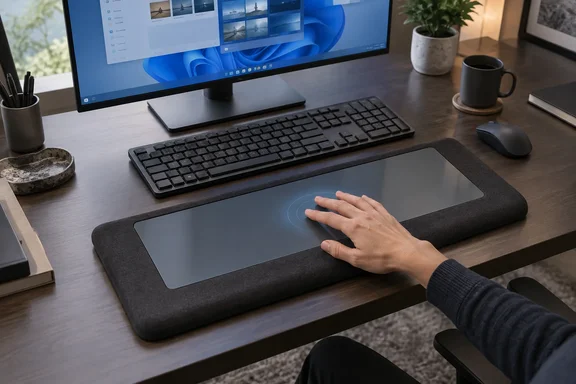
The Contour Touch isn't a small pad that sits next to your keyboard. It's a wide foam wrist rest with a glass touchpad in the middle, and it goes in front of the keyboard, where a laptop's trackpad would be. That placement is the whole reason to buy it, and it's also the main reason some people shouldn't.
What Contour Built
Contour Design, a Danish maker of ergonomic accessories best known for the RollerMouse, launched the Touch on September 18, 2025, alongside a refreshed Balance Keyboard line. In its launch announcement, the company calls the Touch a centrally positioned glass touchpad with an integrated wrist rest that brings laptop-style navigation to a desktop setup.
The main hardware details:
- Touch surface: 112 × 58 mm of glass, about 4.4 × 2.3 inches, set into a high-density foam wrist rest.
- Click-anywhere design: you can tap or physically click anywhere on the glass. There's no separate button strip at the bottom.
- Four programmable buttons: set to Copy, Paste, Back and Forward out of the box.
- Two versions: wired, which PCMag lists at $119, and Bluetooth wireless at $139. PCMag tested the wireless one.
- Wireless details (per PCMag): Bluetooth 5.1, USB-C charging, and a battery Contour rates for up to 20 days per charge.
- SnapLinks: included connectors that lock the Touch to Contour's Balance Full-Size Keyboard. They're optional, and the pad works with any keyboard.
Contour's own store currently shows the Touch at $119, but the page doesn't say which version that price is for. Treat PCMag's $119 wired and $139 wireless figures as the reported list prices, not a confirmed current deal.
The design has also won an award. Contour Design's Contour Touch ergonomic touchpad has won an iF Design Award in the Product Design category, and according to the same announcement, the iF DESIGN AWARD received over 10,000 submissions from 68 countries in 2026. A design award doesn't prove the device is comfortable, but it does show the idea caught some attention.
Section summary: it's a laptop-style glass trackpad built into a full-width wrist rest, it comes wired or wireless, and it's made for Windows.
A Windows Device First, and Maybe Only
Contour's help center lists Windows 10 and Windows 11 as the supported operating systems. PCMag noticed that Contour's product and driver pages also offer macOS downloads, but the company never says which Touch features work on a Mac. The Amazon listing for the wired model is blunter: it says the Touch is designed to be a higher performance trackpad for Windows users, and it is not compatible with Mac.
That's a real conflict between Contour's download pages and its retail listing. Mac users should do what PCMag suggests and buy Apple's Magic Trackpad. For everyone else, this is a Windows accessory.
This also explains why it works well without extra software. Windows sees it as a touchpad, so the built-in precision-touchpad settings handle pointer speed, tapping, scrolling and multi-finger gestures, the same way they do on a laptop.
How the Touch Performed
PCMag's reviewer used the wireless Touch for one week of heavy editing and last-minute revisions under deadline. The review reports that:
- Tracking was accurate and consistent through long document sessions, with no hesitation, sudden acceleration or missed movement.
- Windows gestures worked smoothly and reliably. That covers two-finger scrolling and zooming, plus three- and four-finger gestures for switching apps, opening Task View, showing the desktop and changing virtual desktops.
- Gestures ended up in the reviewer's daily routine. Being able to flick quickly through long drafts and then slow down at the right paragraph was a practical advantage over a mouse wheel.
These are one reviewer's impressions from a week of use, not lab measurements. Still, they cover the thing that matters most. An external touchpad with poor tracking is just an expensive coaster, and this one apparently tracks well.
PCMag is clear about who it isn't for. Gamers, designers and photographers will probably want the speed and fine control of a mouse. The Touch is aimed at writing, research, browsing and office work.
Section summary: tracking and gestures are strong for document work, and a mouse is still the better choice for precision visual work and games.
Where It Falls Short
It takes up a lot of room
PCMag says the Touch is nearly as wide as a full-size keyboard. On the reviewer's small New York apartment desk, it took over a big chunk of the workspace. It also needs depth, because it sits between the keyboard and the edge of the desk.
Contour's setup guide makes this more concrete. The company recommends lining up the keyboard's H key, the center of the touchpad, the center of the monitor and the center of your body. It also says to leave enough room at the desk edge to rest your forearms. Following that advice needs a fairly deep desk. Narrow tables, compact workstations and pull-out keyboard trays will struggle.
Going wireless doesn't make it portable. PCMag points out that the long body won't fit easily in many laptop bags. This is something you set up once and leave.
It pairs with only one PC
Contour's help center confirms that the Touch pairs with one device at a time. Plenty of premium keyboards and mice can remember several PCs and switch between them with a button. Contour's own new Balance Keyboards have a Quickswitch button for up to three devices, according to the launch announcement. The Touch has nothing like that. If you move between a work laptop and a personal desktop every day, you'll be re-pairing it every time.
Battery life is only average
Twenty days per charge is fine for a device that never leaves your desk, but PCMag notes it's well short of the months many wireless mice and keyboards get. The reviewer's one-week test was too short to confirm Contour's figure.
Section summary: the big footprint, single-device pairing and middling battery life are the trade-offs. None of them is a dealbreaker for a fixed desk, but each one matters for some buyers.
Setting It Up in Windows
Contour's help center lays out the process, and it's short.
Pairing the wireless model
- Turn the Touch on with the slider underneath. The LED flashes to show it's in pairing mode for 120 seconds.
- On the PC, open Settings > Bluetooth & devices > Add Device > Bluetooth and choose Contour Touch from the list.
- If Swift Pair is turned on, Windows may show a pairing prompt in the lower-right corner of the screen by itself.
Moving it to another PC
- Hold the Bluetooth button on the bottom of the Touch for three seconds until the LED flashes. It stays discoverable for 120 seconds.
- Pair it on the new PC with the same Settings path.
If it drops the connection
Contour suggests two fixes. First, switch the device off and back on with the power slider. If that doesn't work, start pairing again using the three-second button hold above.
Wired model
Contour's wired setup guide says the cable can plug into a PC, dock, hub or monitor. It ships with a USB-A adapter attached. Remove the adapter to use the USB-C connector underneath.
What goes where
Settings live in two places, which PCMag calls sensible but a little scattered:
| Task | Where to change it |
|---|---|
| Cursor speed | Windows: Settings > Bluetooth & devices > Touchpad |
| Gesture actions (three- and four-finger taps and swipes) | Windows: Settings > Bluetooth & devices > Touchpad |
| Turn off tap-to-click | Windows: Touchpad settings, Taps section |
| Turn off the lower-right right-click zone | Windows: uncheck "Press the lower right corner of the touchpad to right-click" |
| Reassign or disable the four buttons (Undo, Redo, macros) | Contour's optional software |
| Detailed battery level | Contour's optional software (the LED pulses red below 10%) |
| Firmware updates | Contour's optional software |
When you've got it right, the Touch appears in Windows' touchpad settings, the gesture options respond on the device, and the LED stops flashing once pairing finishes.
A practical tip from PCMag's review: writers and editors may want to swap the default Back and Forward buttons for Undo and Redo, which are more useful in a word processor than in a browser.
What About Ergonomics?
Contour's marketing is confident here. Its product page says nine out of ten users feel less pain after two weeks, and its Amazon listing says insights from our Ergo Lab indicate that Touch significantly reduces shoulder abduction and rotation. Those are the manufacturer's claims, not independent clinical findings.
PCMag is more careful. The reviewer says the centered layout cuts down the sideways reach to a mouse, and that it's less of an adjustment than a vertical mouse, trackball or roller bar, since anyone who's used a laptop already knows how it works. But the reviewer also says a week wasn't long enough to judge any effect on wrist, neck or shoulder pain. PCMag's advice to readers who already have discomfort is sound: don't expect any pointing device to fix it. Whether the Touch is more comfortable for you depends on your desk, chair, keyboard and posture.
Alternatives
- Apple Magic Trackpad: smaller, more portable, supports Force Touch and works best with macOS. It has no wrist rest or shortcut buttons, and Apple doesn't sell it as a Windows accessory.
- A good wireless mouse: usually cheaper, much smaller and better for games and detailed visual work, but it keeps your hand reaching out to the side.
- The wired Contour Touch: same design for $20 less, with no battery and no Bluetooth. PCMag thinks it may be the more practical option for a fixed workstation, and the single-PC pairing limit makes that argument stronger.
The Verdict
The Contour Touch does its main job well. It gives Windows desktop users laptop-quality tracking and native gestures in a centered position that works with either hand. PCMag's week of deadline editing found no problems with tracking or gestures, which is what counts most.
The catches are just as clear. It needs a wide, deep desk. The wireless model remembers only one PC and gets about three weeks per charge. It also costs more than most good mice. If you work at one desk with enough room and spend your day in documents and browser tabs, it's worth a serious look, and the wired version may be the better buy. If you're on a small desk, a keyboard tray or a two-PC setup, it will probably frustrate you.
If you do buy one, set up the gestures in Windows first and remap the buttons afterward. And check your desk space before you order.
References
- Contour Touch Review: A Windows Touchpad Worth Making Room For - PCMag Australia PCMag Australia · 2026-09-28T22:52:07+00:00
- Amazon.com: Contour Design Touch: Wired Ergonomic Touchpad for Windows 10 & 11, Multi Touch & High Precision Glass Trackpad, Click Anywhere, 4 Programmable Shortcut Keys, Full Size Wrist Rest : Electronics amazon.com
- Amazon.com: Contour Touch: Wireless Bluetooth Ergonomic Touchpad for Windows 10 & 11, Multi Touch & High Precision Glass Trackpad, Click Anywhere, 4 Programmable Shortcut Keys, Full Size Wrist Rest : Electronics amazon.com