

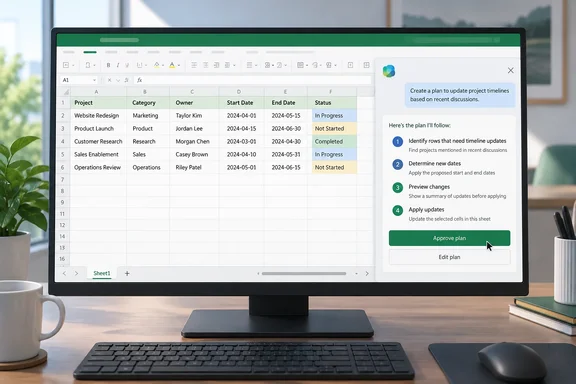
This is not a new October announcement. The roadmap entry has been around since spring, and Microsoft's own Copilot documentation now describes Plan Mode as a standard part of Excel. The useful questions now are what the mode actually does and when it's worth using.
What Plan Mode does
Microsoft's roadmap describes Plan Mode as a way to help users make complex changes with confidence by outlining a clear, step by step approach before anything in the workbook is updated. The entry also says that users can review how Copilot intends to complete the task, see which data or capabilities may be used, and adjust the plan as needed before the edits are made.
In practice, Copilot shows you a proposal and waits for your approval. On Microsoft Support's "Get started with Copilot in Excel" page, Plan mode creates a structured approach to completing tasks. Instead of immediate actions, Copilot generates a plan so you can review and confirm the approach before starting.
The feature has been visible publicly for some time. Merill Fernando's Message Center tracker shows the roadmap item published Apr 14, 2026 with a status of "In development". The roadmap metadata now lists it as launched, with May 2026 as the GA date.
Summary: Plan Mode lets you approve Copilot's approach before it edits your workbook. Microsoft lists it as generally available since May 2026.
The three Copilot modes in Excel
Copilot in Excel now has three modes, and Plan Mode is easiest to understand alongside the other two. Microsoft Support explains that by default, Copilot in Excel opens in edit mode. In editing mode, Copilot in Excel can edit your workbook directly based on your requests. Use plan mode to come up with a plan before editing your workbook, and use chat mode to keep Copilot responses contained within your chat.
| Mode | What it does | Changes the workbook? |
|---|---|---|
| Edit (labeled "Allow editing") | Default mode. Supports complex, multi-step tasks like reshaping data, merging sheets, or building reports with multiple elements. | Yes, directly |
| Plan | Drafts a step-by-step approach for you to review and confirm | Only after you confirm |
| Chat (labeled "Chat only") | Can analyze your workbook data and provide insights without making changes to your workbook. | No |
Plan Mode is not a read-only analysis mode. That's Chat. It's the review step before an editing task goes ahead. Once you confirm the plan, the work continues and your workbook changes.
How to use Plan Mode
Microsoft's documentation and early user walkthroughs agree on the steps:
- Open Copilot. Microsoft Support says to select the Copilot icon in the lower-right corner of Excel.
- Switch the mode to Plan. Copilot opens in Edit mode, so you need to change this yourself. Japanese Microsoft 365 blogger Shinichi Kawara describes the pane as offering Allow editing, Plan, Chat only.
- Describe the task. Kawara's example asks Copilot to analyze sales data, build a regional ranking and add a chart. That's three linked changes, which is exactly where a preview is useful.
- Review the plan. Kawara writes that the plan shows what Copilot has understood, in what order it intends to process, and which features it intends to use.
- Change it, question it, or approve it. Thrum's reporting on the June finance-focused Excel update says Copilot drafts a step-by-step plan, invites the user to approve, edit, or ask clarifying questions, then posts a link to completed changes in the chat window—alongside the Show Changes pane used for human edits.
- Stop it if needed. Microsoft Support says you can stop or pause Copilot at any time with the Stop button in the lower-right corner of the chat input field.
What success looks like: Copilot returns an ordered list of steps instead of editing cells right away. Nothing in the workbook changes until you confirm the plan.
Which platforms support it
The roadmap names Windows desktop, Mac and the web. Microsoft's current support documentation also lists iPad. According to Microsoft's Copilot in Excel FAQ, Edit, chat, and plan modes are available on Windows, Mac, and the web. On iPad, chat and plan modes are available. The support page lists iPhone and Android as Chat-only. Edit mode is still rolling out on iPhone and iPad.
Neither Microsoft source gives a minimum Excel build number for Plan Mode. If one user has it and another doesn't, the likely causes are update channel and licensing, not a specific version.
Licensing and troubleshooting
Plan Mode is part of Copilot in Excel, not a standalone feature, so it needs the same licensing as Copilot. Microsoft's FAQ lists consumer options including a Microsoft 365 Personal or Family subscription with an AI credits plan or a Microsoft 365 Premium subscription. Commercial tenants need Microsoft 365 Copilot licensing. GoSkills also notes that the standalone $20/month Copilot Pro plan is being phased out, with support for existing subscribers ending August 1, 2026.
If you can't see Plan Mode, check these in order:
- No Copilot icon at all: Microsoft Support says Copilot may not be included in your subscription or may be limited by your organization's settings. Business users should ask their IT admin.
- Copilot appears but there's no Plan option: check your device. On iPhone and Android, only Chat is available.
- Desktop seems out of date: the roadmap ties the rollout to Current Channel. Machines on slower update channels may not have it yet. This is an inference from the roadmap's release-ring data, not something Microsoft has stated about specific builds.
- Copilot edits immediately: you're still in Edit mode, which is the default. Switch to Plan before you enter your prompt.
When to use it
On a small task, the extra confirmation step only slows you down. You don't need a plan to bold a header row. Plan Mode is worth it when a single prompt can cause several dependent changes, such as reshaping a data table, combining sheets or building a report with pivots and charts. In those cases, finding a wrong assumption in the plan is much easier than finding it in a recalculated model.
Kawara puts it bluntly: there are cases where incorrect edits can have a major impact on business operations. Picture a finance analyst asking Copilot to "consolidate the regional tabs and add a variance column." The plan shows which tabs Copilot will merge and which columns it will compare. If it picks up last year's archive sheet, you can fix that before any change is made, not during month-end close.
Finance teams have been the focus. Thrum reported that Microsoft shipped Plan Mode alongside reusable workflow skills, together addressing two persistent concerns about AI in spreadsheets—repeatability and oversight.
Limits to keep in mind
Plan Mode helps you review Copilot's approach, but it doesn't guarantee a correct result. Keep these points in mind:
- A good plan can still be carried out badly. A sensible plan doesn't mean the output is correct. Check formulas, ranges and totals after Copilot finishes, just as you would review a colleague's work.
- The plan may not show everything. Microsoft says users can see which data or capabilities "may be used." It doesn't say every internal action is listed, and it hasn't documented how plans are generated.
- Microsoft hasn't published governance details. The sources reviewed don't cover Plan Mode-specific audit logging, rollback or admin controls. IT teams should not assume any of these exist until Microsoft documents them.
- Edit mode is still the default. Unless users switch modes, Copilot keeps editing directly. Organizations that want staff to review changes first will need training, because there's no documented policy to enforce Plan Mode.
The independent claims deserve some caution too. One tracker cited a 2023 Microsoft blog post "introducing" Plan Mode, which doesn't fit the April 2026 roadmap publication. Treat third-party summaries as leads to check, not as authority.
Bottom line
Plan Mode lets you review and approve Copilot's approach before it edits your workbook. It's generally available on Windows, Mac and the web, it also works on iPad, and it requires Copilot licensing. It's a sensible addition for complex, multi-step tasks, but you still need to check the results yourself.
References
- Excel: Plan Mode for Copilot in Excel Microsoft 365 Roadmap · 2026-10-07T23:01:35.319621Z
- How to Use Copilot in Excel: A Beginner’s Guide goskills.com
- (Microsoft 365 Copilot) What is the Excel Copilot 'Plan' mode? Let's try the new feature that lets AI hold a strategy meeting before editing #0348|Shinichi Kawara note.com