

Here is what the roadmap confirms, what Microsoft's support documentation adds, and what is still unclear.
What the roadmap entry says
The details in the Microsoft 365 AI at Work roadmap item are short:
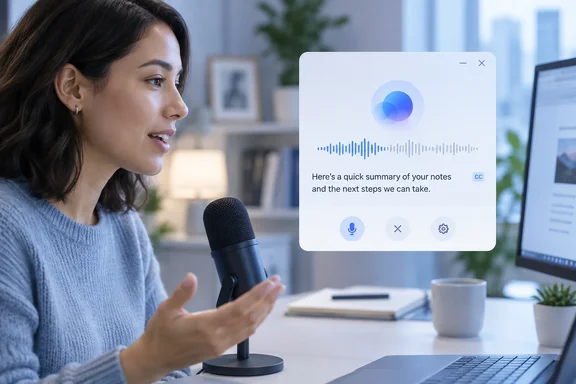
- Feature: Live subtitles for voice chats in Copilot, meant to help users follow the conversation in the quick composer
- Product: Microsoft Copilot (Microsoft 365)
- Status: Launched
- Release ring: General Availability
- Platform: Desktop
- Cloud instance: Worldwide (Standard Multi-Tenant)
- General availability date: January 2026
The roadmap gives a month, not a day. Microsoft releases gradually, so "Launched" doesn't mean every tenant got the feature in January.
The date slipped once
This item isn't new. M365 Admin, a site that tracks roadmap changes, recorded the same description in October 2025 with a different date: its archived copy lists General Availability, Release date October CY2025, Platform Desktop. Microsoft's current record says January 2026, so the target moved back by about a quarter before the feature was marked launched.
Slips like this are common on the Microsoft 365 roadmap. Admins who planned around the October 2025 date should update their notes.
Section summary: Live subtitles for voice chat in Copilot's quick composer are generally available for desktop in the worldwide commercial cloud. The target moved from October 2025 to January 2026.
Voice chat and dictation are different things
Copilot has two voice features, and they're easy to mix up.
In its FAQ on Copilot voice features, Microsoft says dictation turns your speech into written text for composing. Voice chat is a two-way spoken conversation: you ask questions and Copilot answers out loud in real time. The FAQ calls dictation "focused on text input" and voice chat "a more interactive, interruptible, and dynamic experience."
That is why subtitles make sense here. With dictation, your words already become text in the compose box. With voice chat, Copilot talks back to you, and until now that meant listening to every word. Subtitles let you read the answer instead, or read along while it plays.
How captions work in Copilot voice chat today
Captions in Copilot voice chat existed before this roadmap item. According to Microsoft's FAQ:
| Platform | Default state | How to change it |
|---|---|---|
| Desktop | Live transcripts on by default | Turn off with the Closed Caption (CC) setting at the top right of the app |
| Mobile | Live transcripts off by default | Turn on with the CC button during a voice chat |
Microsoft says you can switch desktop transcripts off "for a less distracting experience."
What we can't confirm is whether the CC control sits in the same place in the quick composer. Microsoft's FAQ describes the control for the Copilot app in general, and nothing we reviewed describes the quick composer's layout. If you don't see a CC toggle where you expect one, check your tenant and app build before assuming something is broken.
What is the "quick composer"?
The roadmap entry doesn't define the term, and Microsoft's support pages don't use it. The closest documented feature is Quick View on Windows.
Microsoft Support says that if you have the Microsoft Copilot app installed on your Windows desktop, you can also start a voice chat on quick view by pressing Win+C or the Copilot key keyboard shortcuts. The voice FAQ adds that "Hey Copilot" can open the Quick View controls on Windows. Those controls stay on top of other windows while you work in different apps, and the wake word has to be turned on first in the app's Quick View settings.
A compact, always-on-top voice window is exactly where live subtitles would be most useful. Still, Microsoft hasn't said that the quick composer and Quick View are the same thing, so treat that as a reasonable guess, not a fact.
How to start a Copilot voice chat on desktop
These steps come from Microsoft's support documentation for Copilot voice chat in general. They are not instructions written for the quick composer.
- Standard compose box: Select Start a new voice chat. It's next to Start dictation in the lower-right corner of the Message Copilot compose box.
- Windows shortcut: With the Microsoft Copilot app installed, press the Copilot key or Win+C to open Quick View, then select the voice-chat icon.
- Hands-free: In the Microsoft Copilot app on Windows, go to ... Settings and more > Quick View and turn on Listen for "Hey Copilot". Then say "Hey Copilot."
- Microphone permission: The first time you use a voice feature, Copilot may ask for microphone access. You can change this later in your browser or device settings.
- Ending the chat: Microsoft's Copilot Chat guide says that once you select Mute/pause or End voice chat, Copilot stops listening.
If things don't work:
- No voice option at all: The FAQ says voice features aren't yet available to users without a Microsoft Copilot license, and GCC and GCC High customers don't have them yet either. Microsoft gives no date for government clouds.
- No subtitles: On desktop they're on by default. If they're missing, someone may have switched off the CC setting, or your tenant may not have the rollout yet.
- Subtitles contain other people's words: Microsoft says background noise suppression is limited and nearby speech may be picked up. Use a quiet room.
- Session ends by itself: After 30 seconds without activity in the Quick View controls, a warning appears that Copilot will end the session in another 30 seconds. Background noise can also keep it listening longer than you meant.
Section summary: You can start voice chat from the compose box, with Win+C or the Copilot key, or by saying "Hey Copilot." Desktop subtitles are on by default and use a CC toggle. Licensing and cloud type limit who gets the feature.
Privacy: what happens to the text?
Once speech appears on screen as text, admins will want to know where that text goes. Microsoft's answers in the voice FAQ:
- Text transcripts from voice chats are stored and managed the same way as text conversations in the Microsoft Copilot app.
- Microsoft says no user or Copilot audio is stored.
- If feedback is turned on, conversation audio may be stored temporarily so users can send feedback. It may include background noise and is deleted after 48 hours.
- Microsoft says voice chat doesn't use user data to train the model.
These are Microsoft's statements, not the result of an independent audit. They describe Copilot voice features in general. Nothing we reviewed says the quick-composer subtitles change how transcripts are stored.
For compliance teams, the important point is that voice chats leave text behind, and that text falls under the same retention policies as your typed Copilot chats. The FAQ also says there is no admin toggle that turns off voice features or "Hey Copilot" for a tenant or group. Organizations that want to restrict voice use will need to rely on licensing and user guidance, not a single switch.
Limits to keep in mind
- Accuracy: Microsoft's guide says to always review transcribed or generated content for accuracy as AI may occasionally misinterpret speech or produce errors. The FAQ also says some words are more likely to be misrecognized or mispronounced.
- Voice chat has fewer features than text: Image creation, file creation, and @-mentioning agents aren't available in voice chats yet, and voice chat with Copilot agents isn't supported. These limits come from voice chat itself, not from subtitles.
- Not a formal record: These subtitles help you follow a live conversation. They aren't a verified transcript, and Microsoft doesn't claim they meet any particular accessibility standard.
- Not the same as Windows Live Captions: Windows 11 has its own system-wide Live Captions feature, which Copilot+ PCs extend with translation. Copilot's subtitles only cover the Copilot voice chat, so the two are separate tools.
Analysis: small change, practical benefit
Subtitles for a voice assistant don't make headlines. They do address a real problem with voice interfaces at work.
Voice chat is great hands-free and awkward almost everywhere else. Offices are noisy, meetings are quiet, and people who are hard of hearing, or who simply take in information better by reading, often find audio-only answers frustrating. On-screen subtitles in a compact desktop window let you keep the voice conversation going when listening isn't practical.
The drawbacks are also real. Text on screen can be read by anyone behind you, which matters in shared spaces. And because transcripts are kept like any other Copilot chat, casual voice brainstorming creates a searchable, retained record. That's a benefit for continuity, and something users should know before they speak.
For admins, the checklist is short:
- Tell users that subtitles are on by default on desktop and that the CC setting turns them off.
- Remind them that voice-chat transcripts are kept like typed chats.
- If your organization tracks roadmap dates, update this item from October 2025 to January 2026.
If you're already using Copilot voice chat on Windows 11 and want to compare notes, the forum threads on Copilot key remapping, Microsoft 365 Copilot licensing, and Windows 11 accessibility settings are good places to share whether subtitles have reached your tenant.
Bottom line
Microsoft's roadmap lists live subtitles for Copilot voice chat in the quick composer as generally available for desktop in the worldwide commercial cloud, with a January 2026 date after an earlier October 2025 target. Microsoft's support pages say desktop transcripts are on by default, can be switched off with a CC setting, and are stored like typed chats. Mobile, government clouds, and the exact quick-composer interface aren't covered by this item.
References
- Microsoft Copilot (Microsoft 365): Live subtitles on voice chat in Copilot when using the quick composer Microsoft 365 Roadmap · 2026-09-29T23:05:21.588180Z
- Use your voice to chat with Microsoft Copilot | Microsoft Support support.microsoft.com
- Microsoft Copilot (Microsoft 365): Live subtitles on voice chat in Copilot when using the quick composer - M365 Admin m365admin.handsontek.net