

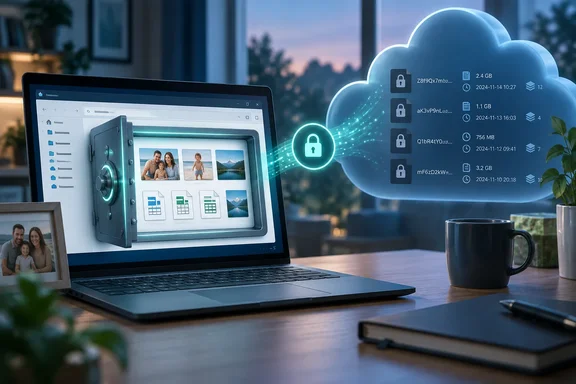
His answer is that Google got something much less useful than his files, though not nothing. That second part is the one Windows users should look at closely before moving their whole digital life into a vault.
The experiment: a vault inside the sync folder
Onyimadu's setup is simple. He created a Cryptomator vault named "Vault for MUO" and put it inside the local Google Drive sync folder on his computer. He filled it with a mix of CSV exports, images and spreadsheets, the sort of material he normally keeps off the cloud.
When the vault is unlocked, Cryptomator mounts it as a virtual drive. He reported that his files opened normally in that mounted view and kept their original names. From the user's side, nothing changed. That's the point of the tool: you keep using files and folders the way you always have, and encryption happens underneath.
Ask Leo's walkthrough of the same pairing describes how this looks on Windows. Assuming you entered the password correctly, Cryptomator opens Windows File Explorer showing you the unencrypted contents of the vault, and the vault has been assigned a drive letter. That guide also gives one Google Drive setting to change first. Click the Google Drive icon in the taskbar notification area; click on the gear icon and then Preferences. Under Google Drive, enable Mirror files syncing. This is Ask Leo's recommendation, not a requirement in Cryptomator's security documentation. It still makes sense for a setup where a local app has to read and write real files on disk.
Section summary: Put the vault inside your Drive sync folder, unlock it in Cryptomator, and work through the virtual drive. Your apps see normal files. Drive sees something else.
What Google Drive actually received
Onyimadu then looked at the cloud copy and didn't recognize his own folder. There were no photos and no spreadsheets. He saw folders named "c" and "d", a vault.cryptomator file with a backup, a masterkey.cryptomator file with its own backup, and a plain-text file that Cryptomator places in every vault. Inside, encrypted strings replaced his daughter's folder names, the camera's photo filenames and his CSV titles.
Cryptomator's own documentation explains this layout, and it goes further than the article does:
- Directory IDs: Every directory gets a random ID. That ID is encrypted, hashed and Base32-encoded to produce a storage path under the vault's
dfolder. - Flattened hierarchy: According to the vault cryptography documentation, stored directories always sit in a flattened structure whatever the original folder tree looked like. Your nested "Family > 2026 > Birthday" structure doesn't survive in readable form.
- Encrypted names: Filenames are encrypted with AES-SIV, and the parent directory's ID is used as associated data so a file can't be moved between directories undetected. Encrypted names get a
.c9rextension. - Long names: If an encrypted name would exceed 220 characters, Cryptomator swaps in a shorter hash-named
.c9sdirectory with a mapping file. The documentation says this is only for cloud compatibility and adds no security. - Contents: File contents are split into chunks of up to 32 KiB, and each chunk is encrypted with AES-GCM under a per-file content key.
So this isn't Google Drive hiding your files behind a password. Drive never gets a readable version.
Where the privacy claim stops
Onyimadu is careful here, and he's right to be. Saying "Google Drive sees nothing" would be wrong.
Cryptomator's security target lists what it deliberately leaves unencrypted so that sync keeps working:
| What the cloud sees | Normal upload | Inside a Cryptomator vault |
|---|---|---|
| File contents | Readable | Encrypted |
| File and folder names | Readable | Encrypted |
| Directory structure | Readable | Obfuscated |
| File sizes | Visible | Visible |
| Timestamps (access, modification, creation) | Visible | Visible |
| Number of files and folders | Visible | Visible |
| That a vault exists | n/a | Visible |
File size surprised Onyimadu most, and it's the one worth understanding. Cryptomator's vault-format history shows that Format 5 dropped file-size obfuscation. The documentation dates that format to Cryptomator 1.2.0 on September 19, 2016. The reason was practical: file sizes can be determined in constant time and shown in directory listings without downloading and decrypting each file header. The downside is that a 4 GB file in your vault still looks like a 4 GB file, and anyone can make an educated guess that it's a video rather than a grocery list.
The vault also doesn't pretend to be something else. Cryptomator's documentation says plainly that it is not a steganography tool. Its .c9r and .c9s extensions and its configuration files make it obvious that Cryptomator is in use. Its security depends on strong encryption and a strong password, not on hiding the fact that encryption is being used.
Onyimadu also points out that Cryptomator does nothing to account-level records such as Google login history or device data. It encrypts files, not your relationship with Google.
Section summary: The cloud loses readable contents, names and folder structure. It keeps sizes, timestamps, counts and the knowledge that you're running an encrypted vault.
Living with it: sync, friction and trade-offs
Opening the vault once proves the concept. Using it every day is the real test. Onyimadu added photos, renamed a CSV and deleted a folder, let Drive sync, then locked the vault. Drive had no idea what had changed, but it noticed that something had and synced it.
The costs he reported:
- Lock and unlock: You have to open the vault before you can work with the files.
- No previews: Drive can't show thumbnails or previews of encrypted content.
- No search: Drive search can't index what it can't read.
Ask Leo adds the obvious browser problem. If you visit your Google Drive online in a web browser, you can access all your files — as long as they're not encrypted. If your workflow depends on opening files from a borrowed PC through drive.google.com, the vault will get in the way.
Multiple machines work. Each device must have Google Drive installed and be signed into the same account. This synchronization includes, of course, the folders containing your Cryptomator encrypted data. You can install Cryptomator on those other machines as well to access the existing vault if you have the password. Let the vault finish syncing before you open it on a second device. Cryptomator's documentation notes that the obfuscated directory structure is more vulnerable to incomplete synchronization. A missing or damaged directory file can make a directory's contents inaccessible, which is why newer vaults store backup directory IDs.
Some older reports mention app compatibility quirks. In a 2018 Medium write-up, Ivan Dlugos said that I can open a PDF file in Acrobat Reader but not in Edge. That account is old and may not reflect current releases, but it's a good reason to test the apps you depend on before committing.
What Cryptomator doesn't protect
This deserves more attention than it usually gets. Cryptomator's security target says outright that protecting files on the local computer is not its focus:
- Malware on an unlocked PC: If malware can capture your password or read files while the vault is open, encryption doesn't help.
- Stray working copies: Apps that save temporary or backup copies outside the vault leave unencrypted files that Cryptomator neither detects nor protects.
- Metadata: If sizes and timestamps must stay secret, the project says it isn't a complete substitute for container-based encryption tools.
- Filename swapping: An attacker who already has write access to your cloud storage could swap encrypted filenames within one directory without detection. Contents stay encrypted, and tampering with contents is detected. Cryptomator rates this a low risk and accepts it for performance reasons.
Cryptomator's recommended companions are full disk encryption, prompt updates and antivirus. On Windows, that means BitLocker or Device Encryption where available, Windows Update, and Defender or an equivalent.
Don't treat Drive version history as your backup
Onyimadu says Drive's versioning and recovery operate on the encrypted files rather than your originals. That's accurate, and it has consequences. Google's help pages say older versions of stored non-Google files may be removed after 30 days or 100 newer versions unless marked "Keep forever". Restoring one encrypted blob from a vault that has otherwise moved on isn't guaranteed to give you back a clean, readable file. Keep a separate backup of the vault, and actually test restoring it.
The verdict
Onyimadu calls the friction a fair price, and for the use he describes, keeping family photos and sensitive spreadsheets in a service you already pay for, that's reasonable. Cryptomator doesn't make Google Drive private in every sense. It makes Drive a blind courier: it can see how many boxes you have and how heavy they are, but not what's in them. Keep that picture in mind, protect the PC where the vault gets unlocked, and it's one of the better free privacy upgrades available for Windows cloud storage.
References
- I made Google Drive private without giving up Google Drive MakeUseOf · 2026-09-29T13:01:17+00:00
- Storing confidential data in the cloud securely with Cryptomator | by Ivan Dlugos | Medium medium.com
- Vault Cryptography | Cryptomator Documentation docs.cryptomator.org