

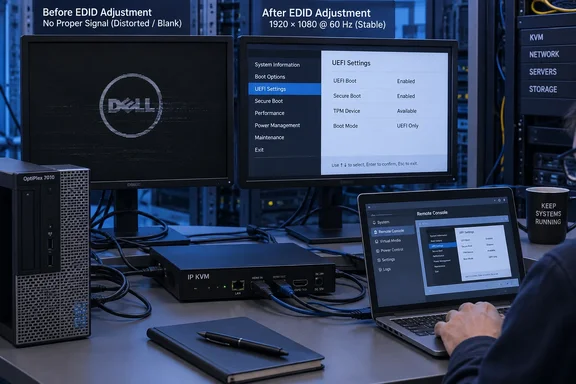
The immediate lesson is sound: do not change Legacy Option ROM and Secure Boot settings on a remotely managed PC without a tested out-of-band recovery path. But the failure was likely not that UEFI somehow made the KVM incapable of receiving video. It exposed an older and more familiar compatibility fault: the firmware’s pre-OS display initialization changed, while the KVM’s advertised monitor capabilities did not lead the system to choose a mode it could capture reliably.
That distinction matters for anyone maintaining small fleets of refurbished desktops, lab machines, kiosks, and devices rebuilt remotely. Once Windows loads its graphics driver, a troublesome preboot display path can disappear. The technician then has a machine that seems healthy in Windows yet cannot reliably present the Dell splash screen, firmware setup, BitLocker recovery, or Windows installer through the very KVM intended for recovery.
Secure Boot forces a broader firmware transition
The Pocketables report describes a refurbished Dell OptiPlex 7010 Small Form Factor PC that had been running Windows 11 Pro, then needed a replacement drive after apparent chassis damage near the disk bay. The writer created Windows 11 installation media, enabled Secure Boot, encountered a prompt to disable legacy drivers, and subsequently saw only a brief Dell logo and an unusable image through the IP KVM.
Dell’s documentation for the older OptiPlex 7010 family supports the critical part of that sequence. Its firmware provides a choice between Legacy and UEFI boot, and Secure Boot depends on UEFI operation. Dell also requires Legacy Option ROMs to be disabled before Secure Boot can be enabled on affected systems.
That is a consequential setting change, not a cosmetic toggle. Option ROMs are firmware components used by devices during startup. In a legacy configuration, the PC may initialize display hardware through older video firmware interfaces. In a UEFI-only configuration, it must use UEFI-compatible initialization instead. Microsoft’s UEFI requirements include the Graphics Output Protocol, commonly called GOP, which replaces the old BIOS-era path for early graphical output.
The Pocketables post calls this a switch to “UFEI protocol,” but the acronym is UEFI, for Unified Extensible Firmware Interface. More importantly, UEFI is not a video transport protocol that a KVM either “speaks” or does not speak. HDMI, DisplayPort, DVI, and VGA still carry the signal. The relevant change is the firmware’s initialization behavior, including which display modes it selects before Windows is available to take over.
EDID was the actual recovery lever
The strongest technical detail in the Pocketables account is also the one most useful to administrators: the KVM became usable after its EDID was forced to 1920×1080 at 60 Hz.
EDID, short for Extended Display Identification Data, is the information a display device presents to a computer to advertise supported timings, resolutions, and related capabilities. Many KVM-over-IP appliances emulate a monitor even when no physical screen is attached. That allows an unattended machine to keep an active display output, but it also means the KVM’s EDID profile becomes part of the boot chain.
KVM vendors document this behavior in their own products. ATEN’s KVM-over-IP equipment, for example, provides a preferred-resolution setting and lists 1920×1080 at 60 Hz among available choices. Other KVM products offer an EDID mode that either copies a local monitor or presents a fixed profile to the attached host.
The fact that a fixed 1080p60 profile restored the Pocketables setup does not prove every OptiPlex 7010 and every IP KVM share the same fault. The report does not name the KVM model, capture interface, cable type, firmware revision, or the previous EDID configuration. Without those details, there is no basis for declaring a Dell firmware defect or a universal UEFI incompatibility.
What it does show is a failure pattern administrators should recognize: firmware changes alter early graphics behavior; the KVM advertises a mode that does not survive that change cleanly; Windows eventually loads and masks the problem. A local monitor then becomes necessary solely to reach the KVM configuration or firmware setup screen that remote management was supposed to avoid.
Windows 11 did not necessarily require Secure Boot to be enabled
There is another important correction in the original account. Microsoft’s published Windows 11 minimum hardware requirement is UEFI firmware that is Secure Boot capable, alongside TPM 2.0 and a supported processor. “Secure Boot capable” is not the same as saying every installation path requires Secure Boot to be actively enabled at the moment setup begins.
A PC booted in Legacy mode can still fail Windows 11 checks because its installation media or disk layout is incompatible with a UEFI-based installation, or because it misses TPM, CPU, or other eligibility requirements. In practice, technicians often turn on UEFI and Secure Boot together while preparing a clean installation, which can make it look as if Secure Boot alone caused the installer’s objection.
The Pocketables writer later concluded that the machine should not have been sold as a Windows 11 system and considered using Rufus to create installation media with hardware checks bypassed. That may be a reasonable lab or personal-use decision, but it does not turn the hardware into a supported Windows 11 endpoint. Microsoft states that devices installed on ineligible hardware are unsupported and are not guaranteed to receive updates, including security updates.
For an organization, that changes the operational question. A workaround that gets setup past a compatibility check may be acceptable for a disposable test rig or isolated diagnostic bench. It is a poor substitute for an asset decision on a PC expected to receive predictable servicing, security updates, BitLocker support, and remote recovery for years.
The right preflight check is outside Windows
The failure also illustrates why Windows-based validation is insufficient before a firmware migration. Seeing a Windows desktop through an IP KVM proves that the KVM can capture Windows after the GPU driver loads. It does not prove that the appliance can show the firmware menu, a UEFI boot picker, Windows Recovery Environment, or an installer after Legacy Option ROMs have been disabled.
Before enabling Secure Boot on a remotely administered desktop, technicians should verify the following in a maintenance window:
- Confirm that the KVM can display the vendor firmware screen and boot menu, not merely the Windows desktop.
- Record the KVM’s current EDID mode and prepare a conservative fixed profile such as 1920×1080 at 60 Hz if the appliance supports one.
- Ensure a local monitor and suitable video adapter are physically available, especially where a BIOS reset jumper or CMOS battery procedure is impractical.
- Capture the machine’s firmware version, current boot mode, Secure Boot state, TPM state, SATA mode, and active boot order before changing anything.
- Test the exact Windows installation USB in UEFI mode before erasing the internal drive.
The last point is often missed. A bootable USB can appear in a one-time boot menu twice: once as a Legacy device and once as a UEFI device. Selecting the wrong entry can send the technician down a misleading path involving partition schemes, Secure Boot, or installer errors that are actually caused by the way the media was started.
Older OptiPlex hardware needs an explicit support decision
“OptiPlex 7010” also needs careful identification. Dell has reused the 7010 name across generations, and the Pocketables machine was bought refurbished in 2021 rather than necessarily manufactured that year. Dell’s original OptiPlex 7010 platform dates to the early 2010s, even though later OptiPlex models have also carried the 7010 designation.
If the system is the original 2012-era 7010 described by Dell’s Legacy/UEFI documentation, Windows 11 support is doubtful before Secure Boot is even considered. Its Intel processor generation and TPM implementation may fall outside Microsoft’s official baseline. A refurbisher can install Windows 11 successfully, and the PC may run it for years, but functional operation and supported configuration are separate things.
Administrators should identify the Service Tag, exact processor, BIOS revision, TPM version, and model generation before rebuilding. That takes minutes and prevents a repair from becoming an unplanned policy decision about unsupported operating systems. It also avoids blaming a hard-drive replacement for a compatibility issue that was present when the refurbisher first installed the OS.
The Pocketables incident ends with the machine visible again after the EDID adjustment, which is a useful recovery outcome. The larger consequence is that an IP KVM is only truly out-of-band if it has been tested across the firmware states that matter: Legacy boot, UEFI boot, Secure Boot enabled, recovery media, and failure screens. A remote console that works only after Windows starts is a convenience tool; it is not a dependable recovery path.
References
- Today I learned changing a boot option could knock out my KVM – learn from my fail - Pocketables Pocketables · 2026-09-16T18:56:40+00:00