

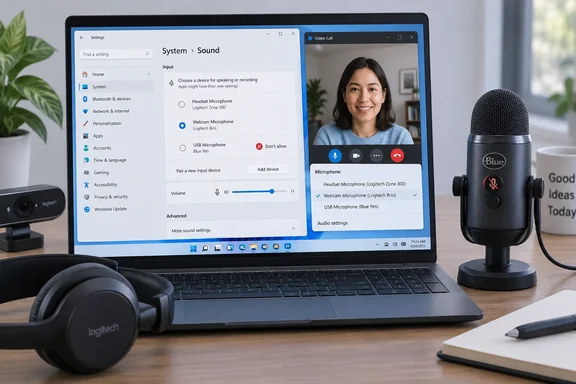
Her argument has two parts. Malware that gets onto a PC can reach more than files and documents. Some kinds can also use the camera and microphone. Fewer live microphones means fewer chances to be overheard. The second benefit is more ordinary and may matter more to most people: Zoom and Teams calls stop starting with the wrong mic, a problem Yee says she runs into every time.
Here's how the setting works, what it does and doesn't protect against, and how to undo it.
The setting: "Don't allow" for one input device
Yee's example is a desk with a standalone microphone and a webcam that has its own mic. She disables the webcam's microphone in Windows and uses the hardware mute button on the standalone mic. She says that combination should stop any eavesdropping.
Steps in Windows 11:
- Open Settings > System > Sound.
- Under Input, click the device you want to disable, such as a webcam, a headset, or another input.
- On that device's page, find General > Audio.
- Click Don't allow.
Other Windows publications describe the same path. MakeUseOf's version: In the System tab, click on Sound. Under Input, select your microphone device. Click the Don't allow button next to Audio. If the device you want isn't visible, AllThings.How says to click the arrow next to Choose a device for speaking or recording to expand the list.
What success looks like: According to WindowsLoop, after you click the button the microphone is disabled and can no longer be used to speak or record. In practice, it should drop off the list of inputs that apps can choose from. That's how this setting fixes the wrong-mic problem in meeting apps.
The change only applies to the device you selected. Every other microphone stays active. Device names in Windows can be vague (a webcam might show up as a generic "Microphone"), so make sure you've got the right one before you disable it.
Summary: Settings > System > Sound > [device] > Don't allow turns off one microphone without unplugging it.
The common snag: getting it back
This is where people get stuck. Once you disable a device, you may not find it in the usual Input list anymore. Technorms warns that when you click Don't allow, you will have to use other options to enable it again.
You have two ways to re-enable it:
- Through All sound devices in Settings. Eleven Forum's tutorial says to go to System > Sound, and then under Advanced, click/tap on All sound devices. From there, under Input devices, click/tap on the Microphone you want to enable or disable, and pick Allow.
- Through the classic Sound control panel. Eleven Forum also describes this route: open the Control Panel (icons view), and click/tap on the Sound icon (control mmsys.cpl,,1). Click/tap on the Recording tab. Right click or press and hold on the Microphone you want, and click/tap on Enable or Disable.
Eleven Forum also reports that Don't allow will remove the microphone from Device Manager, and that Allow puts it back. Don't panic if the device disappears there too. It hasn't broken.
Why not just unplug it?
Unplugging is the most obvious hardware fix, and Yee says it's reasonable for a device you rarely use. She sees two problems if you use the device more often:
- Some devices combine audio with everything else. A webcam sends its video and its microphone audio over a single cable, so unplugging it to kill the mic also kills the camera.
- Wear on the port. Yee says frequent plugging and unplugging can wear out a USB port. She didn't put a number on it, so read it as practical advice rather than a measured failure rate.
She mentions USB hubs with individual on/off switches as a way around the second problem, but points out that the Windows setting costs nothing. You don't need to buy anything to do this.
What this setting is not: the Privacy page
Microphone controls are split across two parts of Windows, and they do different jobs.
Sound settings ("Don't allow") turn off one specific input device.
Privacy settings decide which apps can use microphones at all. Microsoft's Windows 11 support documentation puts these under Start > Settings > Privacy & security > Microphone. The page has:
- Microphone access (the main switch)
- Let apps access your microphone
- Separate switches for each Microsoft Store app
- Let desktop apps access your microphone
The last item causes the most confusion. Microsoft says traditional desktop programs can't be switched off one at a time. They're controlled as a group through the desktop-apps setting, and changing that setting affects every app listed under it. Microsoft adds that turning it off can stop some Windows features, such as Windows dictation, from using the microphone.
Microsoft also includes a caveat that matters for anyone worried about spyware. Its documentation says desktop apps may not always show up in the Camera and Microphone settings lists, or may still be able to use the camera or microphone when those settings are off. The Privacy page is useful, but it isn't a complete wall.
Windows 10 users: Microsoft's instructions use Settings > Privacy > Microphone, with settings named slightly differently, such as "Allow desktop apps to access your microphone." Microsoft also notes that Windows 10 support ended on October 14, 2025, and that free security fixes through Windows Update stopped after that date. If spyware is your concern, an unpatched operating system is a bigger risk than a spare webcam mic.
Summary: Sound settings turn off devices. Privacy settings control apps. Microsoft says the desktop-app control applies to all desktop apps at once and isn't guaranteed to catch everything.
A useful side effect: the Camera app
A community answer on Microsoft's Q&A forum describes a case where disabling the device works better than the privacy switch. A user wanted to use the Windows Camera app without granting microphone access. According to the responder, turning off microphone permission can make the app fail. The suggested workaround is to disable the Microphone in sound settings. This will allow the app to function without feeding it any audio. The responder says to leave the app's microphone permission on. Because the device itself is disabled at the system level, the Camera app will "see" that it has permission to listen, but it will receive a null stream (silence/no data). This is community advice, not official Microsoft documentation, but it shows that the two controls do work at different levels.
Going further: Device Manager
If you want to go a step further, several guides describe disabling the microphone in Device Manager. The Microsoft Q&A answer gives the steps: Right-click the Start button and select Device Manager. Expand Audio inputs and outputs. Right-click your Microphone and select Disable device. MakeUseOf adds that you'll get a confirmation prompt, and you should click Yes to proceed.
Some guides say this makes the microphone completely unavailable. Our own view, based on general industry knowledge rather than any test of a specific threat: any software switch in Windows can in principle be flipped back by malware running with enough privileges. A hardware mute button, a physical switch, or an unplugged cable doesn't depend on the OS behaving. That's likely why Yee combines the Windows setting with the standalone mic's hardware mute rather than relying on software alone.
Keep it in perspective
PCWorld's article doesn't name a specific spyware family, incident, or vulnerability. "Spyware can listen in" describes a category of risk, not a new threat. Disabling unused microphones is a sensible precaution. It isn't a security product, and it doesn't prove anything about whether your PC is infected.
A few things help alongside it:
- Watch the indicator. Microsoft says a microphone icon shows up in the taskbar's notification area while an app is using the microphone. If you see it and you're not on a call, check what's running.
- Check your browser too. In Microsoft Edge, microphone access for websites is under Settings > Privacy, search, and services > Site Permissions > All sites, where you can block a site's microphone access.
- Basic security habits. Yee's own advice: keep antivirus running with regular scans, avoid sketchy sites and downloads, and keep an eye on browser extensions and installed apps, because she notes that legitimate ones can sometimes turn bad.
Bottom line: It takes about 30 seconds and costs nothing. It gives would-be eavesdroppers fewer microphones to use, and your next Teams meeting should start with the right mic. Just remember where the Allow button is (Advanced > All sound devices) before you disable your only microphone and then can't figure out why nobody on the call can hear you.
References
- Spyware can listen in. This is the Windows setting I always change PCWorld · 2026-09-28T10:46:31+00:00
- How to Mute or Disable Your Microphone on Windows 11 makeuseof.com
- How to Enable or Disable Microphone in Windows 11 allthings.how