

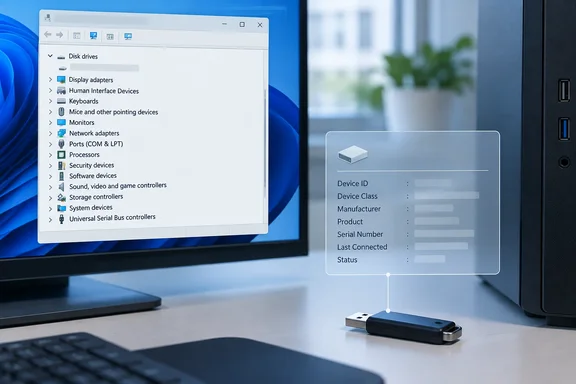
Windows Latest brought renewed attention to the behavior and the privacy question behind it: what does that leftover record actually prove? Much less than a viral claim about a “permanent record of every USB device” suggests.
A device record is not a file history
For storage devices handled by Usbstor.sys, Windows can keep device-identification and installation information under:
HKEY_LOCAL_MACHINE\SYSTEM\CurrentControlSet\Enum\USBSTOR
Think of it as a hardware address book, not an inventory of the stick’s contents. Microsoft documents Usbstor.sys as a USB mass-storage driver, but it also documents a separate Uaspstor.sys driver for storage using USB Attached SCSI. A keyboard, mouse or webcam is not a USBSTOR storage entry; conversely, not finding a drive in USBSTOR does not prove it was never connected.
Nor does a recognizable product name conclusively identify one physical drive. Microsoft explains that Windows builds hardware IDs partly from vendor and product information reported by USB devices. Devices of the same model can share those identifiers, and a usable unique serial number is not assured. The practical distinction is between a model name, a device instance and proof that a particular person used a particular stick.
Bottom line: A retained storage-device entry may help show that Windows encountered hardware. By itself, it says nothing about the files on that hardware or whether anybody copied one.
How to see the record yourself
On Windows 10 or Windows 11, open Device Manager, choose View > Show hidden devices, and expand Disk drives. A disconnected device may appear greyed out. Microsoft cautions that users ordinarily need not manage non-present devices; their presence alone is not a fault.
For a closer look, open PowerShell and run this read-only registry query:
reg query "HKLM\SYSTEM\CurrentControlSet\Enum\USBSTOR" /s
The /s option includes subkeys. Windows Latest also offers a more readable Plug and Play view:
Get-PnpDevice -Class DiskDrive |
  Where-Object { $_.InstanceId -like 'USBSTOR\*' } |
  Format-List Status, FriendlyName, InstanceId
To understand the difference between known and currently connected, note a USBSTOR drive’s InstanceId while it is plugged in. Safely eject and unplug it, run the command again, then compare it with:
Get-PnpDevice -PresentOnly -Class DiskDrive |
  Format-List FriendlyName, InstanceId
If the instance remains in the first output but not the present-only output, you have found a retained, non-present record. Microsoft’s Get-PnpDevice documentation confirms the -PresentOnly filter; results can vary with the storage device and driver in use.
What about dates? Device properties may offer clues, but an installation date is not a diary of every insertion. Microsoft says the device InstallDate can change when its driver is updated. Windows also keeps %SystemRoot%\INF\setupapi.dev.log, a text log of device-installation activity—not a complete record of each subsequent connection.
Does it prove files were copied?
No. A USBSTOR entry does not identify files, the direction of any transfer or the person at the keyboard. Windows has separate auditing for access to files on removable storage; when configured, Audit Removable Storage can generate events including 4663. That is a different kind of evidence, and enabling auditing after an incident cannot create a record of past activity. Even an existing access event needs context before anyone calls it proof of theft.
For IT administrators, this is the important boundary: a device-installation clue can inform an investigation, but it cannot replace file-access logs or other corroborating evidence.
What if you are giving away the PC?
Do not try to scrub your history by manually deleting USBSTOR registry keys. If a stale device entry genuinely needs removal, Device Manager offers Uninstall device for the selected device; removing phantom entries one by one is not a substitute for preparing the whole PC for its next owner.
Microsoft’s consumer guidance is to back up what you need, then use Reset this PC > Remove everything rather than Keep my files. In Windows 11, the documented starting point is Settings > System > Recovery > Reset PC. Select Clean data for a PC being donated or sold, and check the reset choices carefully if it has additional user-accessible drives or volumes. A completed Remove everything reset is intended to remove the previous user’s files, apps and settings; whether other volumes are included depends on the options selected.
There is an important limit. Microsoft says reset does not format the Windows volume: it deletes user files individually while rebuilding Windows. Clean data makes recovery harder, but Microsoft explicitly says this consumer feature does not meet government or industry data-erasure standards. It is sensible preparation for an ordinary handoff, not a promise of forensic erasure.
So, does Windows remember an unplugged USB storage device? Often, yes. Does that record contain the drive’s files, prove a copy took place or survive every conceivable cleanup forever? No. The useful response is to distinguish routine hardware metadata from actual file evidence—and, when passing on a PC, reset the machine with the right data-removal options instead of worrying about one registry entry.
References
- Reset your PC | Microsoft Support support.microsoft.com
- Registry Trees and Keys for Devices and Drivers - Windows drivers | Microsoft Learn learn.microsoft.com
- Viewing Hidden Devices - Windows drivers | Microsoft Learn learn.microsoft.com