

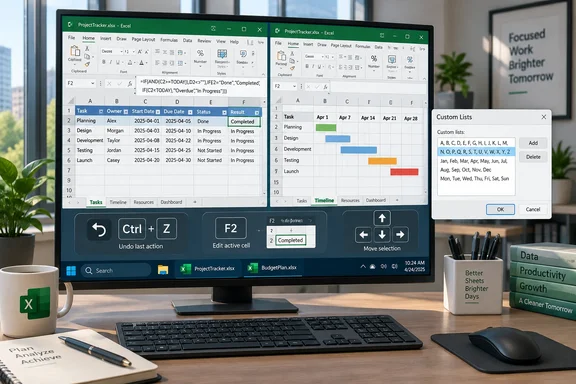
These are not feature releases or bugs patched in a monthly update. They are long-standing mechanics of the Windows desktop application, and they matter most in workbooks that are large, formula-heavy, or maintained by more than one person. A few minutes spent changing the right setting can remove repeated friction; changing the wrong setting globally can create a fresh support problem on the next PC.
The sensible approach is to apply each change where its benefit is clear, then understand whether it follows the workbook, the Windows user profile, or only the current Excel session.
Separate Excel instances isolate Undo—but also isolate workflows
The nastiest of the five is Excel’s shared Undo stack. Current desktop versions usually open every workbook in a separate window while still running them within the same Excel instance, Microsoft explains. Separate windows do not mean separate Undo histories: if two files are part of one Excel process, an undo action can target the most recent action across that process rather than the workbook a user has in front of them.
How-To Geek’s recommendation—to open a second instance of Excel for unrelated workbooks—is sound. Microsoft documents the same concept: right-click the Excel icon on the Windows taskbar, hold Alt, and choose the workbook to open from the taskbar list. Excel should then offer to launch another instance. Once the files are actually in separate processes, Ctrl+Z is contained within the instance where the change occurred.
For accountants reconciling one file while updating another, or analysts manually repairing imported data in parallel workbooks, this is a meaningful guardrail. It prevents the particularly unpleasant situation in which an attempted undo rolls back work in a different file.
The trade-off deserves more emphasis than a quick tip usually gets. Separate Excel instances can make cross-workbook work less seamless: copying ranges between instances, linking cells, running VBA routines that assume another workbook is already open, and using shared add-ins can behave differently than they do inside one process. Microsoft has warned since the Excel 2013 window-model change that an extra instance can produce unexpected results for tasks such as pasting between workbooks.
Users of a personal macro workbook should also treat the PERSONAL.XLSB warning seriously. Opening it read-only in the second instance lets the active data workbook remain editable, but any edits made to macros in that second session will not be saved back to the personal macro file. That is fine for ordinary spreadsheet work; it is the wrong setup for maintaining shared macros.
Use a second instance as a safety boundary for independent workbooks, rather than as a universal way to arrange Excel windows.
Custom alphabet lists are saved on the PC, not carried by the workbook
Excel knows how to extend built-in sequences such as weekdays and months, but it does not assume that A, B, C should become the full alphabet. The fix is to create an alphabetic Custom List through File > Options > Advanced > General > Edit Custom Lists, enter A through Z in order, and click Add. Typing A into a cell and dragging the fill handle will then continue the sequence.
Microsoft confirms that Custom Lists support both filling and sorting, which makes this more useful than a one-off letter-series trick. Teams can use the same feature for internal priority labels, reporting stages, territory names, or custom job levels whose desired order is neither alphabetical nor numerical.
The hidden limitation is where Excel stores the list. Microsoft says a user-created Custom List is written to the Windows registry. In other words, the alphabet list persists for that Excel user on that PC and applies to other workbooks, but it does not automatically become a portable fill behavior when the workbook is emailed to someone else or opened on a new machine.
That distinction changes how organizations should use the feature. A Custom List can be suitable for a personal workstation or a managed image where IT deliberately deploys a standard setup. It is less dependable as part of a workbook’s shared workflow. A colleague may receive the file, drag from A, and find that their Excel installation stops at the initial value because their registry does not contain the same list.
Excel does save a Custom List with a workbook when it is used for sorting, allowing that sort order to travel with the file. Microsoft also notes, however, that the list is not immediately available on another computer through the Fill command. If a workbook must generate an alphabetic sequence reliably across multiple users, use a formula or include the sequence in a worksheet range rather than relying on a local preference.
A simple option is to place letters A through Z in a hidden support sheet and refer to that range when needed. The workbook then carries its own source data, avoiding a configuration dependency that an IT administrator cannot see by inspecting the file alone.
Formula Bar editing trades speed for visibility
Long formulas can obscure nearby cells when users edit directly in the grid. How-To Geek suggests disabling Allow editing directly in cells under File > Options > Advanced so edits happen in the Formula Bar rather than spilling visually across the worksheet.
Microsoft documents this setting and confirms that Formula Bar editing remains available when direct in-cell editing is turned off. For users maintaining formulas that reference several nearby cells, the change has a practical benefit: the worksheet stays visible while the formula text is edited. That makes it easier to click another cell for a reference, compare labels, or verify a source value without repeatedly abandoning the edit.
This is especially worthwhile on small laptop displays, where even a moderately long formula can hide the adjacent columns. It can also reduce accidental reference mistakes in models where nearby inputs look similar.
The setting is user-specific, however, and it changes a deeply ingrained interaction. Someone moving between their own Excel installation and a shared workstation may find double-click behavior and F2 editing feel inconsistent. It is best viewed as a personal ergonomic setting, not a standard that should be imposed across a department without testing.
There is another lower-impact option for users who only occasionally lose sight of their worksheet: edit from the Formula Bar when the formula becomes unwieldy, without disabling direct editing globally. The Formula Bar can be expanded when more vertical room is needed, preserving the normal in-cell workflow for short entries.
New Window gives one workbook two working views
Alt+Tab switches Windows application windows; it does not jump among tabs inside a single Excel workbook. For distant worksheets, Excel’s View > New Window command supplies a better answer than repeatedly cycling with Ctrl+Page Up or Ctrl+Page Down.
The command opens a second view of the same workbook. Microsoft documents it primarily as a worksheet-comparison feature: select New Window, choose a different sheet in each window, and optionally use View Side by Side or Arrange All. Any edits remain edits to the same workbook, because there is still only one file open.
This is useful for common spreadsheet tasks that are otherwise awkward:
- A budget analyst can keep an Inputs sheet visible beside the Summary sheet that consumes those inputs.
- A report author can compare a raw-data tab with a formatted presentation tab without losing their place in either.
- A formula reviewer can watch precedent cells in one window while tracing or repairing formulas in another.
The practical advantage over opening the file twice is that Excel is not asking users to reconcile competing copies of the same workbook. It is two windows onto one working document.
Users should still be careful with filters and sorting in a shared workbook. A second window does not create an independent version of the data. For collaborative filtering, Microsoft’s Sheet Views feature is the more appropriate tool in supported Microsoft 365 and newer desktop versions because it can preserve an individual user’s sort and filter state without disrupting other people in the file.
F2 explains the arrow-key “cell reference” surprise
The arrow-key problem is less a defect than a mode switch. When entering or editing a formula, Excel can be in Enter, Edit, or Point mode. In Point mode, arrow keys select cells and add references to the formula; in Edit mode, they move the text cursor through the formula itself.
Microsoft’s keyboard-shortcut documentation specifically identifies F2 as the toggle for Point mode while editing a formula. The status bar’s Cell Mode indicator can show Enter, Edit, or Point, provided that indicator has not been removed from the status bar customization menu.
That makes the remedy straightforward. If an arrow key starts inserting a cell reference when the intention was to move through text, press F2 and check that the status bar shows Edit. Pressing F2 again returns Excel to Enter mode. Users who know the three labels can diagnose the behavior immediately instead of assuming the keyboard or workbook has malfunctioned.
These adjustments are small because the underlying problems are small. But Undo isolation, local-only Custom Lists, Formula Bar editing, New Window views, and F2’s mode toggle each address a distinct Excel behavior. The most durable weekend fix is to make the change that fits the workload, document any workstation-level preference that others depend on, and avoid confusing a personal convenience with a property of the workbook itself.