

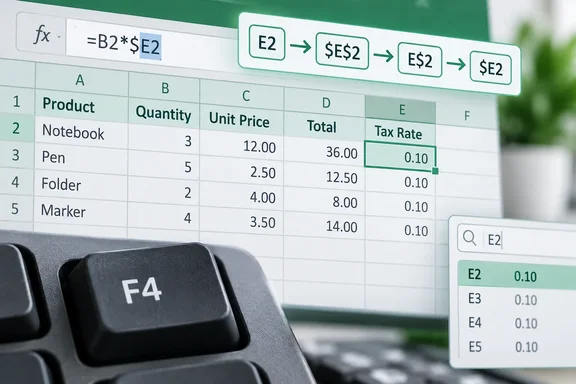
Job one: cycling reference types in a formula
Excel references are relative by default, which is why a formula pointing at E2 becomes E3 when you fill it down a row. That is handy until you need a formula to keep pointing at one cell, such as a target value or a tax rate.
Microsoft's shortcut reference says that when a cell reference or range is selected in a formula, F4 cycles through the combinations of absolute and relative references. Here is the cycle for E2 on Windows:
- Edit the formula (F2, or click in the formula bar).
- Put the insertion point on the reference you want to change. F4 acts on that reference, not on every reference in the formula.
- Press F4 once to get
$E$2. The column and row are both locked. - Press it again to get
E$2. Only the row is locked. - Press it a third time to get
$E2. Only the column is locked. - Press it a fourth time to return to plain
E2.
Phillips applies this to conditional formatting. A rule that highlights a whole row based on column C uses $C2. The locked column keeps the rule checking column C, and the row number advances as the rule is applied down the sheet. He also notes that a named range can be a cleaner choice for a constant you use repeatedly. For mixed references like that one, F4 is quicker.
Platform note: Microsoft's Mac documentation for this procedure lists Command+T instead of F4, so don't assume the Windows sequence carries over. Excel for the web lists an F4 reference-cycling entry too.
Job two: repeating your last action
Outside formula editing, F4 repeats the last command or action, if possible. Microsoft's own wording includes that qualifier. Ctrl+Y does the same job.
Phillips' examples:
- Column widths: Set one column's width in the dialog box, select another column, and press F4. You don't need to remember the measurement or reopen the dialog.
- Dialog-based formatting: He says a Format Cells change, such as a yellow fill plus a border, repeats as one combined action on another cell.
- Format Painter comparison: Format Painter copies a cell's existing formatting, red italic text included. F4 reapplies only the change you just made.
Both of those dialog and Format Painter claims are Phillips' own observations. Microsoft's repeat-action page doesn't spell them out, so test them in your own workbook. Other tutorials describe the same limit: F4 only repeats the last single action you took.
Where repeat falls short
- Microsoft says some actions, such as using a function in a cell in Excel, can't be repeated. In that case the Repeat command changes to "Can't Repeat".
- Microsoft also says that running a macro in Excel clears the undo stack, which makes the earlier action unavailable.
- Some laptops and multimedia keyboards map F4 to something else. Microsoft's guidance is that you may need to press the F-Lock or Fn key, then F4.
- The Repeat command is not on Excel's Quick Access Toolbar by default. F4 and Ctrl+Y work without it.
Job three: walking through Find results with Shift+F4
Microsoft documents Shift+F4 for next and Ctrl+Shift+F4 for previous for Excel on Windows. In its keyboard-shortcut list they appear as repeat Find downward and upward. The workflow:
- Press Ctrl+F and type your search term.
- Press Esc to close the Find and Replace dialog.
- Press Shift+F4 to jump to the next match.
- Fix the cell, then press Shift+F4 again.
- If you overshoot, press Ctrl+Shift+F4 to go back.
This works because Excel remembers your last search. The shortcut uses whatever criteria were last entered into the Find and Replace window. That is why the dialog no longer needs to sit over the cells you're editing.
Before you start stepping through matches, check the Find options, because they shape the results. Microsoft's Find page says you can search within a sheet or the whole workbook, search by rows or by columns, look in formulas, values, notes or comments, and set Match case and Match entire cell contents. A search limited to the wrong scope will quietly skip cells you meant to catch.
One more caveat: if you've never run a search, the shortcut does nothing.
Quick reference
| Task | Windows shortcut | Condition |
|---|---|---|
Cycle E2 → $E$2 → E$2 → $E2 | F4 | Cursor on a reference while editing a formula |
| Repeat last action | F4 or Ctrl+Y | Only if Excel can repeat that action |
| Next Find match | Shift+F4 | A prior search must exist |
| Previous Find match | Ctrl+Shift+F4 | A prior search must exist |
Our take
F4 is worth learning because it replaces three clumsy habits with one key: typing dollar signs by hand, reopening dialogs, and juggling the Find box. Microsoft's documentation supports each use, so none of this depends on a lone blogger's say-so. The caveats are real, though. Repeat is not universal, laptop function-key settings can get in the way, and Mac users need different keys for reference cycling.
The easiest way to test it is on a throwaway sheet. Set a column width, move to another column, and press F4. If that works, try the Find workflow on a real workbook.
References
- I use Excel all day, and F4 saves me more work than almost any other shortcut How-To Geek · 2026-10-05T14:30:14+00:00
- Switch between relative and absolute references | Microsoft Support support.microsoft.com
- Keyboard shortcuts in Excel | Microsoft Support support.microsoft.com