

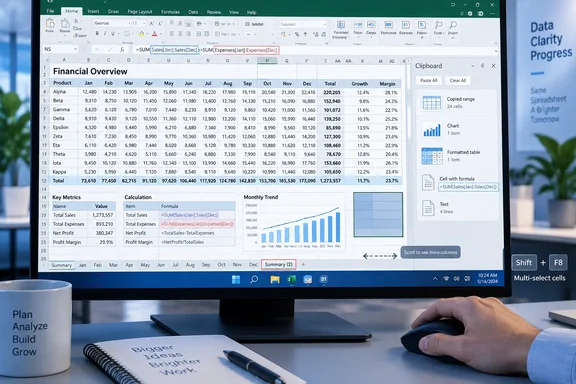
For people who live in wide workbooks, recurring monthly tabs, and formula-heavy operational sheets, the value is not that these commands are new. It is that they remove small interruptions that add up across a day. The strongest advice in How-To Geek’s list is to adopt the shortcuts that preserve context—without accidentally changing data, hiding rows, or making a workbook harder for somebody else to maintain.
Ctrl-drag duplicates a sheet, but only in desktop Excel
Holding Ctrl while dragging a worksheet tab creates a copy at the drop position. Microsoft documents the same method alongside the older Move or Copy Sheet dialog, confirming that it is a supported desktop Excel action rather than an undocumented trick.
It is particularly helpful in workbooks structured around repeated templates: monthly operating reports, branch budgets, per-customer work sheets, or scenario models. Copying the tab preserves the layout, formulas, data validation, conditional formatting, tables, and chart objects that would otherwise take time to recreate.
The caveat is more consequential than it sounds. A copied worksheet also preserves formulas and their references. Relative formulas generally adjust as intended, but formulas that point to fixed cells, external workbooks, named ranges, or hard-coded prior-month sheets can carry old assumptions into the new tab. Before treating a duplicated month as ready, check the formulas that drive totals, dates, and cross-sheet lookups.
Excel for the web is the first compatibility boundary. Microsoft says the usual right-click command for moving or copying a worksheet is unavailable there. Organizations mixing desktop Excel users with browser-only users should not build a required process around Ctrl-drag tabs without providing an alternative.
Data > Clear restores rows without removing filter controls
How-To Geek correctly calls out the Data tab’s Clear command as the quick way to restore rows hidden by filters while leaving the filter dropdowns in place. This is the right recovery move when a table looks incomplete and the cause may be a forgotten filter criterion rather than missing data.
Microsoft distinguishes three actions that users commonly conflate:
- Clearing a filter from one column removes that column’s criterion while leaving filters elsewhere in force.
- Using Data > Clear removes active filter criteria across the current filtered range or worksheet and shows the rows again.
- Turning Filter off removes the filter dropdown controls themselves.
That distinction matters in shared reporting workbooks. Clearing filters is safe when the goal is to return to the full dataset; turning filters off changes the sheet’s interface, potentially disrupting the next person who needs to filter it. It also does not undo sorting. Microsoft explicitly notes that Excel has no universal “restore the original sort order” command after a sort. If original row order matters, add a sequence column before sorting.
The Ctrl+Shift+L twice workaround can achieve a reset by removing and then re-adding AutoFilter controls, but it is a blunt instrument. Use Data > Clear when you want the least disruptive fix. Use Ctrl+Shift+L only when you genuinely want to remove the dropdowns, or when you are rebuilding a filtered range.
Shift+F8 is a selection mode, not merely a shortcut
Shift+F8 activates Excel’s Add to Selection mode, allowing noncontiguous cells or ranges to be added without keeping Ctrl pressed. Microsoft’s Excel status-bar documentation confirms the mode and its indicator, which is useful because users can otherwise forget it is active and make a surprising selection later.
This is most valuable when selecting with the keyboard or building a complex collection of ranges. It reduces the fragile hand coordination of holding Ctrl while clicking, dragging, and scrolling. Press Esc when finished to exit the mode cleanly.
There is a practical limit: selecting several disconnected ranges is often a warning sign that the underlying task may be better handled with a table, filter, helper column, or formula. A formula such as =SUM(B2:B20,D2:D20,F2:F20) is legitimate, but a report that repeatedly requires many manually chosen islands of data will be harder to audit and easier to break.
For formula entry, the clearer alternative is often to type the references or use a named range. Shift+F8 is best viewed as a precision tool, not a replacement for structured worksheet design.
Horizontal scrolling is now an official Excel shortcut
The Ctrl+Shift-plus-mouse-wheel trick may be the most immediately useful item in the roundup for Windows users working across dozens of columns. Microsoft’s current Excel keyboard-shortcut reference specifies that Ctrl+Shift plus the mouse wheel scrolls horizontally—wheel up moves left and wheel down moves right. Alt+Page Up and Alt+Page Down move one screen left and right, respectively.
This is a deceptively meaningful improvement over dragging the horizontal scrollbar. In finance, inventory, export-cleanup, and log-analysis worksheets, people constantly need to compare identifier columns at the left edge with values far to the right. Moving sideways without leaving the active working area reduces the tendency to lose one’s place.
The behavior depends on the desktop application and input hardware. Microsoft notes that some Windows mouse settings can supersede Excel’s normal mouse-wheel behavior. It is also not a reason to leave a worksheet permanently sprawling: when a workbook requires constant horizontal travel, freeze panes, convert the data to a table, or reconsider whether descriptive fields belong in a separate lookup sheet.
Named cells make formulas reviewable
The most durable recommendation in the list is assigning names to cells and ranges. Selecting a cell, typing a valid name in the Name Box, and pressing Enter creates a workbook-level named reference by default. Microsoft’s documentation confirms that names can represent individual cells, ranges, constants, formulas, and tables.
Replacing a formula such as =D2*$G$2 with =D2*Tax_Rate does more than make it friendlier to the original author. It makes the workbook reviewable. A colleague can identify the formula’s intent without tracing $G$2, and a future editor can use Name Manager to inspect what Tax_Rate actually points to.
There are rules worth learning before names spread through an operational workbook. Names cannot contain spaces, cannot look like cell references, and must be unique within their scope. Excel also supports worksheet-level names and workbook-level names; the former can create confusion when the same word refers to different cells on different tabs. For most business models, use workbook-level names for global assumptions and reserve sheet-level names for cases where their local behavior is intentional and documented.
The Formulas > Create from Selection command is useful for converting a labeled assumptions block into names in one pass. But do not blindly name every cell. Reserve names for inputs, policy rates, exchange rates, dates, thresholds, and reusable ranges—items whose meaning should survive structural changes to the sheet.
The Office Clipboard holds 24 items—and has a platform limit
The Office Clipboard is more capable than Windows’ one-item copy-and-paste workflow. Microsoft says it can hold up to 24 copied items from Office programs and other applications, display them in the Clipboard task pane, paste an individual item, or paste the whole collection with Paste All.
That makes it effective when assembling a compact output from scattered cells, such as a management-summary sheet or a manual reconciliation. It avoids the copy-paste-copy-paste loop that introduces omissions and placement mistakes.
The limitation is that this is not a durable staging area. A twenty-fifth copied item drops the oldest entry, and clipboard contents should never be treated as a workflow record. More importantly, Microsoft says that on Mac, users cannot view or clear the Office Clipboard in the same way. Teams writing Excel instructions for mixed Windows and Mac fleets should avoid assuming the Clipboard pane exists for everyone.
For repeatable consolidation work, Power Query, formulas, or a controlled import process remain better choices. The Office Clipboard is for the occasional manual assembly job, not a substitute for data transformation.
The common thread in these six techniques is that they reduce friction around tasks Excel users already perform: copying a template, restoring hidden records, selecting scattered data, moving across a large grid, reading formulas, and gathering fragments for a report. The operational payoff comes from knowing the boundaries as well as the shortcuts.
Use Ctrl-drag for a new template sheet, Data > Clear to recover filtered rows, Ctrl+Shift plus the mouse wheel for a wide workbook, and named ranges for assumptions that other people must understand. Those four habits alone make day-to-day Excel work faster while leaving the workbook easier to audit when the next person opens it.