

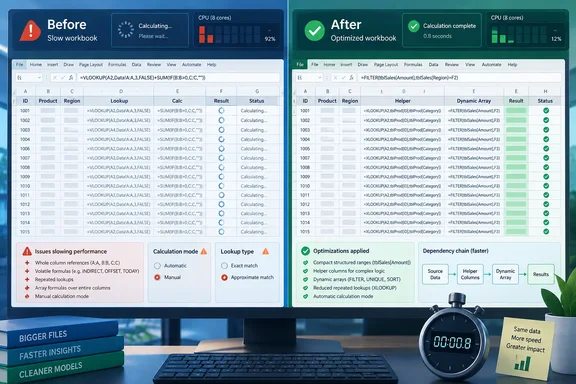
Microsoft’s Excel documentation makes the underlying issue clearer. Excel normally uses smart recalculation: after an edit, it recalculates changed cells and their downstream dependents rather than every formula in the file. A workbook becomes sluggish when formulas defeat that selective process, multiply the number of references Excel must evaluate, or force single-threaded work that cannot fully use a modern PC’s CPU cores.
The practical response is not to purge every complex formula. It is to find formulas that recompute too broadly, consolidate repeated work, and measure whether a rewrite makes the workbook faster before changing business logic.
Volatile functions can recalculate far beyond the edited cell
Functions such as NOW(), TODAY(), RAND(), OFFSET(), and INDIRECT() are volatile, meaning Excel evaluates them whenever it recalculates even when their direct inputs have not changed. Microsoft explicitly advises limiting volatile functions because they increase the number of formulas that must be revisited during each calculation cycle.
The distinction between NOW() and INDIRECT() matters. A lone NOW() in a small dashboard rarely explains a several-second pause. Hundreds of cells independently calling NOW(), or formulas downstream that depend on it, can. Microsoft’s guidance is straightforward: calculate the current time or date once, then point dependent formulas to that one result instead of scattering volatile calls throughout the workbook.
INDIRECT() is the more serious performance warning in many operational workbooks. It converts text into a cell or range reference, which makes flexible templates possible but obscures dependencies from Excel’s calculation engine. Microsoft lists INDIRECT() among functions that calculate single-threaded, meaning one portion of the formula workload cannot be efficiently split across several processor cores.
For a dynamic range, INDEX() is frequently a better building block than OFFSET(). For choosing among a known set of worksheets or ranges, CHOOSE() can often replace INDIRECT(). Neither replacement is automatic: INDIRECT() is sometimes the only practical choice when a model genuinely needs references constructed from text. But it should be treated as an expensive exception, not a default way to make a template look clever.
Manual calculation is a valid diagnostic and short-term control, but it is not a cure. Microsoft says calculation mode operates at the application level, so setting Excel to Manual changes behavior for all currently open workbooks, not merely the slow file being investigated. Pressing F9 recalculates all open workbooks, while Shift+F9 recalculates the active worksheet. A team that leaves a shared model in manual mode can easily review or export stale figures without realizing it.
Legacy CSE arrays deserve an audit, not a blanket ban
MakeUseOf is also right to direct attention to legacy array formulas entered with Ctrl+Shift+Enter, commonly called CSE arrays. Microsoft retained them for compatibility, but recommends dynamic array formulas for new Microsoft 365 workbooks. Dynamic arrays spill results from a single formula cell, resize with source data, and avoid the need to select and edit a whole legacy array range at once.
The performance problem is usually not that an array formula exists; it is the work embedded inside it. A CSE formula that processes a few hundred tightly scoped cells may be perfectly acceptable. One that repeatedly evaluates whole-column references, nests several conditional tests, and calls volatile functions can force Excel to process an enormous amount of data after every edit.
Whole-column arrays are especially dangerous in modern Excel because a worksheet has more than one million rows. Microsoft’s performance guidance warns that an array formula referencing an entire column can force calculation across empty cells as well as populated ones. A:A may be convenient while building a worksheet, but it is a poor production range when the formula must process the column as an array.
The useful migration path is to identify old CSE formulas by their braces in the formula bar, then test an alternative on a copy of the worksheet. Depending on the calculation, that could mean a dynamic-array formula using FILTER(), UNIQUE(), SORT(), or SEQUENCE(); a conventional formula copied down a helper column; or intermediate calculations split into visible cells. Microsoft’s own performance documentation favors additional rows and columns when they eliminate duplicated calculations and let smart recalculation do its job.
A helper column is not automatically inelegant or slow. In a large model, it is often easier to inspect, less error-prone during maintenance, and faster than a dense one-cell formula that repeats the same work thousands of times. The real test is whether the redesign reduces repeated references and recalculation time.
Lookup formulas need correct ranges before new functions
Large numbers of VLOOKUP(), HLOOKUP(), MATCH(), INDEX()/MATCH(), and XLOOKUP() formulas can contribute heavily to workbook delays, particularly when each formula searches a large table or a different workbook. Microsoft says it has improved calculation performance for VLOOKUP, HLOOKUP, and MATCH, and says Microsoft 365 users can benefit from the flexibility and performance improvements in XLOOKUP and XMATCH.
That does not make every lookup architecture fast. If 50,000 rows each run several lookups against overbroad ranges, Excel still has substantial work to do. The first fixes are mundane and effective: keep lookup tables close to the formulas that use them where feasible, avoid unnecessary links across workbooks or network locations, remove duplicate lookups, and define the narrowest range that accurately contains the data.
The supplied article recommends using approximate matches instead of exact matches for speed. That needs a hard safety warning. Microsoft says approximate VLOOKUP() requires the first lookup column to be sorted numerically or alphabetically, and it returns the closest match rather than confirming an exact one. On unsorted employee IDs, product codes, invoice numbers, or asset tags, changing FALSE to TRUE can silently return the wrong record.
Use approximate matching only for data that is inherently range-based and intentionally sorted: tax bands, commission thresholds, grading scales, freight bands, or similar tables. For identity-style values, retain exact matching. XLOOKUP() defaults to exact match and can search in either direction, which reduces several old VLOOKUP() workarounds, but it is unavailable in Excel 2016 and Excel 2019. A workbook shared with those versions needs a tested compatibility plan before a wholesale conversion.
MakeUseOf’s claim that Microsoft 365 creates a temporary index to accelerate repeated lookups is not documented in Microsoft’s public Excel performance guidance. Microsoft does describe improvements to lookup functions and says Excel reuses parts of its calculation sequence after calculations, but that is different from promising a temporary index for every repeated lookup pattern. Administrators should benchmark the actual workbook rather than assume a Microsoft 365 subscription neutralizes inefficient formulas.
Measure the bottleneck before rebuilding the workbook
A reliable tuning pass starts with a copy of the workbook and a baseline. Open it with calculation set to Automatic, make a typical edit, and record the delay. Then use manual calculation briefly to distinguish calculation time from other problems such as oversized used ranges, conditional formatting, Power Query refreshes, external links, COM add-ins, or a slow network share.
Microsoft recommends isolating calculation obstructions by timing individual worksheets and smaller formula blocks. Even without VBA performance macros, users can take a disciplined approach: temporarily replace one repeated lookup column with values, recalculate, and compare the delay; do the same with an INDIRECT()-heavy section or a CSE array block. The largest improvement identifies where redesign time will pay off.
For formulas that must remain volatile, consolidate them. For arrays, cap the input range and split repeated intermediate calculations into helper cells. For lookups, use exact matches unless sorted threshold data specifically calls for approximate matching. And before changing calculation mode on a production machine, remember that Manual mode applies to all open workbooks and can leave reports displaying old results.
The fastest Excel workbook is rarely the one with the fewest formulas. It is the one whose formulas give Excel a small, visible dependency chain to recalculate when a user changes a single cell.