

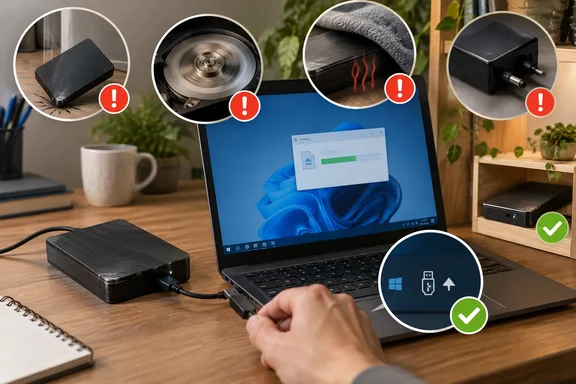
Much of the evidence comes from Secure Data Recovery, a commercial recovery lab. In August 2026 it published an analysis of 3,453 failed external HDDs, alongside support guidance from Western Digital, Seagate, and Microsoft. The lab's numbers describe drives that already died and ended up on a recovery bench. They are not a failure rate for every portable drive sold, and that sampling limit should shape how you read every figure below.
What Secure Data Recovery's 3,453-drive study measures
The study covers 3,453 external hard drives from five brands, all sent in for professional recovery between January 2023 and June 2026. The lab says each one had mechanical failure, physical damage, or both. Failed read/write heads, bad printed circuit boards (PCBs), and broken spindle motors were among the most common faults. Drives with purely logical problems, such as file corruption or lost partitions, were left out. So were drives whose platter damage had destroyed the firmware Service Area, because those can report unreliable SMART values.
Western Digital accounts for 2,016 of the drives and Seagate for 802, followed by Toshiba (333), Hitachi (184), and Samsung (118). The lab says those shares largely reflect each brand's market share, so the table isn't a brand reliability ranking.
The headline numbers are stark. The median drive failed after 4,559 power-on hours, about 190 days of spinning, and the average was 15,961 hours, about 665 days. Of the sample, 60.8% never logged a full year of power-on time. The lab puts accidental drops, power surges, extreme heat, and manufacturing defects at the top of its list of causes.
The lab also spells out the catch. Kirill Rymko, its director of lab operations, says a recovery service sees "a large percentage of the non-predictable failures." The study itself warns that its sample probably contains more early failures than the wider population and shouldn't be used to predict how long a particular drive will last. Take the 190-day median as a picture of how failed drives died, not as a lifespan for yours.
Powering a dropped external HDD back on can finish it off
The most costly habit is also the most natural: you drop the drive, plug it in, and check whether your files are still there. Secure Data Recovery's guidance on broken drives says plainly not to power a drive on after an accidental drop. If the read/write heads struck the platter surface during the impact, one spin-up can gouge more of the magnetic surface and destroy more sectors. The lab says recovery success rates are much higher when a dropped drive stays powered off. It suggests putting the drive in a padded, anti-static bag and talking to a specialist.
The mechanism is simple. A hard drive's heads fly a tiny distance above platters spinning at high speed. If a knock has bent a head or left debris inside, powering the drive on turns a contained fault into a spreading one. The same lab lists clicking (the "click of death") and beeping as signs of head or spindle-motor trouble. Its advice for any suspected physical failure is to shut the drive down at once, because every extra rotation risks more damage.
How far you follow this depends on what's on the drive. If it holds only a second copy of data that exists elsewhere, the risk of testing it is small. If it holds the only copy of something irreplaceable, leave it off and get a professional assessment. Keep in mind that this advice comes from a company that sells recovery services, though the underlying mechanical logic doesn't depend on who is giving it.
Moving a spinning drive and blocking its airflow
Western Digital's setup guidance for its 3.5-inch external desktop drives and My Cloud products is blunt. Don't handle or move the drive while it's in use or powered on, because doing so can cause it to fail. The page tells owners to power the drive off and remove all cables before moving it, and to keep shaking to a minimum in transit. That page covers WD's desktop-class enclosures specifically, so treat it as a strong general principle rather than a rule written for every portable model.
This mistake is easy to make without noticing. A bus-powered drive dangling from a laptop tends to get picked up along with the laptop. Getting into the habit of ejecting and unplugging before you stand up removes the risk entirely.
Heat is the quieter problem. The same WD page says these drives have vents on the top, bottom, and back. They should stand upright on their rubber feet on a flat surface, in a well-ventilated area, with at least an inch of clear space around them. WD also says never to lay them on their side or put them anywhere without free airflow. A blanket, a sofa cushion, or a drive wedged behind a monitor all break those rules.
WD's temperature guidance adds numbers. It lists an operating range of 5°C to 35°C for both its 2.5-inch and 3.5-inch external drives. Non-operating storage limits are much wider: –20°C to 80°C for 2.5-inch models and –20°C to 65°C for 3.5-inch models. Don't confuse the two. A drive that survives a hot car while switched off isn't rated to run at that temperature. WD warns that running outside the specified range can cause reduced speeds, data corruption, and hardware failure, and it tells owners to check the datasheet for their specific drive. External drives run under a much tighter ceiling than WD's internal drives, which are rated to operate at up to 60°C or 65°C.
Secure Data Recovery lists extreme heat among the leading failure causes in its cohort. Put next to WD's 35°C ceiling, the practical point is clear: a small enclosure with no fan, sitting on a soft surface in a warm room, can drift close to its limit.
Surge protection and the right power adapter for externally powered drives
Power problems damage the electronics, not the mechanics. Secure Data Recovery names power surges among its leading failure causes. Its broader failure breakdown describes PCB components burned out by surges, thermal stress, or defects, which leave the drive unable to regulate power or control its own operation. The lab recommends using an uninterruptible power supply (UPS) with your PC to protect connected devices.
Western Digital recommends a surge protector for external drives that use a separate power adapter. That advice applies mainly to 3.5-inch desktop drives with their own power brick. Bus-powered 2.5-inch portables draw power from the computer's USB port, so they're only as protected as the PC they're plugged into.
The second power mistake is treating adapters as interchangeable. Seagate's handling guidance says to use the power supply that came with the drive, or one with the same specifications. Seagate's own adapter list shows why the plug fitting isn't enough: adapters that all output 12 volts are rated for different currents and can have different polarity. A barrel plug that fits the socket can still deliver the wrong current or reversed polarity. Before you use a replacement, check the voltage, current, and polarity printed on the original adapter or the drive's label.
Unplugging instead of using Safely Remove Hardware in Windows 10 and 11
Unplugging without ejecting corrupts data far more often than it damages hardware. That puts it in a different category from the other five habits, but it still loses people's files. Microsoft's support guidance is direct: to avoid losing data, always safely remove hardware devices like USB flash drives or external hard drives before disconnecting them. Secure Data Recovery explains why: ejecting lets the computer finish pending write requests, and interrupting them can corrupt the file system. Western Digital warns that skipping safe removal can damage the file system, corrupt data, or leave the drive read-only.
Some of the "you don't need to eject anymore" advice comes from how Windows now handles removable drives. Windows offers a Quick removal policy that turns off write caching. The Eleven Forum tutorial notes that if you have the removal policy (write caching) for a removable device set to quick removal, you can disconnect the device safely without needing to use Safely Remove Hardware. Quick removal still can't protect a copy or backup that's running when you pull the cable. The file being written is incomplete either way. Ejecting also gives you a clear signal: Windows refuses to eject if something still has the drive open.
How to eject an external drive in Windows 10 and Windows 11
Microsoft documents the same taskbar procedure for both versions:
- In the system tray area of the taskbar, right-click the Safely Remove Hardware and Eject Media icon. If the icon isn't visible, select Show hidden icons first.
- In the menu that pops up, select Eject <device> for the hardware device that needs to be removed.
- Wait for confirmation. The notification Safe To Remove Hardware displays and the hardware device disappears from the Safely Remove Hardware and Eject Media menu. Unplug only once both have happened.
If the icon is missing from the tray entirely, Microsoft's fix is to right-click the taskbar and open Taskbar settings. In the Personalization > Taskbar window, select Other system tray icons to expand it, scroll to find Safely Remove Hardware and Eject Media, and make sure it is turned On. File Explorer offers another route: open This PC (Win+E), right-click the removable drive you want to remove, and click Eject.
Sometimes Windows says the device is still in use. The usual cause is an open File Explorer window, a media player, or a backup tool still holding a file on the drive. Close those and try again. If the drive still won't eject, shutting down the PC before unplugging is the safe fallback.
Why a clean SMART report on an old external HDD guarantees nothing
The last habit is one of false confidence. SMART (Self-Monitoring, Analysis, and Reporting Technology) is built into the drive and records usage and error counters. One of the most closely watched counters is attribute 197, Current Pending Sector Count, which counts unstable sectors the drive is having trouble reading. A rising number is a classic warning sign.
Secure Data Recovery found that 27.2% of the failed drives in its sample showed zero current pending sectors at the moment they failed. The finding is narrower than it sounds. It covers one attribute, not every SMART value. The drives also died mostly from sudden mechanical or physical events, such as a head crash from a drop or a board burned by a surge, which a sector counter was never designed to predict. Still, a zero on attribute 197 won't warn you about the failures most likely to catch you off guard.
SMART monitoring is still worth doing. The lab points Windows users to CrystalDiskInfo, a free, open-source SMART viewer, and to vendor tools such as WD Discovery and Seagate SeaTools. It flags three attributes as urgent: Reallocated Sector Count (SMART 5), Current Pending Sector Count (SMART 197), and Uncorrectable Sector Count (SMART 198). There's a hardware catch as well. Many USB enclosures use cheap bridge chips that can't pass SMART data to the computer, so on some external drives these tools show nothing at all.
The same study includes an 80 GB drive from 2002 that logged 124,292 power-on hours before it failed. Old drives can keep running for a long time. SMART can tell you when an old drive is visibly deteriorating, but a clean report doesn't tell you it's safe to keep your only copy on it.
What this means for you
What you should change depends on which of your drives hold the only copy of something. A drive that's one of several backups can tolerate some rough treatment. A drive that holds the only copy of your photos needs all six habits fixed, starting with backing it up somewhere else. Secure Data Recovery describes the 3-2-1 rule as three copies of your files, on two different types of media, with one copy kept off-site. Following it turns almost every scenario in this article from data loss into a hardware replacement.
- If a drive holding irreplaceable data is dropped, leave it powered off and get a professional assessment instead of plugging it in to check.
- Eject the drive through Safely Remove Hardware and Eject Media, and wait for the Safe To Remove Hardware notification, before you unplug it or move it.
- Keep desktop external drives upright on a hard, flat surface with about an inch of clearance, and keep them within WD's stated 5°C to 35°C operating range, or your own model's datasheet limits.
- Put externally powered drives on a surge protector or UPS, and replace a lost adapter only with one that matches the original's voltage, current, and polarity.
- Check SMART attributes 5, 197, and 198 with CrystalDiskInfo or your vendor's tool, and treat a clean result as one sign of health, not a guarantee.
- Keep at least one copy of important data on different media and off-site, and check that you can actually restore from it.
Most of these habits cost nothing to fix. The only purchase involved is a surge protector for drives with their own power brick. The failure data comes from a recovery lab's bench rather than a random sample of drives, but it matches what Western Digital, Seagate, and Microsoft already say in their own guidance: handle spinning drives gently, keep them cool, feed them clean power, and eject them before unplugging. Even with all of that, a clean SMART report and careful handling won't save your files from a sudden drop or surge. A second copy on another drive will.