

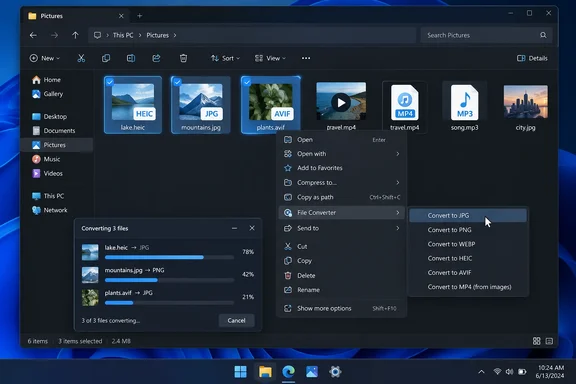
The project’s official website describes File Converter as free, GPLv3-licensed open-source software and says it contains no advertising or data collection. Those last two points are the publisher’s claims, rather than findings from an independent privacy audit.
What the right-click menu actually does
File Converter combines an Explorer extension with conversion tools running underneath it. The project’s repository identifies FFmpeg as its media-conversion engine, ImageMagick for image processing, Ghostscript for PDF-related operations, and SharpShell for the context-menu integration.
That arrangement explains the convenience: you choose an output preset in Explorer rather than separately opening a conversion application, importing files, and configuring an export. The project explicitly supports converting one or several files.
According to PCWorld, available output formats include JPG, PNG, WebP and AVIF for images; MP3, WAV and FLAC for audio; and MP4, MKV and WebM for video. These are supported conversion categories, not a promise that every input can become every output. The phrase “right-click on any file” is too broad: the input type and chosen output must be supported.
PCWorld highlights converting an iPhone HEIC photograph to JPG and compressing a video as practical examples. The project’s release history also documents HEIC support, including a fix in version 2.0.1 for newly supported input types not being included in presets.
Using File Converter in Explorer
Once File Converter is installed, the supported workflow is straightforward:
- Select a supported file, or several files, in File Explorer.
- Right-click the selection.
- On Windows 11, select Show more options if File Converter is absent from the first menu.
- Open the File Converter submenu and select the desired conversion preset.
A discussion in the project’s GitHub repository documents users finding File Converter in Windows 11’s older context menu. This is worth knowing before treating an absent entry in the modern menu as an installation failure. The discussion does not establish that every Windows 11 configuration behaves identically.
PCWorld also reports that users can customize which conversion presets appear in the menu and change their settings. A preset is a saved conversion configuration: its value is that you can reuse a choice instead of reconstructing it each time. This makes the utility particularly suitable for repeated, well-defined tasks.
What version 2.2 adds
The project’s release page lists File Converter v2.2 as the latest release. Its documented changes give existing users concrete reasons to update:
- AVIF is now supported as both an image input and output format.
- An AMD AMF hardware-acceleration option is available for H.264 conversions targeting MP4 or MKV.
- A fix addresses cases where converting more than 16 files could select the wrong preset.
- Another fix addresses progress bars that did not update during FFmpeg conversions.
The batch-conversion fix is especially relevant if you use Explorer to process many files at once: it concerns which conversion settings are applied, rather than merely how progress appears.
The AMD option also needs its stated boundary preserved. It covers particular H.264 conversions, not every operation in File Converter. The release notes provide no performance measurements, so they do not support a specific speed-up claim.
Office documents have an additional requirement
According to PCWorld, converting Word, Excel or PowerPoint files requires Microsoft Office to be installed and activated. The activation requirement is not separately confirmed by the project release notes reviewed here, so it should remain attributed to PCWorld rather than treated as an independently verified prerequisite.
Version 2.2’s changelog says the project replaced an older Office software dependency with NetOffice. That internal change does not announce that Microsoft Office is no longer needed. Readers looking for an Office-free document converter should therefore not assume this utility supplies that capability.
For routine image and media work, File Converter’s useful distinction is the saved-preset workflow directly inside Explorer. Version 2.2 adds AVIF support and addresses a substantive batch-processing fault, while Windows 11’s extra menu step is a small but important qualification to the “two clicks” pitch.
References
- This free Windows app makes file conversion ridiculously easy PCWorld · 2026-09-21T10:30:00+00:00
- File Converter github.com