

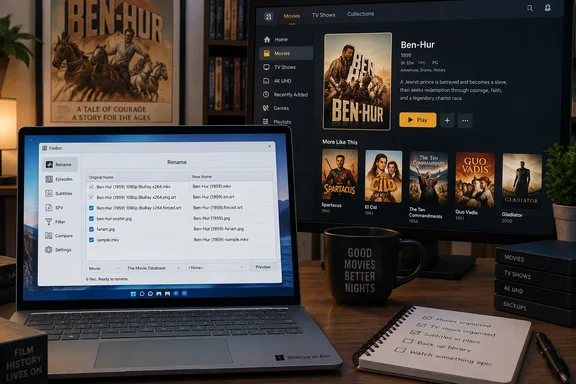
Below is what FileBot does, how the workflow he describes fits together, where Plex's own naming rules come in, and one licensing trap that catches Windows users more than anyone else.
What FileBot actually is
FileBot's developers describe it as a tool for renaming and organizing movies, TV shows and anime. It matches files against online databases, downloads artwork and cover images, and fetches subtitles. The current release listed on the official site is version 5.3.0.
Windows gets first-class treatment:
- Native MSI installers for both x64 and ARM64, so Snapdragon-powered Windows on Arm PCs are covered
- Package manager installs through winget and Scoop
- A Microsoft Store edition, which has its own licensing rules (more on that below)
- Other platforms too: macOS, Linux packages, Synology and QNAP NAS packages, unRAID containers and Docker images
The feature list goes well past renaming. It pulls episode and movie data from TheMovieDB, TheTVDB or AniDB. It can rename music using ID3 tags or AcoustID fingerprints, and photos using Exif data. It also verifies checksums, extracts archives and ISO images, and keeps an internal history so you can undo rename operations. That last feature matters a lot, as we'll see.
Section summary: FileBot is a standalone, cross-platform organizer with first-class Windows support, including ARM64. It isn't something you install inside Plex.
Why Plex cares so much about file names
Before you touch FileBot, it helps to know why naming matters at all. Plex's support documentation says its scanners and metadata agents only work properly when major content types are kept apart. If movies and TV share a path, you can get wrong matches, misclassified content, or files that are skipped entirely.
Plex's rules for TV libraries are specific:
- Each show gets its own folder, with season subfolders named with the English word "Season", even for foreign-language content
- The key part of an episode filename is the season-and-episode tag, such as
s02e17. Dashes, dots or spaces between parts don't matter - For the Plex TV Series agent, Plex recommends adding the year to the series title, for example
Band of Brothers (2001) - You can add a TMDB, TVDB or IMDb ID in curly braces to the folder name, like
{tmdb-123456}, to help matching - Specials go in
Season 00orSpecials
So Klinger-Meyers's complaints about missing capitals and abbreviations are mostly cosmetic. The real damage in his old library came from the missing episode structure and duplicate names. Plex doesn't care whether you capitalize a title. It cares a great deal about whether s01e05 is there.
FileBot ships with a built-in {plex} naming format for exactly this. Its homepage suggests sticking with that standard if you don't want to design your own scheme.
Section summary: Plex matching depends on folder structure and episode numbering far more than on looks. FileBot's job is to produce names Plex can parse reliably.
Step 1: Turn on artwork fetching before you rename
Klinger-Meyers recommends setting up artwork first, so images download during the same pass as the rename. His steps:
- Open the Rename panel.
- Click the Settings icon (a small wrench and screwdriver) on the right side.
- Open Post Process.
- Tick Fetch artwork and Fetch cover images, then click OK.
FileBot's own forum documentation, written by the developer, confirms that post-processing features for newly renamed files are enabled under Renaming Settings, then Post Process. The same page says the artwork and cover options assume a Plex-compatible folder structure. The cover option writes folder.jpg files into movie and series folders.
Command-line users can do the same thing with --apply artwork cover added to a rename command. There are also options to prune empty folders, clean up leftover clutter, and bring companion files like subtitles along with the video.
A caution: menu labels can move between versions, so if your build looks slightly different, look for the Post Process section rather than exact button positions. Local artwork also doesn't override Plex in every setup. Whether Plex shows it depends on your library's agent and local-asset settings. FileBot supplies the images; Plex decides what to display.
Step 2: Pick a naming format and rename
This is the part Klinger-Meyers calls FileBot's most powerful use. His workflow:
- Click Rename on the left, then Load at the bottom, and choose a folder.
- On the right, click Fetch Data, then Edit Format.
- Write your own format, or pick one of the ready-made formats under Examples.
- Use the arrows at the bottom left to switch between movies, TV shows and music.
- Click a format line to select it, then click Use Format.
- Close the editor, select all files on the left, click Match, then Rename.
FileBot's homepage describes a simpler route: drag files into the Original Files list, right-click the New Names list to choose a data source, then hit Rename. Both approaches end in the same place.
Where this goes wrong, and how to avoid it
"It's that easy!" is true until it isn't. Batch-renaming a whole library is a big filesystem change. These are the failure points worth planning for (practical advice, not FileBot guarantees):
- Start small. Run one show or a handful of movies first, and check the proposed new names before you commit.
- Check ambiguous titles. Remakes, reboots and shows with the same name are where automatic matching goes wrong. The Clash of the Titans problem can happen in FileBot too if you accept the wrong match. Plex's own example of this is two separate folders for The Office (UK) and The Office (US).
- Match episode ordering between FileBot and Plex. Plex says its TV Series agent uses TMDB aired order by default. If you name files using TheTVDB (common with anime and DVD-ordered shows), change the Episode Ordering setting under the library's Advanced tab. Since Plex Media Server 1.40.4, you can also set an alternate order for a single show. If the two disagree, episodes get shuffled.
- Have an undo plan. FileBot says it can revert renames from its internal history. Having a backup of your library folders, or at least a file listing, is still a good idea.
- Keep content types apart. Renaming won't fix a library where movies and TV sit in the same root folder. Plex wants separate top-level folders.
Section summary: Renaming is quick. The value comes from checking matches carefully and making sure FileBot's data source agrees with Plex's episode ordering.
Step 3: Download subtitles after ripping
Klinger-Meyers skips subtitle tracks when ripping DVDs to save time. He then downloads subtitles afterwards, sometimes in languages the discs never included. That's handy for anime in its original language. FileBot gets these from OpenSubtitles, and he says you need an OpenSubtitles account. His steps:
- Click Subtitles on the left.
- Log in to OpenSubtitles with the small green button next to the language drop-down at the top.
- Type a title in the search box to the left, choose a language, and click Find.
- Double-click a result to download it.
FileBot's site also lists automatic lookup by file hash, which finds subtitles that match your exact file rather than just the title. It also has a built-in subtitle viewer and tools to fix encoding and convert formats. For headless or scripted setups, a developer reply on the FileBot forum says OpenSubtitles login details are entered with filebot -script fn:configure rather than a config file. That thread dates from 2017, so check current documentation first.
Always test a downloaded subtitle before settling in for movie night. A title-search result made for a different release can drift out of sync within minutes. Hash matches are more reliable than title searches, and availability depends on what OpenSubtitles actually has for your title and language.
The Windows licensing trap
Klinger-Meyers says installing is free but continued use needs a one-year or lifetime license. He also suggests older versions keep working if you don't update. That's his experience, not official policy. FileBot's site currently lists a one-year universal license at US$8 and a lifetime license at US$80, and asks users to try the software before buying.
For Windows users, the important detail is on FileBot's purchase page: a single per-user license is valid on all platforms and can be used on multiple machines, and Microsoft Store and Mac App Store purchases neither include nor require a universal license.
The two editions don't mix. According to the developer's forum replies, if you install FileBot via the Microsoft Store, then your license is built-in, and if FileBot asks for a license, then you're using a version downloaded from the FileBot website rather than the Store version. One user who had both installed saw license prompts because depending on which one of the two is being used, it either asks for a license (MSI package) or it doesn't (Windows Store). The developer's fix was to uninstall all versions of FileBot until no FileBot icons remain, then install only via the Microsoft Store.
You also can't convert between them. Microsoft Store app purchases cannot be converted to FileBot license keys, and the developer says the two are sold and managed by completely independent companies.
In practice:
- Windows only? The Store edition keeps licensing tied to your Microsoft account.
- Windows plus a NAS, Linux box or Mac? The universal license covers every platform and multiple machines.
- Seeing license prompts after a Store purchase? You almost certainly have the MSI version installed too. Remove every copy and reinstall from one source.
The verdict
Can a renamer make a Plex library "perfect"? That's a stretch, and Klinger-Meyers's claims about saving hours or days are his own experience, not a benchmark. Plex's naming rules can be followed by hand for free, and plenty of small libraries never need anything more. FileBot does nothing Plex can't be taught to do on its own.
For a large, messy collection, though, FileBot is the fastest route from "chaos" to Plex's documented naming standard. It also handles artwork, subtitles and undo from one Windows app with native ARM64 support. Check your matches, align episode ordering with your Plex library, and pick one licensing path and stick to it.
If you're starting fresh: set up your folder structure to Plex's rules on day one. That's the lesson Klinger-Meyers says he learned the hard way.
References
- This Plex plugin made my library perfect MakeUseOf · 2026-09-27T13:30:14+00:00
- Post Process Options (fetch artwork, copy extras, reveal files after move, etc) - FileBot filebot.net
- Naming and Organizing Your TV Show Files | Plex Support support.plex.tv