

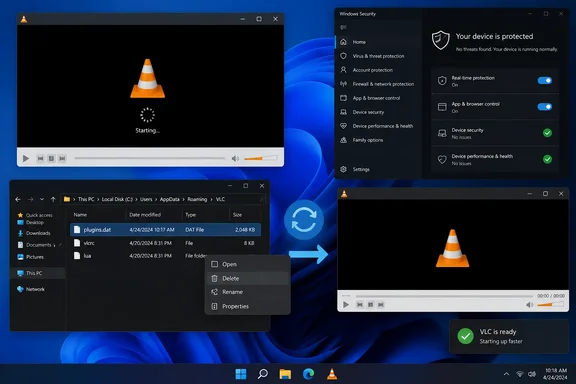
In its September 21 report, PCWorld describes delays lasting several seconds and sometimes about half a minute. Its writer observed the symptom on a Windows 10 PC but not on a separate Windows 11 machine. VideoLAN’s explanation specifically refers to a Windows 11 update, so the reports do not establish that every slow VLC launch on either operating system has the same cause.
Why the plug-in cache affects startup
The file at the center of the reports is plugins.dat, VLC’s plug-in cache. As 9to5Windows explains, this cache lets VLC avoid rescanning its entire plug-ins folder whenever a media file is opened. If the cache becomes unusable or another process interferes with it, that startup work can take substantially longer.
VideoLAN attributes the reported incident to Defender quarantining the cache. Tom’s Hardware reports the same developer explanation, but that is corroboration of VideoLAN’s statement rather than an independent reproduction of the Defender fault.
This mechanism helps explain why a small audio file can take a surprisingly long time to open: the delay can occur while VLC initializes, before the size of the media file becomes important. PCWorld reports that affected users have seen the symptom across different media sizes and types.
There is no established affected-VLC-version range in the reporting. PCWorld also says Microsoft had not publicly responded to the specific complaint at publication time. Treat cache regeneration as a targeted troubleshooting step, rather than proof that Defender caused a particular computer’s slowdown.
Reset VLC’s cache before changing security settings
VideoLAN recommends reinstalling VLC or regenerating its plug-in cache, according to PCWorld. The report identifies both the bundled vlc-cache-gen.exe utility and a Windows shortcut named VLC media player – reset preferences and cache files.
Before using the shortcut, note its full name: it resets preferences as well as cache files. Record any customized VLC settings you want to recreate afterward. This is not a cache-only operation.
For an installation that includes the shortcut:
- Close VLC.
- Open Windows Search and type
VLC. - Look specifically for VLC media player – reset preferences and cache files, rather than selecting the ordinary player shortcut.
- Run that shortcut to reset the preferences and cache.
- Open the same media file again and compare the startup delay with its previous behavior.
PCWorld reports that resetting the cache can restore launches to roughly a second, but that is a reported outcome, not a guaranteed timing for every PC. The useful success check is whether the unusually long pause disappears.
If the reset shortcut is absent, reinstalling VLC is the other remedy VideoLAN recommends. Use a genuine VideoLAN distribution. Although the reporting names vlc-cache-gen.exe, it does not establish a complete command line or permissions procedure for every installation, so simply inventing a command or assuming that double-clicking the executable is sufficient would be inappropriate.
An exclusion changes protection, not just performance
PCWorld also proposes excluding VLC’s plug-ins directory from Defender scanning to prevent the problem recurring. Its example is C:\Program Files\VideoLAN\VLC\plugins; that path is installation-specific, not a universal location.
An exclusion has a different consequence from repairing a cache. It removes scanning coverage for the selected directory, including plug-in files placed there. That trade-off is especially concerning if VLC came from an unofficial or modified installer.
For that reason, a Defender exclusion should not be the default response to a slow launch. Try the application repair first, and do not broaden an exclusion to the entire VideoLAN directory or turn off Defender merely to avoid a startup pause. On an organization-managed PC, security-policy changes belong with the administrator.
If rebuilding the cache restores normal startup, there is no need to accept reduced antivirus coverage as part of that repair. If the delay persists, the cache workaround has not resolved the symptom; that alone does not establish a reason to bypass Defender or remove a Windows security update.