

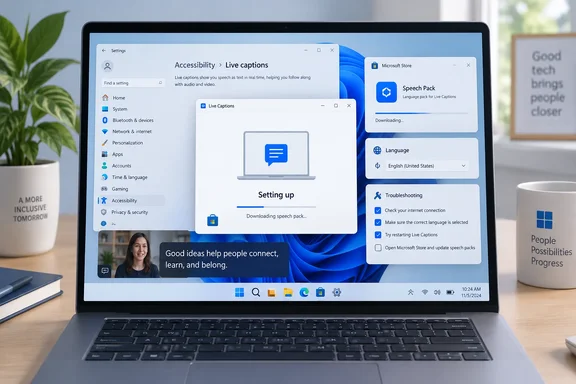
A Windows Report troubleshooting guide published this week lists six fixes. Some of them line up with Microsoft's own documentation. Others are general maintenance, and one is risky. Below, we sort them, put them in a sensible order, and add two checks the guide leaves out: the manual Store package that Microsoft publishes, and the N-edition requirement.
Why Live Captions hangs during setup
Live Captions does its speech recognition on the PC itself, but it needs a speech model downloaded first. Microsoft's Live Captions support page says the first launch asks for your consent to process voice data on the device and then prompts you to download language files. If your language isn't available, you can choose a different one during setup.
That download goes through the Microsoft Store, which is where most failures come from. Microsoft's troubleshooting page covers this error message: "We can't download the required language files right now. Make sure you're connected to the internet and try again in a few minutes." According to Microsoft, the message can mean the PC couldn't reach the Microsoft Store app catalog in the cloud during setup. In other words, your internet connection might be fine while the Store is blocked or broken.
Some useful facts before you start:
- Supported versions: Live Captions is available on Windows 11 version 22H2 and later. Live translation is a separate feature that needs a Copilot+ PC running 24H2 or later.
- Internet is only needed for setup: Microsoft says captions keep working without an internet connection once setup is done. You need connectivity for the first language-file download, not afterwards.
- Privacy: Microsoft says audio, voice data and captions stay on the device and are never sent to the cloud or to Microsoft. Captions aren't saved anywhere.
- How to open it: Press Windows key + Ctrl + L, use the Accessibility flyout in Quick Settings, go to Start > All apps > Accessibility > Live captions, or turn on the toggle under Settings > Accessibility > Captions.
Section summary: The "Setting up" screen is waiting for a speech model. In most cases the Store either can't deliver it or the download stopped partway.
Step 1: Check your connection and whether the Store works
Microsoft's first checks are short. Confirm the PC has internet access, then open the Microsoft Store and see whether it can download apps. Installing any small free app is a quick test.
- If Store downloads fail on a home PC, fix the Store before anything else. Windows Report suggests opening the Store's Library, selecting Get updates, installing whatever updates appear, and restarting. It also suggests running
wsreset.exefrom the Run dialog (Win + R), which resets the Store cache and reopens the Store. Both are common Store fixes, but Microsoft's Live Captions page doesn't list either one as a fix for this specific problem. Treat them as reasonable attempts, not guaranteed cures. - If Store downloads work and Live Captions still fails, Microsoft says to report it through the Feedback Hub. Pressing Windows key + F while Live Captions is running opens it, and you can file under Accessibility > Live captions.
Step 2: Look for a stalled speech download
Windows Report and The Windows Club both suggest checking the Store for a speech download that got stuck. The Windows Club says the setup screen can sit there indefinitely if the Speech Pack download becomes stuck, remains incomplete, or fails in the background.
- Open Microsoft Store and go to Library (or Downloads).
- Look for a Speech Pack or other language download that is pending, paused or failed.
- If it's paused, select Resume. If it looks permanently stuck, cancel it and start it again.
- Restart the PC, then press Win + Ctrl + L to try Live Captions again.
Step 3: Check, or reinstall, the speech language feature
How you manage Live Captions languages depends on your version of Windows 11, according to Microsoft:
- Current Windows 11: In the Live Captions window, open Settings > Change language, choose a language and select Continue. If the language isn't installed yet, you'll be asked to download it. When it finishes, Live Captions tells you it's ready to caption in that language. Languages already installed show in bold in the dropdown.
- Windows 11 version 23H2 and earlier: Go to Settings > Time & language > Language & region, choose Add a language under Preferred languages, and pick a language that supports speech recognition. On the "Install language features" screen, make sure Enhanced speech recognition is selected. Once that installs, the language appears in Live Captions' Caption language menu.
Microsoft's language-settings page also explains how to read the Language options screen. If you see a Settings link under Speech rather than a Download button, the speech features are already installed. If there's no Speech section at all, Windows doesn't offer speech features for that language, and no amount of reinstalling will add them.
If a speech pack is installed but broken, Microsoft gives a cleaner way to remove it than the remove-and-reinstall route in Language options that Windows Report describes. Go to Settings > Apps > Installed apps, search for "Speech Pack," and uninstall the one for your language from its More (…) menu. A Microsoft Q&A answer recommends the same approach when Live Captions worked before and then stopped: uninstall the relevant language pack, then reinstall it using the steps in Microsoft's troubleshooting article. Only remove the pack for the language that's failing.
Step 4: Install the speech package manually
Microsoft publishes standalone speech packages on its "Troubleshooting live captions or voice access setup issues" page, but quick-fix guides rarely mention them. This route skips the Store's automatic delivery. The package has to match both your Windows display language and your system type.
- Find your display language under Settings > Time & language > Language & region (for example, "English (United States)").
- Find your system type under Settings > System > About, listed under System type in Device specifications.
- Download the matching package from Microsoft's table.
- In your Downloads folder, double-click the CAB file to open it, then double-click the ZIP inside and extract it.
- Go to the extracted folder, open the compressed folder, and double-click the MSIX file.
- Select Install, and select Close when it finishes.
If Windows shows "No such interface supported" or asks which app should open the MSIX, Microsoft says a required installer component is missing. In that case, extract the ZIP, open Windows PowerShell in that folder, and run Add-AppxPackage -Path followed by the exact MSIX file name in the folder. This is an advanced fallback. Most home users should try the double-click method first.
Arm64 users, take note: Microsoft's table lists packages for about 20 languages, including several Chinese, English, French, Portuguese and Spanish variants, plus Danish, German, Italian and Korean. Almost all of them are for Intel/AMD x64 only. The only Arm64 packages listed are English (United States) (Speech.en-US.1a.zip) and English (United Kingdom) (Speech.en-UK.1a.zip). If you're on a Snapdragon laptop with another display language, this manual route probably won't help you.
Step 5: Work and school PCs are a separate case
Microsoft notes that if you can't download Store apps on a work device, your network administrator may have disabled Store access. Its advice is to ask IT to download and deploy the correct speech package for you. A post on TechSupportForum shows how stuck this can get. A Windows 11 Enterprise user on 24H2 with the Store disabled by policy kept getting "Can't update language file." They had installed English (United States) manually and changed an Intune Store setting, and despite policy change, no effect on language file download. Microsoft Store still disabled and not usable manually.
For admins, the takeaway is that installing language packs through Settings doesn't help if the Store-delivered speech model can't arrive. You'll need to deploy the package yourself or allow the necessary Store access.
Step 6: Check whether you're running an N edition
Windows Report doesn't cover this one, and it matters. Microsoft's Media Feature Pack documentation says Live Captions will not work on Windows 10/11 N editions unless the Media Feature Pack is installed. Retrying the speech download won't fix that.
To install it, go to Settings > Apps > Optional features, select View features next to "Add an optional feature," and choose Media Feature Pack. Microsoft points out that Windows won't ask you to restart, but you have to restart for the install to finish. You can check your edition under Settings > System > About.
Windows Update and switching languages: helpful, but not proven fixes
Windows Report recommends installing all pending updates and says some users have reported setup problems on 24H2 builds. Keeping Windows updated is good practice. However, Microsoft's 24H2 release-health page currently lists issues such as an AC-3 audio decoding crash after KB5124010 and Credential Guard secure-channel problems. It doesn't list a Live Captions setup bug, so don't count on an update fixing this. One timing note: Microsoft says Home and Pro editions of 24H2 stop receiving updates on October 13, 2026, and unmanaged PCs are being moved to 25H2 automatically.
Trying English (United States) is a useful test, because Microsoft supports choosing another language when yours isn't available. If it works, that doesn't prove your own language pack is "defective." It may just mean your language's speech support or package availability is limited.
What we'd skip: deleting folders in ProgramData
Windows Report's fourth fix sends readers into %ProgramData% to look for Speech or Speech_OneCore folders, while also warning them not to delete anything they aren't sure about. We'd skip this step. None of Microsoft's Live Captions documentation recommends it. The Installed apps uninstall and the official package installer get the same clean-reinstall result without manually deleting system data.
How to tell it's fixed
- Live Captions opens without the setup screen and says it's ready to caption in your language.
- Your language shows in bold in the Change language list.
- Spoken audio produces captions. If it doesn't, remember that Microsoft says Live Captions listens to the default output device under Settings > System > Sound. If you're using a headset, make sure it's set as the default.
Bottom line
Most "Setting up Live Captions" hangs come down to the speech package not being delivered. Work through it in order: check your connection, confirm the Store can download apps, look for a stalled Speech Pack, then reinstall that pack from Installed apps. If that fails, use Microsoft's manual package (most of which are x64-only). Work PCs need IT to deploy the package, and N editions need the Media Feature Pack first. Leave the ProgramData folders alone.
Have you had Live Captions stall on an Arm64 laptop or a locked-down work PC? Share what fixed it in the forum. Troubleshooting threads on Microsoft Store errors and Windows 11 accessibility features are good places to compare notes.
References
- Windows 11 Setting Up Live Captions Stuck? Try These Easy Fixes Windows Report · 2026-10-05T07:31:20+00:00
- Live Captions: “Can't Update Language File” techsupportforum.com
- Troubleshooting live captions or voice access setup issues | Microsoft Support support.microsoft.com