

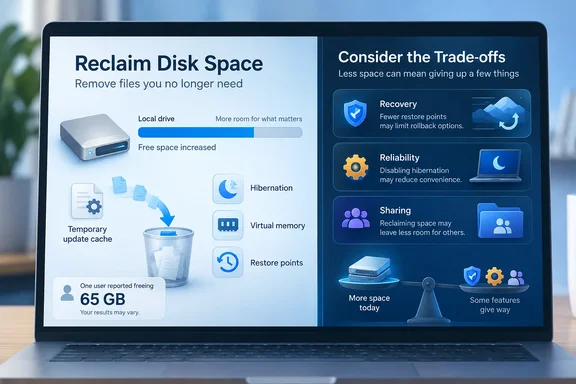
The useful approach is to look at each one before touching it: what it stores, how much space it holds on your PC, and what you lose by turning it off.
First, the math
The reported figures are about 10GB for hibernation, 36GB for the paging file, 9GB for System Restore and close to 20GB for Delivery Optimization. That adds up to about 75GB, not 65GB.
The gap comes from the paging file. Shah didn't delete it. He capped it at 10GB, so it freed about 26GB rather than 36GB:
| Feature | Reported size | What changed | Space recovered |
|---|---|---|---|
| Hibernation (hiberfil.sys) | ~10GB | Turned off | ~10GB |
| Paging file | ~36GB | Capped at 10GB | ~26GB |
| System Restore | ~9GB | System protection turned off | ~9GB |
| Delivery Optimization cache | ~20GB | Cleaned up | ~20GB |
| Total | ~65GB |
These are rounded figures from one machine, not Windows defaults. The article also describes the laptop as having "24GB of storage" alongside a 512GB drive. It almost certainly means 24GB of RAM, which matches a hibernation file of about 10GB. No build number or before-and-after measurements are given, so treat 65GB as one person's result, not what you should expect.
Summary: the total checks out once you account for the page file cap. What you recover depends on your RAM, workload and settings.
Hibernation: a real saving, but you lose more than hibernation
Hibernation writes the contents of memory to hiberfil.sys, a hidden file in the root of the Windows drive, so your session survives a full power-off. Shah uses Sleep for short breaks and shuts down at night, so he turned hibernation off from an elevated Command Prompt.
Microsoft's knowledge base article on the subject (KB 920730) gives the same method:
- Search for cmd, right-click Command Prompt and choose Run as Administrator.
- Accept the User Account Control prompt.
- Run
powercfg.exe /hibernate off. - To undo it later, run
powercfg.exe /hibernate onin an elevated prompt.
Microsoft's documentation adds two points the MakeUseOf piece leaves out:
- Hybrid sleep stops working. Microsoft warns that you can lose data if hibernation is off and the power fails while hybrid sleep would otherwise have protected your session. On desktops, hybrid sleep relies on the hibernation file.
- Fast Startup goes too. Microsoft's power-states documentation says Fast Startup is the default when you shut down Windows, and that it uses a hibernation file. Remove the file and shutdowns become full cold boots.
There is also a middle option. Microsoft documents a reduced hibernation file that supports Fast Startup only:
- Run
powercfg /ato see which file type you have. With a full file, hibernation is listed as available. With a reduced file, it is listed as not supported. With no file, Windows says hibernation hasn't been enabled. - Run
powercfg /h /type reducedto switch to the smaller file. If you get "the parameter is incorrect," Microsoft says a custom size above 40% may be set. Runpowercfg /h /size 0first, then try again.
The MakeUseOf article says the file is roughly 40% to 75% of RAM. Microsoft's own documents describe the size in different ways depending on file type and configuration. The simplest check is to look at the actual size of hiberfil.sys on your own drive.
Summary: if you never hibernate and don't care about Fast Startup, turning it off is a clean, reversible saving. If you want faster boots, try the reduced file type first.
Paging file: set a cap carefully
The paging file is where Windows moves less-used memory contents when RAM fills up. Shah found his had grown to 36GB. He didn't disable it, and he says you shouldn't either. He set minimum and maximum sizes instead:
- Search for Adjust the appearance and performance of Windows and press Enter.
- In Performance Options, open the Advanced tab.
- Under Virtual memory, click Change.
- Enter a minimum and maximum size (he used 10GB).
His rule of thumb is to match your RAM or go "slightly lower." Microsoft says there is no rule that works everywhere. Its guidance for 64-bit Windows says page file sizing depends on two things: peak memory use (the system commit charge) and crash-dump settings. Both vary from PC to PC, even between identical machines.
Microsoft's documentation also explains why a page file can grow so large:
- Automatic growth. A system-managed page file expands when committed memory goes above 90% of the commit limit. In Windows 10 and 11 it can reach 3 × RAM or 4GB, whichever is larger, capped at the volume size ÷ 8. On a 512GB drive with 24GB of RAM, that ceiling is well above 36GB.
- Crash dumps. The default Automatic memory dump setting starts small. If the PC crashes again within four weeks, Windows can raise the page file to RAM size or 32GB, whichever is smaller. After repeated crashes it can switch to a Complete memory dump, which needs a page file of at least RAM plus 257MB.
- It can shrink as well as grow. Microsoft describes system-managed page files as increasing and decreasing. That conflicts with the article's claim that Windows rarely shrinks the file once it grows.
In practice, a 10GB cap on a 24GB machine means Windows can't write a complete memory dump. If there isn't enough page file or dedicated dump file space, no dump is created. Most home users won't miss it. Anyone troubleshooting blue screens will. The cap also lowers the commit limit, which Microsoft defines as RAM plus all page files. If your workload uses a lot of memory, an app can hit that limit and fail.
Before capping it:
- Watch your peak commit charge in Task Manager's Performance tab while you run your heaviest workload.
- Consider whether a string of recent crashes explains the large file.
- Pick a cap above your real peak usage. Someone else's number isn't a guide.
Summary: a cap is reasonable. Choose it based on your own peak memory use and crash-dump needs.
System Restore versus Point-in-time restore: not interchangeable
This is where the MakeUseOf advice needs the most correction. Shah turned off System Protection (Windows' name for the System Restore setting) and freed 9GB. His reasoning was that the newer Point-in-time restore "does the same job" and needs about the same space. Microsoft's documentation shows they cover different situations.
On its recovery options page, Microsoft says Point-in-time restore rolls back everything: personal files, apps, and settings to an automatic snapshot. It requires Windows 11, version 24H2 or later and keeps restore points for up to 3 days. System Restore only rolls back system files and settings. Personal files are not affected.
The article says Point-in-time restore arrived with 26H2, but Microsoft's minimum is 24H2. The 26H2 date applies only to managed PCs. Microsoft's support page says the feature is currently disabled by default on IT-managed devices. Starting with Windows 11, version 26H2, it will be enabled by default. Point-in-time restore is already enabled by default on unmanaged devices. There is also a disk-size condition: for the feature to be enabled by default, the Windows OS volume must be 200 GB or larger. Devices with smaller OS volumes can enable the feature manually.
| Point-in-time restore | System Restore | |
|---|---|---|
| What's restored | The whole system drive: OS, apps, settings, files | System files, apps, registry, settings |
| Personal files | Rolled back | Left alone |
| When points are created | About every 24 hours by default | Before major changes, or manually |
| How long points last | Up to 72 hours | Until disk space runs out |
| Default state | On for unmanaged PCs with a 200GB+ OS volume | Off (Microsoft recommends turning it on) |
The 72-hour limit matters. Restore points are stored locally and deleted automatically after 72 hours, or when free disk space falls below 20GB. That last condition is most likely to apply on exactly the kind of nearly full drive this article is about. Microsoft's own advice is to use Point-in-time restore first, but if point-in-time restore is not available or you need to go back further than 72 hours, use System Restore.
Point-in-time restore has other costs as well. Microsoft says a restore can undo recent security updates and needs your BitLocker recovery key if the drive is encrypted. Anything you created or changed after the snapshot, including files and passwords, is lost.
If System Restore is using more space than you want, you don't have to choose all or nothing:
- Search for Create a restore point and open the result.
- On the System Protection tab, select your system drive and click Configure.
- Use the Max Usage slider to lower the space limit, rather than choosing Disable system protection.
Point-in-time restore settings are under Settings > System > Recovery > Point-in-time restore > View or edit. Microsoft says its storage cap is 2% of the disk and that the space isn't reserved in advance. Frequency and retention can only be changed on Enterprise editions.
Summary: the two tools work best together. A 72-hour whole-drive rollback is a different safety net from long-lived system-only restore points. Turn System Restore down before you turn it off.
Delivery Optimization: clear the cache, and don't rely on the toggle
Shah found close to 20GB of Delivery Optimization files, the cache Windows uses for peer-to-peer update and app downloads. He cleared it with Disk Cleanup and suggested turning off peer downloads. Microsoft documents both steps, but they do different things.
To free the space:
- Search for Disk Cleanup and open it.
- Select your system drive.
- Tick Delivery Optimization Files, click OK, then Delete Files.
Microsoft says Delivery Optimization clears its cache on its own after a short time or when the cache takes up too much space. A 20GB cache is unusual, and a manual cleanup is safe.
To stop peer-to-peer sharing: in Windows 11, the correct path is Settings > Windows Update > Advanced options > Delivery Optimization. The article leaves out the Advanced options step. Turn off Allow downloads from other devices.
Two things to know about that toggle:
- It doesn't turn off Delivery Optimization or updates. Microsoft says updates and Store apps still download through Delivery Optimization, directly from Microsoft. The toggle stops sharing with other PCs. Windows can still cache downloads, so Disk Cleanup remains the tool for recovering space.
- Sharing has benefits. Microsoft says peer sharing can cut bandwidth use when several PCs in a home need the same updates, and can make downloads more reliable on limited connections. If uploads are your worry, the same page lets you choose Devices on my local network only, or set upload bandwidth and monthly limits. Marking a connection as metered also stops internet peer transfers.
On work PCs, these options may be greyed out because IT manages them. That's policy, not a fault.
Summary: Disk Cleanup recovers the space. The toggle is a sharing and privacy choice, not a storage fix.
A safer order for reclaiming space
For readers short on space, this order starts with the least risk:
- Look first. Open Settings > System > Storage to see what is using space, and run Disk Cleanup for temporary files and the Delivery Optimization cache.
- Clear caches. These rebuild themselves and cost you nothing.
- Shrink hibernation or turn it off, depending on whether you want to keep Fast Startup.
- Cap the page file above your real peak memory use.
- Adjust recovery features last. Lower System Restore's limit and check how Point-in-time restore is configured before disabling anything.
Shah's 65GB is real for his laptop, and the article is right that Windows features can use tens of gigabytes. But calling all four "unnecessary" hides the trade-offs. Clearing the Delivery Optimization cache costs you nothing. Turning off System Protection is a bet that you'll never need a restore point older than three days.
References
- I freed up 65GB of storage by disabling these unnecessary Windows features - MakeUseOf MakeUseOf · 2026-09-29T16:00:16+00:00
- System power states - Win32 apps | Microsoft Learn learn.microsoft.com
- Point-in-time restore for Windows | Microsoft Support support.microsoft.com