

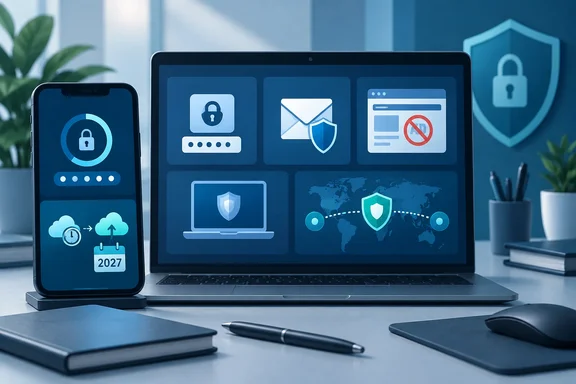
Below, we check each pick against official documentation and independent test data. We note which claims hold up, which are only the publisher's or vendor's word, and what to check on your own PC and phone.
The big picture: six tools, six different jobs
The article opens with a fair point: security isn't just antivirus. It also covers how you store passwords, whether you use two-factor authentication, and how private your email and network connection are. Each tool on the list covers one of those areas:
| Tool | Job | Free-tier limits worth knowing |
|---|---|---|
| Bitwarden | Password manager | Paid features include the built-in authenticator and emergency access |
| Microsoft Authenticator | Second factor / passwordless sign-in | Backup rules vary by platform and account type |
| Microsoft Defender Antivirus | Built-in antivirus on Windows | Only as good as the Windows updates underneath it |
| Proton Mail | Encrypted email | End-to-end encryption depends on who you're writing to |
| uBlock Origin | Content blocker | Full features depend on your browser |
| Proton VPN | Network privacy | Free servers in 10 countries, one device at a time |
Summary: No single tool here replaces the others. Stacking several doesn't make up for a reused password or an unsupported operating system.
Bitwarden: free password management
MakeUseOf says Bitwarden's free plan stores unlimited passwords on unlimited devices, with end-to-end encrypted sync. It puts Premium at $19.80 a year, which adds a built-in TOTP authenticator, vault health reports and emergency access. The article also says the free plan includes passkey support and encrypted text sharing through Bitwarden Send. It adds that Bitwarden is regularly audited and has never been breached. We couldn't check those last claims against Bitwarden's own pages, so treat them as MakeUseOf's statements rather than settled fact.
The article is harder on browser password managers than it needs to be. It says they "don't encrypt your data the same way" dedicated tools do. That's too broad. The practical argument is stronger:
- Portability: a standalone manager works across browsers and operating systems.
- Account ties: a browser vault depends on your Google, Apple or Microsoft account staying healthy.
- Your recovery plan is still on you: a strong, memorable master password and an emergency-access or recovery strategy are what keep any vault usable.
Microsoft Authenticator: good app, check your backups
Microsoft describes Authenticator as a free app with three uses: account recovery if you forget a password, one-time codes for two-step verification, and fully passwordless sign-in where you approve a prompt on your phone. MakeUseOf adds that codes stay hidden until you tap them and that Android blocks screenshots by default.
The article leaves out backup, which is the part that matters most when you replace a phone.
Microsoft's support page states that starting January 2027, you will no longer use your Microsoft personal account to enable backup. You will need to enable "Microsoft Authenticator" from Google One backup. Users on Microsoft's Q&A forum have already been confused by this. One volunteer answer notes that the documentation only states that this change will happen starting in January 2027. It does not say that the Google One option is already available now. A PBX Science report says the Android change mirrors a change the company already rolled out on iOS, where backups moved to iCloud in 2025.
How to protect your Authenticator accounts today (Android)
Until January 2027, Microsoft's Entra documentation lists the current method:
- Open Microsoft Authenticator. Open the menu and select Settings. Turn on Cloud Backup. Select a Microsoft personal account where the backup will be stored.
- If you chose the wrong account, Microsoft says to go to Settings and, under Backup, turn off the Cloud Backup toggle and select OK to delete the backup. If you want to make a fresh backup, turn the Cloud Backup toggle on again, and select Continue or Change account to sign in to the correct backup account.
- If you see an error, Microsoft notes that "Something went wrong" when trying to back up your one-time password accounts means you aren't signed in.
What a restore brings back
A restore doesn't recover everything, and Microsoft is clear about the limits. If the account uses only a one-time password code that refreshes every 30 seconds, the verification code entry is restored. If the account also uses passwordless sign-in, only the account name is restored and you must sign in again to complete setup. Backups also only restore on the same platform. Microsoft Q&A guidance says accounts can be backed up and restored on the same device platform (Android-to-Android).
For work accounts, Microsoft adds: if passkeys are enforced for the account, set up a passkey for the new phone before removing the old device. Don't factory-reset the old phone until the new one works. Also keep each service's own recovery codes somewhere safe, apart from the authenticator app.
MakeUseOf calls a good authenticator app "not optional." It's more accurate to call it one strong option, next to passkeys, which the article rightly says are the better long-term direction. It also suggests 2FAS as an open-source alternative that works on desktop.
Summary: Authenticator is a strong free choice, but set up and test your backup now, and plan for the switch to Google One on Android in January 2027.
Microsoft Defender Antivirus: the test scores hold up
MakeUseOf says Defender scored "a perfect 18 out of 18 from AV-Test." That checks out, with some context. In AV-TEST's January–February 2026 test on 64-bit Windows 11 Professional, Microsoft Defender Antivirus (Consumer) version 4.18 scored 6.0 out of 6 for protection, performance and usability. It detected 100% of the 12,728-sample widespread-malware reference set in both months. On the 285-sample zero-day real-world test, which includes web and email threats, it blocked 99.7% in January and 100% in February. That's one product version over one test window, not a promise that every threat will be stopped.
The article's other figure, that Defender "stopped 100% of ransomware samples in our malware tests," comes from MakeUseOf's own testing. No method was published, so treat it as unverified.
The caveats in the article are fair: web protection works fully only in Edge, phishing detection lags some rivals, and full scans can be slow. On speed, Microsoft's Learn documentation admits that Defender, like other antivirus software, can slow systems down. It points admins to its Performance analyzer PowerShell tool to find which files, paths and processes are dragging scans out.
Check that Defender is actually running
Microsoft's documentation gives two quick checks:
- Windows Security app: open Start, type Security, open Windows Security, go to Virus & threat protection, then under Who's protecting me? choose Manage Providers.
- PowerShell: run
Get-MpComputerStatusand look at theAMRunningModerow. Normal means Defender is the active antivirus. SxS Passive Mode means it's running alongside another antivirus with limited periodic scanning.
Microsoft also says that, in general, it doesn't recommend disabling or uninstalling Defender Antivirus.
Your Windows version matters
MakeUseOf says Defender "runs automatically on Windows 10 and 11," which is true. But Windows 10 reached end of support on October 14, 2025. After that, regular security updates stopped unless the PC is enrolled in Extended Security Updates. A top-scoring antivirus can't patch holes in an operating system that no longer gets fixes.
Summary: Defender's lab results are excellent and independently confirmed. Make sure it's the active provider and that your Windows version still gets updates.
Proton Mail: encrypted, with important exceptions
The article says Proton Mail uses end-to-end encryption between Proton users and lets you send password-protected emails to everyone else. Proton's own documentation fills in the details:
- Proton to Proton: always end-to-end encrypted.
- Proton to Gmail, Outlook and others: end-to-end encrypted only if you choose the password-protected option. Otherwise the message is protected in transit by TLS, and Proton says the recipient's provider can read it.
- Incoming mail from outside Proton: stored with zero-access encryption, but not end-to-end encrypted. The sender's provider probably keeps a copy.
- Metadata: subject lines and sender and recipient addresses are encrypted, but not end-to-end.
For a password-protected message, share the password some other way than email. MakeUseOf puts the free plan at 1 GB of storage and says search is weaker than Gmail's. The article is enthusiastic, but the practical rule is simple: Proton protects sensitive mail best when both sides use it, or when you use its password-protected option on purpose.
uBlock Origin: which browser you use matters
MakeUseOf is right that uBlock Origin does more than hide ads. Its filter lists can block tracker and malware domains. It's still a content blocker, not antivirus. The project's own wiki explains why it works best in Firefox, which offers features Chromium browsers don't:
- CNAME uncloaking, which exposes third-party trackers disguised as first-party servers
- HTML filtering, which strips page elements before the browser parses them
- Reliable blocking at browser launch. In Chromium browsers, tracker payloads can reach tabs that were already open before the extension is ready.
On Chrome, the article says users now get uBlock Origin Lite, the reduced-feature Manifest V3 version. Edge users running uBlock should check which version they actually have installed. Only install it from your browser's official extension store, and watch out for lookalike copies.
Proton VPN: a real free plan, with real limits
Proton's support page confirms the free plan's main limits: servers in ten countries (the Netherlands, Japan, Romania, Poland, Norway, Switzerland, Singapore, Mexico, Canada and the United States) and only one connected device at a time. MakeUseOf says the free plan also has unlimited data, a kill switch, WireGuard and OpenVPN, and the Stealth protocol. It says free users can't pick a specific server and don't get split tunneling. Its claim of yearly independent no-logs audits is Proton's own statement as reported by the article; we didn't check it separately.
A VPN encrypts the connection between your device and the VPN provider. That's useful on hotel or café Wi-Fi. It doesn't stop phishing, malware or bad password habits.
The verdict
MakeUseOf's main argument holds up: a Windows user can get strong baseline protection for free. The details decide whether that protection works in practice. Keep Defender active on a supported version of Windows. Test your Authenticator backup before you need it. Know when Proton Mail's encryption applies and when it doesn't. And if you care about uBlock Origin, factor that into your choice of browser. The cost stays at zero, but you still have to set these tools up and keep them up to date.
References
- Security doesn't have to cost thousands per year, and these free apps prove it - MakeUseOf MakeUseOf · 2026-09-30T16:00:14+00:00
- What is encrypted within Proton Mail? | Proton proton.me
- How to create a free VPN account | Proton VPN protonvpn.com