

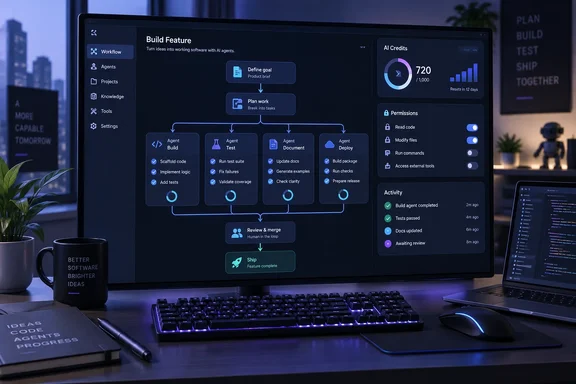
In short, Copilot agents now work inside a defined procedure. Code sets the order of the work, and the agents supply the judgment.
What a dynamic workflow is
GitHub describes a dynamic workflow as a program that defines how a task gets done. It can mix ordinary automated steps with work from one or more AI agents. Those steps can run one after another, at the same time, or both.
The workflow code decides:
- which steps run and when
- when an agent gets involved
- how each agent's output is used by later steps
Agents handle the parts that need analysis or judgment. Each workflow lives inside a GitHub Copilot extension, so it can use Copilot's extensibility APIs.
According to GitHub's announcement and documentation, a workflow can:
- run commands, use tools and call other services
- split a goal into tasks and run independent tasks in parallel
- pass structured results from one stage to the next
- have subagents check each other's findings
- ask the user for input, if the client supports it
- stop at a checkpoint so a person can review results before the run continues
The documentation adds that a workflow can require agents to return results in a set format so later steps can use them. Copilot can also ask an agent to fix its output if the format is wrong.
GitHub's main example is a service incident. The workflow collects logs and telemetry, assigns separate agents to analyze different systems, and then merges their structured findings into a timeline and root-cause report.
"Dynamic" does not mean "random." GitHub's documentation says that reusing a workflow means reusing its steps and rules. The path through those steps can still change with the inputs or findings, and agents can give different answers on different runs. The structure repeats; the results may not.
Section summary: A dynamic workflow is a coded procedure that calls on AI agents at defined points. The steps repeat from run to run, but agent output can still vary.
How it differs from /fleet and autopilot
Copilot CLI users already have /fleet and autopilot mode. GitHub's documentation says the difference is in who plans and controls the work, not in how many agents run.
| Aspect | Autopilot | /fleet | Dynamic workflow |
|---|---|---|---|
| Main purpose | Let Copilot keep working on its own | Push Copilot to hand work to subagents | Carry out a process defined in code |
| Who defines the process | Copilot picks the next steps | Copilot decides how to split and coordinate the work | The workflow author sets the steps, conditions and handoffs |
| How work runs | Depends on the task and Copilot's choices | Independent work can run in parallel | In sequence, in parallel or both, with one agent or many |
Independent coverage has described /fleet as part of a broader terminal routine in which developers plan, test, review, use /fleet, and delegate scoped feature work from the terminal. Dynamic workflows let that kind of routine be saved as code instead of being run by hand each time.
The pattern was not invented in a vacuum. A community library, rapp-dynamic-workflows, built a similar orchestration layer on the Copilot SDK. Its author says it was directly inspired by Claude Code's Workflow tool, and its README says the SDK at the time offered programmatic sessions, custom tools, and usage events — but no orchestration layer of its own. GitHub's release now covers much of that gap natively. That project is a useful sign of demand, not proof of how GitHub built the feature.
Section summary: With /fleet and autopilot, Copilot decides the plan. With a dynamic workflow, the author decides it.
When to use one, and when not to
GitHub recommends dynamic workflows for processes you want to reuse, or for single tasks that need clear stages, checks or limits. Its suggested uses include:
- Release checks: run the checks, have an agent assess any failures, then pause so a person can review the findings before continuing.
- Parallel pull request review: review many changed files at once.
- Two-model checks: use code to find unresolved review comments on merged pull requests, ask two models whether each comment still matters, and report only the comments both agree on.
- Codebase sweeps: search many directories at once for missing tests or uses of an API that is being removed.
- Staged changes: research a change, plan it from the findings, then make it.
- Long, costly runs: start a large job that you may want to pause and resume later.
GitHub also says what does not need a workflow. For a quick answer or a simple change, a normal prompt in standard chat mode is usually enough.
Getting started
GitHub's announcement says dynamic workflows are available on all Copilot plans. The documentation does not list plan-by-plan differences.
In the GitHub Copilot app: GitHub says the feature is always available, with no setup.
In Copilot CLI:
- Update to the latest version by running
/update. - Turn on experimental features. Either start the CLI with
--experimental, or enter/experimental onin an interactive session. - Check what you already have by asking: "What dynamic workflows are available?"
- Ask Copilot to describe a workflow you want to know more about.
Creating a workflow
Describe the workflow to Copilot in plain language. Say what it should accomplish, which steps must happen in order, which parts should use an agent, and any limits. GitHub's example prompt asks for a workflow named review-changed that lists changed files, has an agent review them, and summarizes the findings. If you don't give a name, Copilot picks one.
Depending on your permission settings, Copilot may ask for approval to author the workflow, and it may ask for more approvals while it registers it. To confirm it worked, ask again which dynamic workflows are available.
Creating a workflow does not run it. You have to ask Copilot to run it separately.
To write a workflow yourself, ask Copilot: "Show me the guidance for writing dynamic workflows." It will show its built-in authoring guidance.
Running a workflow
Ask Copilot to run the workflow by its registered name and give any required inputs. GitHub's example runs a Java security-check workflow on the Java files in the current directory with an AI credit limit of 500. Copilot runs workflows started this way in the background, so you can keep working in the session.
GitHub's documentation says the chat agent only creates or runs a workflow when you explicitly ask, or when a skill or slash command tells it to. That limits surprise runs.
Running workflows from the terminal or CI
Copilot CLI can also start a workflow directly from the shell, without opening a chat:
copilot workflow run WORKFLOW-NAME [OPTIONS]
The command waits until the run finishes or stops before it returns control to the shell. The workflow must be available through a personal extension, a project extension or an installed plugin. Workflows that exist only inside a single chat session won't work here.
| Option | What it does |
|---|---|
--args | Passes inputs as JSON, either inline or from a file using @filename |
--allow-tool / --allow-url | Grants permissions before the run starts |
--result-file | Saves the returned value to a JSON file |
--silent | Hides progress output |
--output-format json | Returns a JSON record with the workflow name, run ID, status and any result |
The main catch: there are no permission prompts here. GitHub's documentation says copilot workflow run never shows approval prompts, even in an interactive terminal. Any request that can't be approved automatically is denied. Grant what the workflow needs before you start, for example --allow-tool=read for a workflow that reads files.
Some other details matter for scripts:
- Result files: The file contains only the returned value, with no progress messages or run details. It is written only when a run completes successfully and returns a result. If a run pauses, fails or is interrupted, any existing file is left unchanged, so a stale file from an earlier run can still be there.
- Authentication: Set up authentication and permissions before running in scripts or CI/CD. GitHub's example uses the
COPILOT_GITHUB_TOKENenvironment variable. - Untrusted directories: If the working directory isn't already trusted, loading a project extension requires setting
GITHUB_COPILOT_PROMPT_MODE_EXTENSIONS=truefor that run. This lets repository extension code execute, and GitHub says to use it only for code you trust. - Interrupting: Press Ctrl+C to stop a run in the terminal.
If you plan to run this in GitHub Actions, check GitHub's general guidance first. Its Actions documentation says that for most automation use cases, we recommend using GitHub Agentic Workflows rather than invoking copilot directly in workflow steps, and that agentic workflows use GITHUB_TOKEN authentication by default and include additional guardrails. A copilot workflow run step in a pipeline is supported, but you are responsible for those guardrails yourself.
Section summary: Grant permissions up front, handle authentication explicitly, and enable untrusted repository extensions only for code you trust.
Limits and AI credit costs
A workflow that starts many subagents can run for a long time and use a lot of AI credits. GitHub's documentation describes four limits you can set:
- the maximum number of workflow-owned agents active at once
- the maximum total number of agents launched during a run
- the maximum active running time (time spent paused doesn't count)
- an approximate maximum number of AI credits for the workflow's agents and their subagents
Limits can be set in three places. In order of priority, they are:
- The prompt, for example "with a timeout of 1 hour"
- The workflow code
- Your personal settings. In Copilot CLI, use
/settingswith these keys:workflows.defaultLimits.maxConcurrentSubagentsworkflows.defaultLimits.maxTotalSubagentsworkflows.defaultLimits.timeoutSecondsworkflows.defaultLimits.maxAiCredits
The credit limit is approximate. Copilot counts usage after it happens, so work already in progress can push the total past the limit. Hitting the concurrency limit doesn't stop a run; extra subagents wait in a queue. The other limits can stop a run, but its status and saved results are kept.
GitHub's advice is to test on a small scope first, such as two or three files. Then check the actual credit usage and set a limit before running the full job. If you want the workflow to change permanently, ask Copilot to edit its saved definition rather than overriding a limit for one run.
Monitoring, pausing and resuming
In Copilot CLI: Enter /workflows to see running and recently completed runs. Use the arrow keys to pick a run and press Enter to open it. The details show elapsed time, the phase the workflow reports, active and total subagents, and AI credits used. Press P to pause or X to cancel.
In the Copilot app: A Workflows button appears above the prompt box. It lists active runs, runs ready to resume and recently finished runs. Monitoring works only for local sessions. Use Cancel or Pause in the run panel.
Resuming: Paused runs and runs stopped by a limit can be resumed. Completed steps and subagents reuse their saved results, but unsaved work may run again.
- In the CLI, select the run in
/workflowsand press R. - In the app, choose the run under "Ready to resume," then click Resume. If the run hit a limit, click "Resume with limit…" instead.
If a run stopped at a limit, you must raise that limit to continue. The new value is a total for the whole run, including what was used before it stopped. Canceled runs can't be resumed, so pause instead of canceling if there's any chance you'll want to continue.
For teams with observability tooling, enabling OpenTelemetry produces an invoke_workflow span each time a workflow runs or resumes, with the agents' activity linked to it. CLI users can also schedule workflows within a session using /every or /after. GitHub's example runs a changed-files report on the main branch every day with a 200-credit limit.
Sharing workflows with your team
By default, a workflow Copilot creates exists only in the current session. Ask Copilot for the workflow's path, then copy the folder that contains its extension.mjs file to one of these places:
~/.copilot/extensions/in your home directory, to use it in all your sessions.github/extensions/in a repository, to share it with everyone working on that project
Copilot can do the copy for you. Then start or restart a session and list the available workflows to confirm it loaded.
Copying shares only the definition, not the run history or saved progress. After a shared workflow is changed, teammates must pull the repository and reload their extensions to get the new version. For wider distribution, a workflow can be packaged as a plugin and published to a plugin marketplace.
Analysis: useful, but review it like code
This release is a sensible step for agentic tools. Free-form agent sessions are hard to repeat and hard to audit. Dynamic workflows fix the parts that should stay the same (stages, handoffs, approval points and spending limits) and leave the judgment calls to the agents.
There are trade-offs:
- Workflow code is code. Workflows are extensions that can run their own code. GitHub's documentation notes that an extension can do this outside the normal permission prompts. A workflow in
.github/extensions/should get the same review as any other script in the repository. - Subagents share permissions. Subagents inherit the permission grants of the session that started them. If one subagent is granted something for the session, every subagent needing that permission gets it too. That's convenient, but broad grants spread quickly.
- The cost limit is approximate. Credit limits are not a hard ceiling. A test run on a small scope is the most reliable way to estimate cost.
- It's a preview. Command names, settings keys and behavior may change before general availability.
For a team that already repeats the same release check or pull request review every week, this is worth trying. Start with a small read-only workflow, grant only the permissions it needs, and set limits from the first run.
References
- Dynamic workflows in Copilot CLI and the Copilot app GitHub Changelog · 2026-10-01T16:30:10+00:00
- GitHub - kody-w/rapp-dynamic-workflows: Dynamic multi-agent workflow orchestration for AI coding harnesses — GitHub Copilot SDK as the hero use case. agent/parallel/pipeline, schema-forced output, journaled resume, AI-credit budgets. github.com
- Dynamic workflows - Documentación de GitHub docs.github.com