

Livemint’s laptop guide offers a reasonable buying framework: 8GB can work for basic use; 16GB is a practical starting point for regular multitasking; 24GB or 32GB may suit heavier simultaneous workloads. Those are general recommendations, not measured thresholds for a particular number of Chrome tabs. The guide provides no tab-count benchmark showing that everyone with, say, 30 open pages needs the same amount of memory.
Why open tabs do not equal active tabs
Google’s Memory Saver can deactivate Chrome tabs you are not using, then reload them when you return. That makes an open tab a poor stand-in for a tab that is actively consuming resources. It is not a magic RAM upgrade, though: Google says activities including video or audio playback, screen sharing, downloads, partially completed forms and pinned tabs can prevent deactivation.
For a Windows laptop, try this before treating the tab counter as a shopping specification:
- In Chrome, open Menu → Settings → Performance and review Memory Saver. Google offers Moderate, Balanced and Maximum deactivation levels; Balanced is its recommended option. If a particular site must remain active, add it under Always keep these sites active.
- Open Chrome Settings → Appearance. Under Tab hover preview card, enable Show tab memory usage. Hover over tabs to investigate pages you suspect are unusually demanding, rather than assuming every page has the same cost.
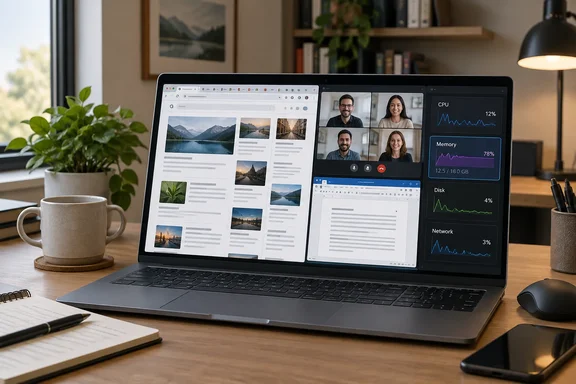
- Re-create your real workday—browser, documents, calls and any other apps you normally keep open. Press Ctrl+Shift+Esc to open Windows Task Manager, and watch memory use and responsiveness during the tasks that actually feel slow. Microsoft documents Task Manager as a monitor for memory and other system resources; it does not prescribe a RAM-buying threshold based on its readings.
The takeaway: if your current 8GB machine remains responsive throughout that workload, the number of tabs in its title bar is not, by itself, a reason to replace it. If slowdowns repeatedly coincide with heavy memory use, consider reducing the active workload or choosing more RAM for your next machine. Also check CPU and disk activity before blaming every pause on memory; Task Manager reports those resources too. This is a diagnostic approach, not a benchmark or a guarantee that an upgrade will fix every slowdown.
What to look for when buying
16GB is the sensible comparison point for many everyday multitaskers, rather than a promise that any 16GB laptop will perform identically. Livemint’s roundup illustrates that distinction: its seven featured Windows laptops all list 16GB, yet differ in processor, display and other hardware. Its guidance also notes that storage, software and processor performance affect how fast a laptop feels.
Move 24GB or 32GB higher on your shortlist when your other work—large projects or several memory-intensive applications at once—calls for it, not merely because you dislike closing tabs. Before buying, establish whether the exact laptop configuration permits a later RAM upgrade; Livemint correctly cautions that some newer machines have soldered memory. Its product roundup includes retailer offers and an affiliate-commission disclosure, so treat the listed machines as examples of configurations, not independently tested winners.
The short answer? Start with your workload, use Chrome’s controls, and observe the Windows machine you have. A tab count is a useful reminder to tidy your browser—not a universal RAM calculator.
References
- Always have dozens of Chrome tabs open? Here is how much RAM you actually need in your laptop - Livemint Livemint · 2026-09-29T02:30:57+00:00
- Personalize Chrome performance - Google Chrome Help support.google.com