

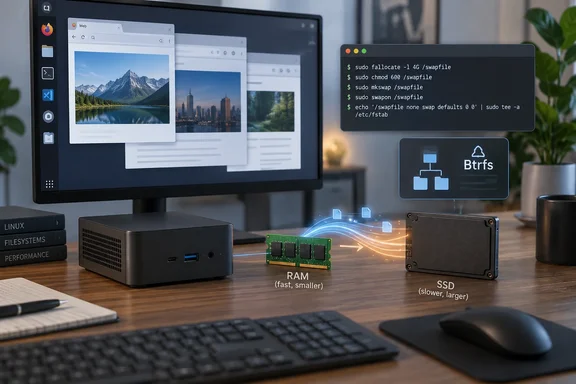
This guide covers what he did, what the commands actually do, the steps his write-up skips (keeping swap after a reboot, and Btrfs), and what swap can and can't do for a PC that's short on memory.
The machine: 8GB on the box, 5.7GB in practice
Jack's test machine is a Beelink SER3 mini PC with 8GB of RAM and a 256GB SSD. He bought it earlier this year as a low-power box for trying out both Windows and Linux. His complaint will sound familiar to anyone with an older laptop. A few apps and a browser with a handful of tabs were enough to bring up Linux's out-of-memory warnings, and sometimes the system hung.
The detail that matters most: the 8GB isn't all available to the operating system. Part of it is shared with the integrated graphics, so Linux reported only about 5.7GB. That's typical of mini PCs and budget laptops with integrated graphics. The number on the box and the memory you actually get can be quite different, so check what your system reports before deciding how much you have.
Jack compares this with his 8GB Mac mini M2, which he says never has the problem, and credits Apple Silicon's memory design. That's fair as far as it goes. A general point worth adding: macOS also compresses memory and manages swap automatically, so part of the difference is how each operating system handles running low, not just the chip.
Section summary: On a PC with integrated graphics, the memory the OS actually sees can be well below the advertised figure. Check it before you plan anything.
Swap, briefly
Swap is space on your SSD or hard drive that the kernel can use for memory pages it doesn't need in RAM right now. When RAM fills up, less-used data moves to disk, which frees real memory for whatever you're working on.
Swap comes in two forms:
| Swap partition | Swap file | |
|---|---|---|
| Setup | A fixed slice of the disk | A regular file on an existing filesystem |
| Flexibility | Hard to resize later | Easy to add, remove or resize |
| Performance | Often described as slightly faster | Close enough for most desktops |
| Filesystem caveats | None | Some filesystems (Btrfs, for example) need extra steps |
The main catch is that an SSD is still far slower than RAM. Swap gives the kernel somewhere to put data instead of killing processes. But if your workload keeps moving the same data between RAM and disk, the machine will crawl. That constant back-and-forth is called thrashing.
Step 1: See what you already have
Jack checked his existing swap with swapon -s. That still works, but the util-linux manual says that summary format is DEPRECATED in favour of --show that provides better control on output data. The current command is:
swapon --show
You can also read the kernel's own list with cat /proc/swaps.
Jack found his installer had set up just 512MB of swap. That's not much on a machine with 5.7GB of usable RAM and a modern browser. There's no perfect formula for swap size. The old "twice your RAM" rule, as Jack notes, dates from when RAM sizes were much smaller.
Step 2: Add a second swap file instead of resizing
You can resize an existing swap file, but you have to switch it off first. That's a bad idea on a machine that's already short of memory. Jack skipped that and added a second 1GB file, taking total swap from 512MB to about 1.5GB, which is three times what he started with.
His commands, with notes:
- Create a zero-filled 1GiB file:
sudo dd if=/dev/zero of=/swapfile2 count=1K bs=1M
This writes 1,024 blocks of 1MiB each. Make sure/swapfile2doesn't already exist, becauseddwill overwrite it without asking. Also check you have the free disk space. - Lock down the permissions:
sudo chmod 600 /swapfile2
Jack ran this aftermkswap, once it warned him about permissions. Doing it first avoids the warning. Either way, only root should be able to read the file, since it can end up holding pieces of whatever was in memory. - Format it as swap:
sudo mkswap /swapfile2 - Turn it on:
sudo swapon /swapfile2 - Check that it worked:
swapon --show
Both swap areas should appear in the list. In System Monitor or a similar app, total swap should now read about 1.5GB. As Jack says, no reboot or logout is needed.
Why use dd rather than something faster? The swapon manual explains that the swap file implementation in the kernel expects to be able to write to the file directly, without the assistance of the filesystem. Files with gaps in them ("holes") break that: commands like cp(1) or truncate(1) create files with holes. These files will be rejected by swapon. The manual's advice is that the most portable solution to create a swap file is to use dd(1) and /dev/zero.
Newer shortcut: If your distro ships util-linux 2.41 or later, LinuxBlog.io notes that sudo mkswap --file --size 2G /swapfile creates the file, sets 0600 permissions and handles the Btrfs setting in one go. The same guide adds that many long-term-support distros still ship older util-linux, so the manual steps above are still worth knowing.
Step 3: Keep the swap file after a reboot
Jack's steps leave this out. swapon only enables the file until you restart. As LinuxBlog.io puts it, without an /etc/fstab entry, the swap file will not be active after a reboot.
The swapon manual describes the /etc/fstab line field by field. For a file, the first field is the full path, the second is by convention none, the third must be swap, and defaults goes in the options field. Add this line to /etc/fstab:
/swapfile2 none swap defaults
Before you reboot, test it with sudo swapon --all --verbose. That command activates every swap entry in fstab and devices that are already being used as swap are silently skipped, so running it now is harmless. If you get an error, fix the typo before rebooting.
Troubleshooting common failures
- "swapon: Invalid argument" or "file has holes": The file probably wasn't made with
dd, ormkswapwas skipped. Delete it, recreate it withddand runmkswapagain. - Btrfs users: Fedora and openSUSE, among others, use Btrfs by default, and the plain
ddmethod isn't enough there. According to the manual, swap files on Btrfs are supported since Linux 5.0 on files with nocow attribute. The Btrfs documentation provides a dedicated command, btrfs filesystem mkswapfile --size 2G swapfile. It also warns that the subvolume with the active swapfile cannot be snapshotted until the swapfile is deactivated again by swapoff. If you rely on snapshot tools, keep that in mind. - Permission denied: Every step needs root, so use
sudofordd,mkswapandswapon. - Swap missing after reboot: Check the fstab line, especially that the third field says
swap. - Network drives: The swapon manual warns that swap over NFS may not work. Keep swap on a local disk.
- Hibernation: 1.5GB of swap won't hold the contents of 5.7GB of RAM. If you want to hibernate, follow your distro's hibernation guide rather than general swap sizing advice.
Did it work, and what's the real lesson?
Jack reports that his machine now responds better and is less likely to hang or trigger the out-of-memory killer. He's careful to say that more swap doesn't guarantee big performance gains. That's honest, and it's the right way to read the result. This is one person's experience on one machine, not a benchmark, and "less prone to hanging" is an impression.
A reasonable pushback: if a browser and a few apps overflow 5.7GB, the long-term fix is more RAM or lighter software, and Jack himself mentions lightweight distros. Swap works like a spare room. It helps when guests stay over occasionally, but it won't fix a household that has outgrown the house. If you see constant disk activity and lag after adding swap, your workload is simply too big for your RAM.
Another option, based on general industry knowledge rather than Jack's write-up: zram swap. It keeps a compressed swap area in RAM itself, much like the memory compression that helps his Mac, and some distros such as Fedora turn it on by default. Many low-RAM setups combine a small zram area with a disk swap file as a backstop.
As a first step, though, a swap file is hard to beat. It takes about five commands, it's fully reversible (swapoff, delete the file and remove the fstab line), and it costs 1GB of SSD space. That's a cheap way to squeeze more life out of an 8GB mini PC. The same goes for Windows users repurposing an old laptop as a Linux box, where a little extra swap can decide whether it's usable at all.
Bottom line: Check your current swap with swapon --show, build any new file the right way for your filesystem, add it to /etc/fstab so it survives reboots, and treat swap as a way to avoid crashes rather than a performance boost.
References
- Linux swap files just saved my low-RAM PC from obsolescence How-To Geek · 2026-09-28T12:00:13+00:00
- Linux swap Commands: Create and Manage Swap Files/Partitions | LinuxBlog.io linuxblog.io
- Memory Resource Controller — The Linux Kernel documentation kernel.org