

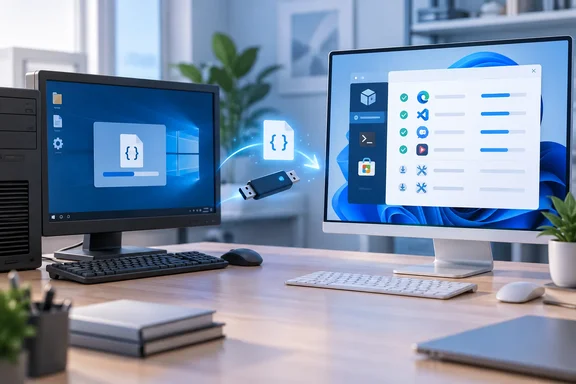
What UniGetUI bundles do
UniGetUI is a free, open-source graphical front end for package managers. Devolutions describes it as a GUI for common Windows package managers, including WinGet, Scoop, Chocolatey, Pip, Npm, .NET Tool and PowerShell Gallery. The relevant feature here is Package Bundles. Devolutions says you can export package lists and import them on another machine.
A bundle is a list of references, not a copy of your software. It holds package IDs and sources. UniGetUI's own site says the backup captures package names, IDs, versions and source managers in a structured JSON file. That is why it is tiny. MakeUseOf puts bundles at "usually only a few KB". Treat that as the author's experience, not a guarantee.
Step 1: Clean up before you save
MakeUseOf recommends pruning first. Every app you remove now is one less to download later.
- Open Settings > Apps > Installed apps.
- Sort by size, largest first.
- Remove anything you no longer need or haven't opened in months.
Step 2: Build the bundle on the old PC
The article's reported click path is below. Interface labels can change between UniGetUI releases, so adapt if your version looks different.
- Install UniGetUI from the Microsoft Store and check that the publisher is Devolutions. The article also gives
winget install Devolutions.UniGetUIin an admin Terminal. Keep WinGet enabled on first launch. - Optionally sign in with GitHub from the bottom-left corner. MakeUseOf says this backs up your package list to your account, which gives you a second copy.
- Open Installed Packages and click Filters. Under WinGet, keep both
wingetandmsstorechecked and uncheck the Local PC options. - Tick the checkbox beside Package Name to select everything, then choose Add selection to bundle.
- Click Save As, name the file something like
old-pc-apps, and copy it to a USB drive or cloud storage.
Apps marked "Local" have no matching repository package, so they can't go into an installable bundle. Go back to Filters and show only Local PC to see what the bundle can't carry. MakeUseOf says this is usually older apps, security or VPN tools that install drivers, and paid software from a vendor's site. Note where you downloaded each one and find its licence key now, while the old PC still works.
Step 3: Replay the bundle on the new PC
- Finish Windows setup and run Windows Update, so WinGet and the Microsoft Store are current.
- Install UniGetUI again and keep WinGet enabled.
- Copy the bundle to a local folder such as Downloads. MakeUseOf warns that opening it straight from a cloud placeholder can fail if the file hasn't synced.
- In UniGetUI, go to Package Bundles > Open and pick the file. The list shows each app with its package ID and source.
- Uncheck anything you no longer want, then click Install selection.
MakeUseOf says installs run in silent mode, so you won't see setup wizards. You may still get UAC prompts for apps that need administrator rights. The author says the queue stalls while a prompt is waiting, so watch the screen and follow progress in the operations panel at the bottom.
When installs fail
Don't assume an empty queue means success. Check for failures. MakeUseOf lists the usual causes:
- A network timeout.
- A package that was renamed or removed.
- An older copy of the app still running.
Retry the failures. If they fail again, search Discover Packages or download the app from the developer's site. Then open Installed Packages to confirm everything arrived, and install the Local PC apps by hand.
Community reports suggest bundle loading can be flaky. UniGetUI's site mentions a known quirk where WinGet packages may not appear in the restored list on first run if the WinGet source index hasn't finished syncing. If the list looks empty, give WinGet a moment, or restart the app and reopen the bundle.
The built-in alternatives
WinGet export and import
You don't need a GUI. Microsoft documents winget export as creating a JSON file of apps. Combined with import, it lets you batch install applications on a PC. MakeUseOf's examples:
- Old PC:
winget export -o apps.json - New PC:
winget import -i apps.json --accept-package-agreements --accept-source-agreements
Microsoft's documentation adds some caveats:
- Export attempts to capture every installed app, but it warns when it can't match one to a configured source. Matching depends on source manifest metadata and Add/Remove Programs data.
- By default, import installs the latest version. The
--include-versionsoption records the installed version. - You can edit the JSON afterwards to remove apps you don't want.
So the unmatched-app problem isn't unique to UniGetUI. It comes with package-manager restores in general.
Windows Backup
Windows 11's Windows Backup also remembers apps. Microsoft says that when you sign in with the same Microsoft account on a new PC or after a reinstall, Windows offers to restore. Per Microsoft, the app pins return where you left them. Microsoft's support page says apps in the Microsoft Store can be restored by selecting the pin. For apps that aren't in the Store, you're directed to the web to download the installer. That matches MakeUseOf's point that you still have to click through each app yourself. One boundary matters for IT readers: Microsoft says Windows Backup is aimed at consumer devices, and the "Remember my apps" setting doesn't work with work or school accounts.
MakeUseOf says Windows Backup "mostly covers" Store apps. Microsoft's own page frames non-Store apps as handled by redirecting you to download them, so the practical result is similar. Either way, it doesn't automate the installs.
Reality check on "hours saved"
The headline's "hours" is the author's experience. No timed comparison backs it. The workflow's real gains are consistency and fewer clicks, as long as your apps live in WinGet or the Store. If most of your software is licensed, driver-based or vendor-distributed, expect more manual work.
Also note:
- Settings aren't included. App configuration, licences and sign-ins have to be moved separately.
- Versions aren't pinned by default. Expect current releases unless versions were recorded.
- Format drift. UniGetUI's CLI reference lists
.ubundle,.json,.yamland.xmlas accepted bundle extensions. JSON is the safest choice for portability.
Scripting it for IT admins
UniGetUI's documented CLI has commands for bundle import, bundle export and bundle install. The install command has options for including already-installed packages, elevated execution, interactive mode and skipping hash validation. This suits repeat builds, though GUI-only home users can ignore it. A UniGetUI maintainer noted that, for security reasons, settings import and export doesn't carry "dangerous" settings, such as running custom pre- and post-install commands. Be careful about importing bundles from sources you don't trust.
Summary
For a PC migration, build the bundle from your cleaned-up list and keep a separate note for the Local PC apps. Apply Windows Update before you start. Then open the bundle from a local folder, and review the results. If you prefer the command line, winget export and winget import give a plainer version of the same idea. Windows Backup helps with Store apps and pins, but it won't do the installing for you.
References
- My next Windows PC won’t need hours of app installs thanks to this one file - MakeUseOf MakeUseOf · 2026-10-04T18:00:14+00:00
- Settings import and export · Devolutions/UniGetUI · Discussion #4376 github.com
- CLI.md github.com