

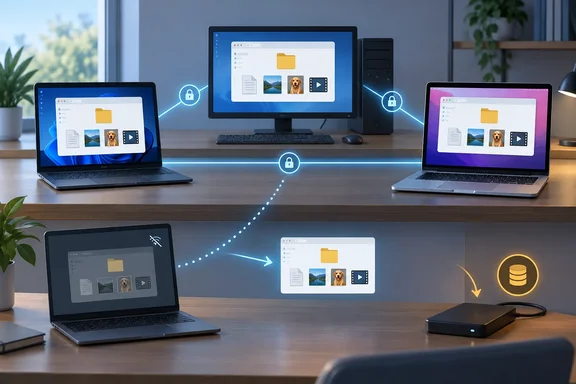
Below is what the setup does, how to build it, and the problems you're likely to hit along the way.
What "without cloud storage" means here
Syncthing puts a full copy of the shared folder on every connected device. When you add, edit, or delete a file on one machine, that change goes to the others. No online storage account keeps a copy in between. The project's documentation says Syncthing doesn't upload your data to the cloud. Instead, devices swap data whenever they're online at the same time.
That last part is the main trade-off. In the XDA setup, a laptop that's turned off gets nothing new until it starts up again and can reach another device that has the folder. Dropbox and OneDrive always have a server copy to fall back on. Syncthing only has your other machines.
"No cloud storage" doesn't mean Syncthing never talks to the internet:
- Discovery servers help your devices find each other across networks. The Syncthing project runs a public global cluster, and you can also run your own.
- Relay servers carry traffic when two devices can't connect directly. Volunteers run them, and the FAQ says relays can't see the data that passes through them. The relay protocol uses TLS encryption and checks device IDs.
- You can turn off discovery and relaying if you only want to sync on your local network. You then have to handle connectivity another way, for example by keeping everything on one LAN or setting up direct addresses.
The accurate label is peer-to-peer sync without cloud file storage, not "no outside servers at all." Nothing outside your machines stores your files, but by default Syncthing may still use outside servers to help devices find and reach each other.
Section summary: Every device holds a copy, and nothing in the cloud does. The catch is that devices have to be online together to sync, and discovery or relay servers may help them connect.
Setting up one folder across Windows, macOS, and Linux
Here's the XDA writer's process with details from Syncthing's documentation added. Button names can differ between versions, so treat the labels below as a guide rather than exact wording.
- Install and run Syncthing on every computer. The core program runs in the background and does the syncing. You control it through a web page in your browser, but your files stay on the computer. By default that page is only reachable from the same machine, at
127.0.0.1:8384, for security reasons. - Pick a folder. You can use the default Sync folder that Syncthing creates on first launch, or choose Add Folder and point it at a folder you already have.
- Set the folder type to Send & Receive. This is the standard type, and it both sends and accepts changes. Other types are Send Only, which keeps a reference copy, and Receive Only, for mirrors or backup targets. Those are for one-way setups, not for a folder you edit everywhere.
- Swap device IDs. Each device has its own ID. In the XDA walkthrough you find it under Actions → Show ID, then add it on another computer with Add Remote Device. A connection only works once both devices know each other's ID. That's why you have to approve it on both sides. The Syncthing FAQ describes this as putting security ahead of convenience. Device IDs aren't secret, because knowing one isn't enough to connect or see a file list.
- Share the folder and accept it on the other device. When you accept, you choose where the local copy goes. The path can differ between machines, such as
C:\Users\you\Sharedon Windows and a folder in your home directory on macOS. Syncthing links the copies by folder ID, not by name or path. - Repeat for the third computer. The XDA writer connected every machine to both of the others, so any two can sync while the third is off. With three devices that full mesh is sensible, but it isn't required. Devices just need to be able to reach a peer that has the latest changes.
What success looks like: each device appears in the Remote Devices list as connected, the folder shows as up to date, and a test file dropped in on one machine shows up on the others. The XDA writer uses the folder for screenshots, PDFs, documents, and videos. Large video files took longer to move but otherwise worked. That's one person's experience, not a benchmark.
Section summary: Install everywhere, use Send & Receive, approve each device on both ends, and accept the folder wherever you want it on each machine.
The problem to avoid: sync is not backup
This is the part that causes real data loss. Syncthing copies deletions just as it copies new files. Delete something by accident on the desktop and it can disappear from the laptop and the Mac too. The Syncthing FAQ says plainly that it isn't a great backup tool, because every change, including deletions, goes to every device.
File versioning helps, but it has limits:
- It's off by default. File versioning is configured per folder, on a per-device basis, and defaults to "no file versioning", i.e. no old copies of files are kept.
- It only protects against changes from other devices. If Alice has versioning turned on and Bob changes a file, the old version will be archived on Alice's computer when that change is synced from Bob. If Alice changes a file locally on her own computer Syncthing will not and can not archive the old version.
- Old versions are stored in a hidden folder by default. For most strategies it's possible to specify where the versions are stored, with the default being the .stversions folder inside the shared folder path.
- There are several strategies. With Simple File Versioning, a "Keep Versions" setting controls how many old copies are kept. With "Staggered File Versioning" old versions are removed automatically once they pass a maximum age or exceed the number allowed per time interval.
In practice, turn on versioning on each machine where you want protection, and keep a proper separate backup of anything important. Versioning is an undo button for mistakes made on another device, not a backup plan.
Common problems and fixes
Filename case conflicts between operating systems. Linux can hold Notes.txt and notes.txt as two separate files. Default Windows and most macOS setups treat those as the same name. If both end up in the shared folder, Syncthing reports a conflict rather than let one file overwrite the other. Its default safety checks exist to catch these case-only collisions. The fix is to name files consistently.
Conflict copies. If two machines change the same file before syncing, Syncthing doesn't merge them. It keeps one version and saves the other with a .sync-conflict-… suffix. Those copies are normal files and will sync like anything else, so clear them out when you find them.
Slow transfers. The FAQ suggests checking the Remote Devices list first. If you see "Relay:" where it should say "Address:", your devices couldn't connect directly and traffic is going through a relay. Allowing direct connections through your firewall usually fixes that. Low-powered devices can also slow things down, since Syncthing hashes files with SHA-256 and always encrypts data in transit.
"Folder marker missing." Syncthing keeps a small .stfolder directory in each shared folder to confirm the folder is actually there. This protects you if, say, an external drive is unplugged, so Syncthing doesn't treat that as every file being deleted. If the marker disappears, syncing stops. Cleanup tools sometimes delete it because it's empty. Put it back, or remove the folder in Syncthing and add it again.
Things Windows users should know:
- On Windows, only the read-only permission bit syncs. Windows ACLs aren't preserved.
- Symbolic links aren't synced on Windows.
- Configuration is stored under
%LOCALAPPDATA%\Syncthingby default. - A
--no-consoleoption hides the console window on Windows.
Our take
Syncthing isn't new. Home-lab users have relied on it for years, and the project's release page lists version 2.1.5 as a stable release from September 8. The XDA writer's setup is useful because it covers a common problem: three machines on three operating systems sharing one folder, with nothing stored in the cloud.
It fits people who want control over where their files live and can live with an offline machine catching up later. It's a poor fit if you need your files from a borrowed PC at an airport, or if you'd treat a synced folder as your backup. For some, OneDrive's always-on server copy is worth what it gives up in privacy. For others, keeping every copy on hardware you own is the reason to choose Syncthing.
If you set this up, remember three things: turn on versioning, name files consistently, and keep a separate backup.
References
- I built one folder that automatically stays in sync across every computer I own without cloud storage XDA · 2026-09-26T11:30:18+00:00
- FAQ — Syncthing v1.27.0 documentation docs.syncthing.net