

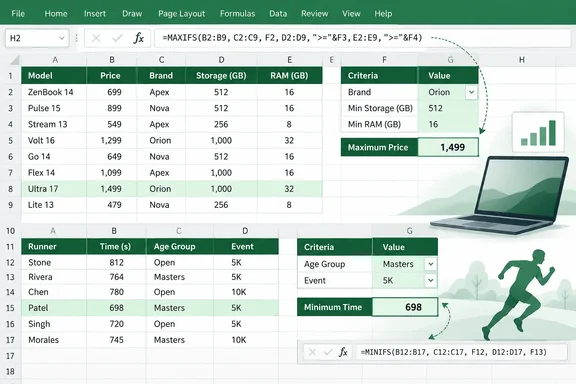
Why filtering is the wrong tool for a single answer
The usual routine is to filter to the rows you care about, sort the relevant column, read the top or bottom value, and then undo it all. It works, but it changes your view of the data to answer one question.
MAXIFS and MINIFS skip that. Phillips points out that the result sits in an ordinary cell, so it can:
- feed a summary table or dashboard
- feed another formula
- drive a chart
- recalculate when the source data changes
Filtering still has a job. If you want to inspect the qualifying records, a filter is the right tool. If you want only the extreme value, a formula is cleaner.
Syntax and what each argument does
Microsoft's documentation gives the syntax for both functions as follows:
=MAXIFS(max_range, criteria_range1, criteria1, [criteria_range2, criteria2], ...)
=MINIFS(min_range, criteria_range1, criteria1, [criteria_range2, criteria2], ...)- The value range is the actual range of cells in which the maximum will be determined. For MINIFS, it is the range in which the minimum is determined.
- The criteria range is the set of cells to evaluate with the criteria.
- The criterion can be a number, expression, or text. For example,
"Dell"is text,1500is a number, and"<=1500"is an expression. - Extra pairs are optional. You can enter up to 126 range/criteria pairs.
The value range tells Excel where the answer comes from. The criteria ranges and criteria decide which rows count.
Worked examples
Phillips' examples use an Excel table of computer specs and a table of race results. His specific results, such as 32 GB of RAM, depend on his workbooks, which I haven't seen. The formulas themselves follow the documented pattern.
One condition
To find the most RAM available for $1,500 or less:
=MAXIFS(tblComputers[RAM], tblComputers[Price], "<=1500")
The value range and the criteria range can be the same column. For the largest number above 50 in A2:A100:
=MAXIFS(A2:A100, A2:A100, ">50")
Several conditions at once
Add one pair per extra condition. Excel only considers a row if all the conditions are true:
=MAXIFS(tblComputers[RAM],
        tblComputers[Price], "<=1500",
        tblComputers[Manufacturer], "Dell",
        tblComputers[Storage], ">=512")
This returns the most RAM among Dell machines at or under $1,500 with at least 512 GB of storage. It replaces three filter steps and a sort.
Finding the minimum
MINIFS works the same way. This formula finds the fastest 5K time in the 40–49 age group:
=MINIFS(tblRaces[Time], tblRaces[Event], "5K", tblRaces[Age Group], "40-49")
A faster race is a smaller number, so MINIFS is the right choice. This assumes the times are stored as real Excel time or numeric values, not text.
Putting the criteria in cells
Hard-coded criteria are fine for a one-off. For a reusable sheet, point the formula at input cells:
=MINIFS(tblRaces[Time], tblRaces[Event], H2, tblRaces[Age Group], I2)
Change H2 from 5K to 10K, or I2 from 40-49 to 50-59, and the result updates without editing the formula.
Which Excel versions support them
This is the main compatibility point. Microsoft's pages for both functions list Excel for Microsoft 365, Excel for Microsoft 365 for Mac, Excel 2024, Excel 2024 for Mac, Excel 2021, Excel 2021 for Mac and Excel 2019.
Excel 2016 and earlier are not on that list. Third-party guides say the same: Ablebits says MAXIFS is only available in Excel 2019 and Excel for Office 365, and not in earlier versions.
If you share workbooks with people on older versions, test before relying on these formulas. An old forum thread suggests an array-style MAX(IF(...)) construction as the fallback for such cases. That is a workaround, not Microsoft guidance.
Pitfalls to check
1. Mismatched range sizes give #VALUE!
Microsoft says the max_range and criteria ranges must be the same size and shape. Otherwise the functions return #VALUE!. The ranges don't have to line up row for row. Microsoft's own example uses A2:A5 against B3:B6, and it works because both are four cells tall. Using table columns, as in Phillips' examples, avoids the problem in practice.
2. No match returns 0, not an error
When nothing meets the criteria, Microsoft's examples show both functions returning 0. A fastest race time of 0 looks like a real result, and it isn't one. Guard against it with COUNTIFS:
=IF(COUNTIFS(tblRaces[Event],H2,tblRaces[Age Group],I2)=0,
    "No matching records",
    MINIFS(tblRaces[Time],tblRaces[Event],H2,tblRaces[Age Group],I2))
The same applies to a legitimate zero in your data. A zero result means either "no matches" or "the smallest value is zero", and the formula alone doesn't say which.
3. Blank criteria cells are treated as zero
Microsoft's examples show that if a criterion points at an empty cell, Excel treats it as 0. Your input cells therefore need to be filled in, or the formula will quietly search for zeros.
Finding who set the record
Phillips pairs MINIFS with FILTER to get the name behind the number:
=FILTER(tblRaces[Runner],tblRaces[Time]=J2)
If two runners tie, FILTER returns both names, because FILTER spills its results into neighboring cells. That formula has two weaknesses:
- It ignores category. A runner in another event or age group with the same time would also appear. Match the same criteria as the MINIFS formula. Microsoft's FILTER documentation shows multiplying Boolean tests to apply AND logic, and it supports an
if_emptyargument:
=FILTER(tblRaces[Runner],
        (tblRaces[Time]=J2)*
        (tblRaces[Event]=H2)*
        (tblRaces[Age Group]=I2),
"No matching runner")- It isn't in Excel 2019. Microsoft's FILTER page lists Microsoft 365, Excel 2021 and Excel 2024, and does not list Excel 2019. MAXIFS and MINIFS work in 2019, but this companion formula may not.
Quick checklist
- Confirm your Excel version is 2019 or later, or Microsoft 365.
- Convert your data to an Excel table so the ranges stay aligned as rows are added.
- Put the value range first, then pair each criteria range with its criterion.
- Put the criteria in cells if you'll ask the question more than once.
- Wrap the formula in an IF/COUNTIFS check so "no match" doesn't show up as 0.
- Use FILTER, with the same criteria, only if you also need the record behind the number.
The bottom line
MAXIFS and MINIFS are a small feature that removes a lot of fiddly clicking. They answer "what's the highest or lowest value that meets these conditions?" directly, in a cell, and they update when the data changes. The caveats are the silent zero for no matches, the range-size rule, and the version requirement. Handle those, and the filter button can go back to inspecting rows.
References
- I stopped using the Excel filter button to find high and low values. These 2 functions do it better How-To Geek · 2026-10-03T11:00:14+00:00
- MAXIFS function | Microsoft Support support.microsoft.com
- MINIFS function | Microsoft Support support.microsoft.com