

It isn't a new launch, and it has nothing to do with a Windows update. It's a practical workflow for anyone who spends the day in front of a keyboard. Here is what it does, how to set it up, and where the claims need some caution.
What Google Messages for web does
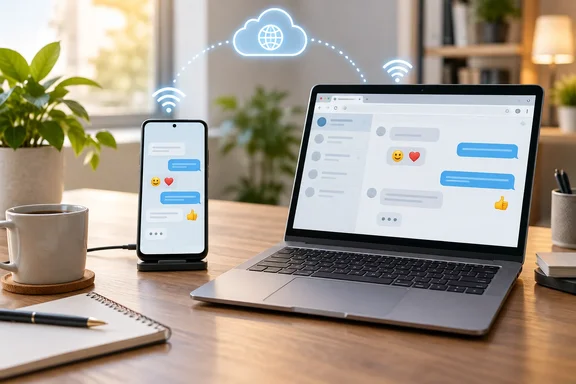
Google describes the service as a way to chat from a computer or Android tablet. It mirrors what's in the Google Messages mobile app. It isn't a separate inbox or a second messaging account. Your phone remains the source of truth.
That has a practical consequence for SMS. Google says the web client sends SMS through a connection from your computer to your phone, so carrier fees apply just as they do in the mobile app.
Setting it up
Google's current account-based pairing flow runs as follows:
- On your phone, open Google Messages, tap your account menu at the top right, and choose Device Pairing.
- If prompted, pick the Google Account you want to use with Messages.
- On your computer, open Google Messages for web in a browser such as Chrome or Safari.
- Sign in with the same Google Account you chose on the phone.
- Your phone shows a dialog with three emoji. Tap the one that matches the emoji on your computer screen.
- The phone vibrates when pairing completes, and your messages appear on the computer.
Success looks like your conversation list loading in the browser tab. Google's help page also says your latest threads, contacts and settings are encrypted and cached in the browser.
Requirements
Google's requirements are modest. On the phone, you need the latest Google Messages, Android 5.0 or later, and a Wi-Fi or data connection. On the computer, you need an internet connection and Chrome, Firefox, Safari or Microsoft Edge. Internet Explorer is not supported. For Windows users, that means Edge works fine.
If pairing fails
Google's troubleshooting guidance is worth keeping handy:
- Restart the phone's Wi-Fi, and make sure both devices have a strong connection.
- Turn on background data for Google Messages.
- Turn off any VPN and retry.
- In Chrome, disable extensions one at a time, because some can block the web client.
- Turn off battery optimization for the app.
- If you recently reset or replaced your phone, unpair the web client and pair again.
"Phone not nearby" doesn't mean "phone offline"
The MakeUseOf piece makes a good point: because pairing goes over the internet, your phone doesn't need to be on your desk or on the same network. That's true, and it's the main contrast with Bluetooth-dependent approaches.
It is easy to over-read, though. Google's own troubleshooting says both the phone and the computer need a working internet connection. A separate guide, from Analytics Insight, states it plainly: if the phone loses its internet connection, message syncing stops. Treat the phone as the hub. It can be in another room, but it can't be dead, in airplane mode, or off the network.
Security and housekeeping
- Automatic unpairing. Google says that if you don't use your account for a few weeks, you'll be unpaired automatically. MakeUseOf says "a few days." Google's own page says weeks, so I'd go with that.
- One active computer. You can pair several devices, but only one computer can be active at a time.
- Shared machines. Unpair when you finish. Google notes unpairing keeps other people from seeing your messages and sensitive data, such as two-factor codes.
- Where to unpair. On the web, use the menu at the top left. On the phone, go to the Device Pairing screen, where you can remove one computer or all of them.
Two-factor codes arriving as texts are the real reason this matters. A browser tab on a shared PC that still shows your messages is a quiet risk. Remember-this-computer options exist, but outlets like Analytics Insight advise against using them on shared machines.
Tablets, and a claim to treat carefully
Google documents access from computers and Android tablets, using the same setup steps. It adds that some tablets with cellular connectivity and a SIM can send messages without a connection to your phone.
MakeUseOf goes further and says you can also use it on another phone through a browser. That is plausible, since it's just a website. But Google's help page only lists computers and Android tablets as supported, so I wouldn't count on the phone-browser route.
Limitations the author flags
The review is candid about gaps:
- No message search in the web interface. Google Messages Community answers, including one dated August 2026, say search is still unavailable. Those are community replies, not product documentation. The reviewer's workaround is the Start chat option for jumping to a conversation, but that doesn't help you find a specific message.
- No starring or forwarding messages, no voice texts, and no pinning from the web. Chats you've already pinned on the phone are said to appear pinned.
- Keyboard shortcuts for starting chats, switching conversations, archiving or deleting, and opening the GIF panel.
I couldn't confirm the star, forward, voice-text, pinning or shortcut details in Google's documentation. They're one writer's hands-on observations, so test them yourself before you rely on them. Google does document a few things in the web UI: an unread count and red badge on the browser tab, and a dark theme under the More menu.
RCS and media: the fine print
The article says you still get RCS, GIFs and media sharing. RCS depends on setup. Google says features like high-resolution photos and video, typing indicators and read receipts need RCS chats turned on, and everyone in the conversation must have RCS chats enabled. So the web client can reflect those capabilities, but not every conversation will have them.
Versus Phone Link
The author says he skips Phone Link because it wants Bluetooth and Wi-Fi on all the time and is another app running on both devices. That's his experience, and I haven't verified it independently. Treat "no overhead" as a preference, not a benchmark.
The fair trade-off looks like this:
| Google Messages for web | Phone Link | |
|---|---|---|
| Install | None, a browser tab | Windows app plus phone companion |
| Pairing | Google Account plus emoji match | Microsoft's own pairing flow |
| Platform | Android phones, any supported browser | Windows PC with a linked phone |
| Messaging only? | Yes | No, broader phone integration |
If you want only texts, the browser route is simple. If you also want notifications, calls or other phone features on Windows, Phone Link covers more ground, though that isn't what this feature is about.
Bottom line
Google Messages for web is a low-effort option for Android users who live in a browser. Pairing takes a minute, and Edge is supported. Keep the phone online, expect carrier fees for SMS, and unpair on any computer you don't own. The missing search is the biggest practical annoyance. If the other limitations bother you, check them against the live interface first.
References
- I used Google Messages for years without realizing this feature existed MakeUseOf · 2026-10-02T19:00:16+00:00
- Check your messages on your computer or Android tablet - Google Messages support.google.com
- Fix problems sending, receiving, or connecting to Google Messages - Computer - Google Messages support.google.com