

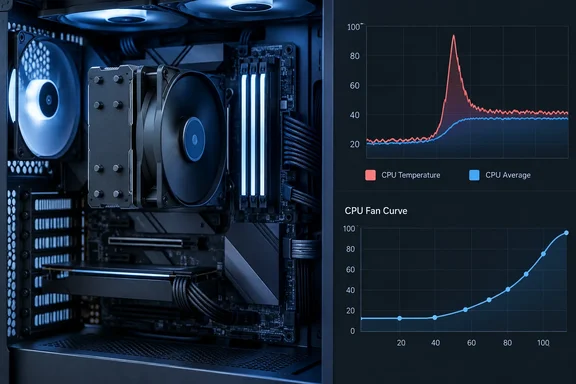
The fix for the noise usually isn't a new cooler. It's knowing which reading your motherboard follows, and then telling the fan controller not to react to every blip.
One CPU, many thermometers
AMD and Intel expose different sensors, so the readings aren't interchangeable. HWiNFO's author says AMD uses several kinds of temperature reports because the CPU has dozens of temperature sensors, so it's hard to offer a single universal, comparable value. The sections below cover what each common reading represents.
AMD Ryzen: Tctl/Tdie versus CPU Die (Average)
- CPU (Tctl/Tdie) is the control temperature. It is the one that matters for cooling. HWiNFO's author describes it as the instant highest temperature among all sensors in the CPU. A forum contributor on the same HWiNFO forum notes that it's the one controlling the CPU cooler's fan, hence Tctl = Tcontrol.
- CPU Die (Average) is smoother. HWiNFO's author says it is an average among multiple sensors over a period, so it will always read somewhat lower than the instant (max) value.
- Per-core, per-CCD, IOD and SoC readings help you find which core or chiplet is hottest. Which of these appear varies by CPU and by monitoring tool.
There is a caveat: AMD doesn't fully document these values. HWiNFO's author says AMD doesn't fully disclose the exact meaning of each reading. Be wary of anyone stating the exact sensor count or averaging method for every Ryzen generation.
The old +20°C offset is history
First-generation Ryzen had an offset between Tctl and the real die temperature. HWiNFO's author says only the first-generation AMD CPUs used an offset between Tctl (control) and Tdie (real temperature). The author of the original How-To Geek piece cites the Ryzen 7 1800X and a +20°C offset as an example. In a forum exchange, the HWiNFO author put a Ryzen 7 2700X's Tctl-to-Tdie gap at 10°C, so offsets varied by model. The two-line display is also a useful clue. If HWiNFO shows a single "CPU (Tctl/Tdie)" value, they are the same. Otherwise it shows two values.
Current Ryzen chips mostly show the single combined line. Don't assume your modern chip is secretly running 20°C hotter than reported.
Intel: CPU Package and Core Max
On Intel, the two readings to know are:
- CPU Package is, per HWiNFO's author, a 256-millisecond average, calculated by the CPU, of the hottest temperature sensor within the CPU package. It's usually the one that drives motherboard fan control.
- Core Max is the hottest individual core, which makes it good for spotting core-level peaks. It is not the same thing as TJMax. TJMax is the thermal limit, not a sensor reading.
Intel's own Core Ultra (Meteor Lake) datasheet confirms the underlying design. A processor can have multiple digital thermal sensors across its tiles. The 256 ms averaging applies to the value retrieved through PECI in that documentation. Other utilities may label or sample values differently, so treat the 256 ms figure as typical rather than universal.
Why the readings differ
A peak-oriented value reacts to whichever tiny region gets busy for a moment. An averaged value smooths that out. HWiNFO's author describes Tctl's behavior this way in a forum thread: on a graph it looks like a saw, spiking quickly then dropping, while the others look rather smooth.
His explanation for the gap is that temperatures can fluctuate within milliseconds and cooling takes time to kick in. So a Tctl several degrees above the average during web browsing or app launches is normal. The original article reports roughly 4°C higher Tctl in everyday use on a Ryzen 7 7700, with almost no gap under a stress test. That's one user's result, not a benchmark.
A forum user on Linus Tech Tips raises a fair counterpoint: averages can hide trouble. If only half the cores are working hard, the average may look fine while the busy cores approach their limit. That's why you shouldn't treat "average" as automatically the best number.
How to tell a normal spike from a real cooling problem
- Open HWiNFO in sensors-only mode. Note your CPU model and the exact labels you see. On AMD, look in the CPU enhanced section. On Intel, look under the DTS group.
- Compare current, minimum, maximum and average columns during the workload you care about, not just a single glance at the current value.
- Run a sustained load. A heavy test such as AIDA64 for several minutes is the approach the original article suggests. A temporary gap of a few degrees is fine. A large gap that persists in the Average column under sustained load deserves a look at the cooler.
- Inspect the cooler. Possible causes include dried thermal paste or uneven mounting pressure. The gap alone doesn't prove either. It tells you where to start looking.
- Check your own CPU's rated limit. Don't borrow another model's number. AMD lists 95°C as the Tjmax for the Ryzen 7 7700, but that applies to that chip only.
Taming fan surges in BIOS/UEFI
If temperatures behave normally but the fans keep surging, the control curve is probably chasing the spiky reading. Fan control options vary by board, but many UEFI setups offer these controls:
- Step-up time (response delay): how long a temperature must stay elevated before fans speed up. A published ASUS BIOS manual for one board lists separate step-up and step-down options. That shows the feature exists. It does not mean every board has it or uses the same scale.
- Step-down time: how slowly fans return to idle speed.
- The curve itself: a gentler slope, or a higher starting temperature, avoids low-temperature fan jumps.
The original author's setup is a dual-tower air cooler, with all CPU and case fans delayed 25 seconds and a loose curve ramping from 70°C. That works for his big heatsink. It isn't a recommended default. A small cooler has less thermal mass and needs a shorter delay.
Good practice:
- Start with a delay of a second or two, then increase gradually.
- Test with real workloads such as gaming and rendering, and watch the temperatures, not just the noise.
- Keep a curve that clearly ramps up under sustained heat.
A longer delay is not a cure for overheating. If temperatures stay high, performance throttles, or the system behaves oddly, fix the cooling instead of hiding it.
The takeaway
Brief CPU temperature jumps are generally normal. They come from fast-reacting sensors that report the hottest point on the chip, and your motherboard may use that value to set fan speed. Compare the instant and averaged readings, test under sustained load, and only then decide whether you have a cooling problem or just a twitchy fan curve. A few seconds of delay in the BIOS is often all it takes to quiet the fans.
References
- Your CPU has multiple temperature readings, and one might be making your fans scream How-To Geek · 2026-10-03T18:30:14+00:00
- CPU temp sensors explanation | HWiNFO® Forum hwinfo.com
- Digital Thermal Sensor - 001 - ID:792044 | Intel® Core™ Ultra Processor edc.intel.com