

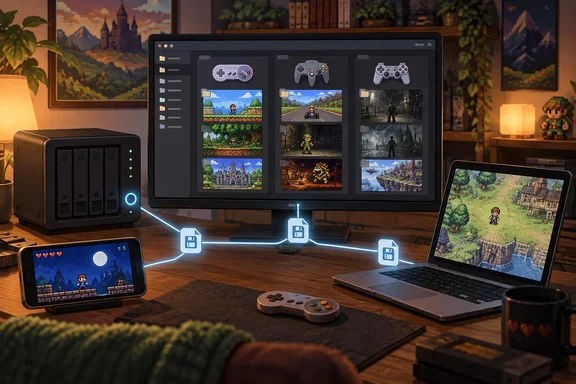
Moonbase Adds a Retro Games Backend to Jellyfin and Emby
Moonbase is not a games-only project. The project describes it as a server plugin for Jellyfin and Emby that provides the shared backbone for every Moonfin client. It also syncs your settings across devices, hosts the Moonfin web app right on your server, serves media bar and home screen data, adds extra rating sources, connects your library to Seerr. Game support is one feature among several. The current project page lists retro games support for browsing and playing game libraries, with saves synced per user.
The feature is new. In Moonbase 2.0.0, the developers added a retro games backend, including support for compressed ROM archives and extracting ROMs from them, along with a new games thumbnail endpoint that caches libretro cover art on the server. The same release made the plugin run on Emby servers in addition to Jellyfin. Version 2.1.0, released in late August, is mostly about the retro games backend, which got a proper arcade path with offline DAT matching, real ROM identification through the libretro databases, and a server side artwork pipeline that keeps working through library scans.
On the client side, a Moonfin-Core release added a brand new retro game library, details screen, and player, so games can be launched right from Moonfin. XDA lists Moonfin clients for Windows, Linux, macOS, Android, iOS, Android TV, webOS and Tizen.
Stock Jellyfin still has no idea what a ROM is. The project wiki explains that because ROM files are not a media type Jellyfin or Emby understand, the plugin does not index games in the normal library database. Instead it reads your game folders directly off disk each time. So your game library sits next to Jellyfin's database, not inside it. Jellyfin's own library scanner won't catalog it the way it catalogs films, and it only shows up properly in Moonfin clients or the Moonfin web app.
Setting Up the Moonbase Games Library Is a Folder-Naming Exercise
Sherback started from a fresh Jellyfin install in Docker on a MINISFORUM MS-03 mini PC, separate from his main media server, because that machine already carried a heavy daily load. He reports that the container needed only one extra bind mount for the ROM folder. He installed Moonbase from its own plugin repository through Jellyfin's dashboard. Moonfin can connect to several servers and merge them into one library, so his games and films still show up together. A separate host is optional. The same Jellyfin server can do both jobs.
Based on the project documentation, the setup looks like this:
- Add the Moonbase plugin repository in the Jellyfin dashboard under the plugin repositories settings, install Moonbase from the catalog, and restart Jellyfin. If you run Jellyfin in Docker, make sure the ROM folder is mounted into the container.
- Create a Jellyfin library for games. The Moonfin-Core release notes say to create a library (doesn't matter the type) then add one folder per system with your games inside, either as a folder per game or loose ROM files.
- Open the Moonbase plugin page and turn the feature on. Retro games are off until you enable them in the Moonbase admin panel. Every game endpoint returns nothing until the feature is on.
- Select your game libraries on the same Games tab and save. If you have not picked any, the plugin falls back to auto-detecting libraries whose name contains "game", "rom", or "emulator".
The folder names do most of the work. Each top-level folder inside the library is a system, and its name tells Moonbase which console the games are for. The wiki accepts loose variants: SNES, Super Nintendo or Super Famicom; N64 or Nintendo 64; PSX, PS1, PSOne or PlayStation. Capital letters, spaces and dashes are ignored. If Moonbase doesn't recognize a folder name, it guesses from the ROM file extension, and if that fails too it assumes NES. Using the documented names avoids that fallback. The displayed title comes from the game folder name, or from the filename for a loose ROM. BIOS files go loose at the top of the relevant system folder.
Game details come from keyless public databases, the LaunchBox Games Database and libretro's databases. Box art and screenshots come from the libretro thumbnail library and are cached on the server. On Jellyfin, a filesystem watcher picks up new ROMs without a restart. Artwork that comes out wrong can be refreshed per game from the admin panel. Arcade sets go in a folder named Arcade or MAME, and 2.1.0 checks them against FBNeo and MAME DAT files pinned locally on your server. Archives in .zip and .7z format work if each holds one ROM. The server extracts them on the fly and leaves the original untouched.
Why Moonfin Remote Play Is Local Emulation, Not Streaming
The phrase "play from anywhere" suggests a cloud-gaming model, and Sherback is careful to say that isn't what happens. The server never runs a game. It hands the client a ROM and your save, and the client runs the emulator. The wiki describes the two playback paths. The web player uses a bundled EmulatorJS runtime, and the Moonfin apps on iOS, Android, and desktop play the same libraries with native emulator cores instead.
For Windows users, the desktop client is the most capable option. The wiki says Android and desktop use native libretro cores by default, which it says run far faster than a web view. You download cores in the app under Settings > Playback > Emulator Cores (macOS bundles them all). A Native Emulation toggle switches to the EmulatorJS web player, except on Linux, which has no web view and always plays native. Sherback describes the Windows behavior the same way: libretro cores downloaded on demand.
The web player fetches its cores from a public EmulatorJS CDN by default. Games play with zero setup by default, because the emulator files load from a public CDN. Self-hosting those files is optional. Admins who don't want clients reaching out to a third-party CDN can install a core bundle of about 290 MB on the server from the admin panel, or set a custom URL.
Remote access is up to you. Moonbase doesn't include any. Sherback didn't expose his server to the internet. The MS-03 is a peer in his self-hosted NetBird mesh VPN, so any of his devices with an internet connection can reach it. To share the library with friends or family, he says he would either put Jellyfin behind a reverse proxy or add them to the mesh. Those are the same choices you'd make for any self-hosted Jellyfin instance.
Where Moonbase Beats Moonlight and Sunshine, and Where It Doesn't
Sherback compares this with Moonlight and Sunshine, the popular pairing for streaming games from a gaming PC. His argument is that streaming adds a video encode and a network hop on top of running the game. That's barely noticeable on a wired home network, but on hotel Wi-Fi or cellular, jitter and packet loss show up as stutter, compression artifacts and input delay. He argues that retro titles designed around near-instant CRT response suffer most from that delay, especially timing-heavy platformers and fighting games. Local emulation takes the network out of gameplay once the ROM is loaded.
That's one writer's view, not a measured comparison, but the underlying distinction is accurate. Moonbase's documented design runs the emulator on the client, so gameplay doesn't depend on a live video stream. The cost is that the client has to be able to run the system. Moonlight and Sunshine can reach things Moonbase can't. Sherback keeps his GameCube, Xbox 360 and PS3 games on his main PC or original hardware, and he says streaming is still the answer for anything newer than Moonbase supports.
The Platform Matrix Decides What Actually Plays
Support is not the same everywhere. The Moonfin-Core clients (web, Android, desktop and Android TV) play the full supported list: NES, SNES, Game Boy and Game Boy Color, Game Boy Advance, Genesis/Mega Drive, Master System, Game Gear, PlayStation, Nintendo 64, Nintendo DS, PSP, Virtual Boy, Atari 2600 and 7800, Lynx, WonderSwan, Neo Geo Pocket, PC Engine/TurboGrafx-16 and arcade. The wiki also notes that N64, PSP and Nintendo DS need just-in-time compilation, which it says only Android and desktop have. Other clients cover less.
| Client | What the documentation says it plays |
|---|---|
| Windows, macOS, Linux desktop and Android | Full list, with native libretro cores by default |
| Web browser | Full list through EmulatorJS; PSP inside Moonfin Web may need an extra Jellyfin-only isolation setting |
| iOS | Same systems as Moonfin-Core except PSP; native cores bundled for NES, SNES, Game Boy/Color, GBA, Genesis, Master System, Game Gear and PlayStation, web player for the rest |
| Apple TV | Only the eight bundled systems; no N64, DS, PSP or arcade |
| LG webOS and Samsung Tizen TVs | Everything except PSP, and only on webOS 5 or Tizen 5 and newer, because the cores need WebAssembly |
Apple's rules explain the iOS gap. Sherback notes that Apple doesn't allow apps to download executable code, which is why Moonfin ships a fixed set of cores there. Apple TV has no usable web view either, so the bundled set is all you get.
Some formats don't work on any client. Multi-file disc sets, meaning .cue with .bin or multi-disc .m3u playlists, aren't supported, and neither are Saturn, Sega CD or 32X. Disc systems need single-file images, such as .chd or .pbp for PlayStation and .cso or .iso for PSP. PlayStation also needs a BIOS file in its system folder. Many long-running emulator collections keep PlayStation games as .cue/.bin pairs, so a library that works in a desktop emulator today may need converting first.
Save Sync Is the Real Feature, and It Has Rules
Sherback's original problem wasn't really access. It was not knowing which machine held the save he wanted. Moonbase's answer is per-user save states stored on the server. When you save in the player, or exit through the in-game menu, the state uploads to the server tied to your account and that game, so you can pick it up on another device. Each save is capped at 32 MB.
Battery saves, the in-game saves a cartridge would normally keep (.srm files), don't sync. They stay on the device, in storage the operating system may clear. If you save at a checkpoint in Zelda on your phone, that progress stays on your phone. You need to use Save state in the in-game menu, or exit through that menu, which saves your state first. Pressing back or Escape opens the menu instead of quitting, so you're less likely to lose progress by accident.
File paths matter too. The wiki warns that the game id is the ROM's full path encoded as base64url. That means moving or renaming a ROM orphans its saves, because the new path encodes to a different id. Settle on a folder layout before people start playing. Native and web saves are also separate. Native cores and the EmulatorJS web player write separate save files, and the two formats can't be swapped. If you switch a game between the web player and native emulation, you'll see a different set of saves.
Backups are simple. Saves live under the Moonfin folder in the server's plugins directory, one subfolder per user ID. In Docker, the wiki says that's inside the volume you mapped to config. Copying the saves folder backs up everyone's progress. Copying a user's folder and renaming it to another account's ID moves their progress to that account.
What this means for you
If you already run Jellyfin and your collection is mostly 8-bit, 16-bit and PlayStation-era games, Moonbase is worth installing now. If you mainly want Apple TV play or multi-disc PlayStation sets, check the limits first. Windows desktop and Android users get the widest system support and native cores. iPhone users get most systems, some through the web player. Anyone relying on a smart TV needs webOS 5 or Tizen 5 or newer.
- Settle your folder layout before anyone plays: moving or renaming a ROM after the fact orphans its synced saves.
- Name system folders from the documented list, such as SNES, N64 or PSX, so Moonbase doesn't fall back to guessing from file extensions or assuming NES.
- Convert multi-file PlayStation discs to single-file .chd or .pbp images, and put a PlayStation BIOS in the PSX folder.
- Use the in-game menu's Save state, or exit through that menu, whenever you want progress to follow you, because .srm battery saves stay on the device.
- Handle remote access the way you would for any Jellyfin server, with a mesh VPN like NetBird or a reverse proxy, since Moonbase doesn't provide it.
- If a game library doesn't show up, the admin-only GET /Moonfin/Games/Debug endpoint shows which libraries and folders the plugin can see.
Moonbase makes a self-hosted Jellyfin server work as a personal retro game library with cloud-style save sync, and it does that with plain folders, not a separate emulation frontend. Releases 2.0.0 and 2.1.0 went from a basic backend to content-based ROM matching and offline arcade validation within about six weeks, so support is likely to change quickly. For now the practical boundary is clear: anything your phone or PC can emulate belongs in Moonbase, and GameCube-class systems and newer still need Moonlight, a gaming PC or the original console.