

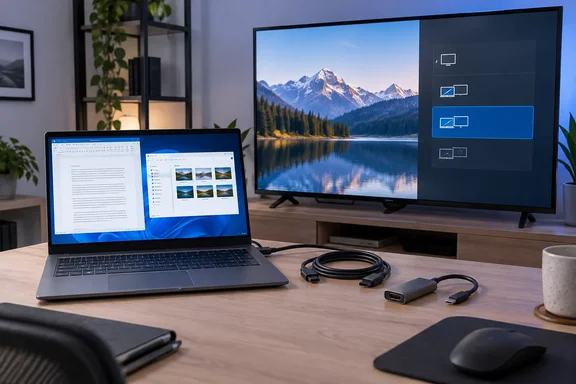
The important buying advice is that a conventional HDMI splitter cannot create an independent second desktop. BGR’s guide recommends a splitter for a secondary-display setup, but Microsoft explicitly explains that ordinary splitters duplicate one video signal rather than create two independent signals. You may need only a cable—or a compatible display adapter if your computer lacks an available output.
Start with the computer’s available outputs
A laptop’s built-in screen and an external television are different from two external displays competing for one HDMI output. Connecting an LG TV to a laptop’s available HDMI port can provide the second screen directly; adding a TV alongside an existing external monitor requires a supported additional display connection. Microsoft also cautions that the graphics hardware must support the number of displays you want to use.
If an appropriate output is available, use it before buying extra hardware. If the computer has only one video output and it is already occupied, Microsoft identifies a compatible docking station or USB display adapter as possible expansion options. An ordinary splitter remains useful when you deliberately want identical pictures on two screens, but selecting Extend cannot make it generate separate images.
USB-C needs closer attention. For an adapter that uses DisplayPort Alternate Mode, the computer’s USB-C port must support video output; the connector’s shape alone does not establish that capability. Dell’s DisplayPort-over-USB-C guidance confirms that compatible adapters can convert that video output to HDMI. Before purchasing, establish whether the computer’s port supports DisplayPort Alternate Mode or an appropriate Thunderbolt connection, and whether the adapter requires it.
Why some “splitters” really can extend the desktop
Product naming can obscure the distinction. OREI sells devices under its SplitExtend and SplitXtend names that connect to a computer through USB and provide additional display outputs. These are USB display adapters, rather than ordinary devices that distribute one incoming HDMI picture to multiple televisions. OREI’s model comparison distinguishes adapters using USB graphics drivers from those requiring DisplayPort Alternate Mode.
The exact model changes what you get:
| OREI model | Manufacturer-stated display support | Connection and software requirements |
|---|---|---|
| USBC2HDMI2 | One output up to 4K at 30Hz and another up to 1080p at 60Hz. | USB 3.0 through USB-A or USB-C, with a Silicon Motion driver. |
| SX-2C4K-85 | Two outputs up to 4K at 60Hz each. | USB 3.0 through USB-A or USB-C, with a DisplayLink driver. |
These specifications come from OREI, not independent performance testing. Its documentation also establishes that a USB-C connector is not mandatory for those two models: both support a USB-A connection.
BGR’s blanket recommendation for an HDMI 2.1-rated splitter is also unnecessary for the stated dual-4K/60Hz requirement: OREI specifies HDMI 2.0 for the SX-2C4K-85. Buy according to the adapter’s documented simultaneous outputs, host requirements, and drivers—not the word “splitter” or an HDMI version alone. For gaming, note that OREI explicitly positions the USBC2HDMI2 for productivity rather than high-performance graphics applications.
Connect the TV and extend Windows
For a direct HDMI connection, leave your existing screen connected and follow these steps:
- Connect the PC’s available HDMI output to an HDMI input on the LG TV.
- On the television’s remote, select External Input or Home Hub, depending on the model, and choose the connected port—for example, HDMI 1.
- Press Windows + P on the PC and select Extend.
- Open Settings > System > Display and choose Identify to match the numbered display tiles to the physical screens.
- Drag the tiles to match the TV’s position relative to your other screen, then select Apply.
- Move the pointer and an application window between screens to verify the arrangement. Success means you can keep different content on each display.
The projection choices serve different purposes. Duplicate shows the same content on both screens, while Extend lets you move windows between them. Second screen only uses the external display instead of retaining a two-screen workspace. Microsoft documents these choices for Windows 11 and Windows 10.
If the TV is missing from Display settings, select Multiple displays > Detect. Windows 11 also provides options under Multiple displays to remember window locations and minimize windows when a monitor disconnects—useful when the television is connected only occasionally.
Fix a blank, cropped, or unstable picture
For a blank screen, first verify the TV’s selected HDMI input and the cable connection. Microsoft recommends trying another cable or available video output; testing the television with another computer can help isolate which part of the connection is failing.
If the desktop appears enlarged or its edges are cut off, LG recommends checking the PC’s display resolution. Select the TV in Windows Display settings and use the recommended resolution supported by that television. This is a model-specific capability: connecting an LG TV does not establish that it supports any particular 4K mode.
LG provides an additional input-setting procedure specifically for products released in 2018 or earlier:
- Press External Input on the remote.
- Select All Inputs.
- Choose Edit Icon.
- Set the relevant HDMI input to PC.
Do not assume that menu path applies to newer webOS televisions. LG limits that procedure by model year and warns that menus can differ. If changing the resolution or input setting does not resolve picture instability, LG recommends trying a replacement HDMI cable.
Sound is a separate selection. If HDMI video works but audio remains on the computer, LG advises choosing the LG TV as the playback device from the taskbar’s sound controls.
Wireless is an option on compatible equipment
LG also documents a Windows 11 wireless connection: press Windows + K, select the television from the available displays, and accept the connection request on the TV. This depends on compatible screen-sharing support; LG cautions that its instructions and menus vary by model.
A wireless connection should still be checked for the intended display mode. Windows distinguishes Duplicate from Extend, so seeing the PC’s picture on the television does not by itself confirm an independent workspace. Microsoft also documents connecting a compatible wireless display adapter to a TV’s HDMI input and selecting it through Windows Cast.
For regular desktop use, direct HDMI is the sensible starting point: LG describes it as the stable wired option and identifies wireless interference as a possible cause of mouse lag or stuttering. Try the available wired connection first; buy additional display hardware only when the computer’s existing outputs cannot support your intended arrangement.
References
- Can You Use An LG TV As A Second Monitor? bgr.com · 2026-09-20T23:47:00+00:00
- Troubleshoot external monitor connections in Windows | Microsoft Support support.microsoft.com
- How to Display Your PC Screen on Your LG TV (Wired or Wireless) | LG USA Support lg.com