

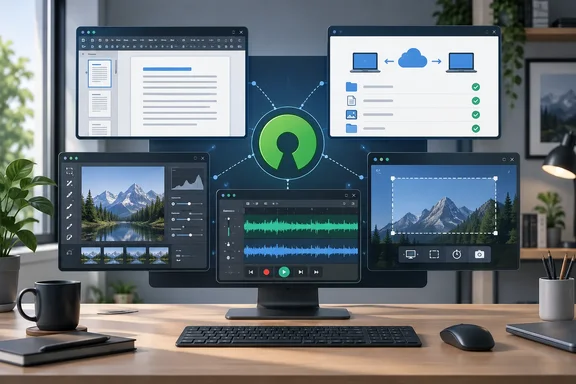
LibreOffice versus Microsoft 365: six local apps and an open file format
LibreOffice is still the most complete free alternative to Microsoft Office. The LibreOffice documentation project's current getting-started guide covers LibreOffice 26.2 and lists six apps: Writer for word processing, Calc for spreadsheets, Impress for presentations, Draw for vector graphics, Math for equations and Base for databases. According to the project's own guides, Writer handles Microsoft Word .doc and .docx files and exports to PDF. Impress opens and saves PowerPoint formats.
The main technical difference is the default file format. LibreOffice saves in OpenDocument (ODF), an XML-based format that is an open standard managed by the OASIS standards body. No single company controls it. Files in ODF don't depend on any one vendor's licensing decisions, which is useful for archives and for organizations that care about long-term access to their documents.
How-To Geek also says LibreOffice works the same way on Windows, macOS and Linux. It adds that users can choose between a ribbon-style layout and a classic toolbar, and can write macros in Basic or Python. The publication likes that the suite works offline and doesn't push AI features the way Microsoft 365 now does. Those are fair points about a locally installed suite. They don't make LibreOffice a replacement for Microsoft 365's cloud services, co-authoring or Teams and SharePoint integration.
The practical risk is file fidelity. Being able to open Microsoft formats doesn't mean a complex Word or Excel file will look the same in both suites. Test your hardest documents before you switch: templates with tracked changes, macro-heavy spreadsheets and precisely laid-out slide decks. How-To Geek suggests ONLYOFFICE for anyone who wants an interface closer to Microsoft Office.
Syncthing replaces the cloud with your own devices, and now needs third-party mobile apps
Syncthing syncs folders directly between your own devices instead of storing them on a provider's servers. According to the project's documentation, devices find each other through discovery servers. The project runs a global public cluster, and anyone can host their own discovery server, called stdiscosrv, and point Syncthing at it from the web GUI's settings. To use only your own server, you remove the "default" entry from the list.
If two devices can't connect directly, Syncthing sends the traffic through a relay. The documentation says relaying is on by default but is only used when a direct connection fails. Syncthing keeps retrying a direct link and drops the relay once one works. The cost is speed, since relayed transfers are much slower than direct ones. The connection stays end-to-end encrypted, and the relay only forwards data. The relay operator does learn your IP address and device ID, though, and can see how much traffic is flowing.
How-To Geek says you can use an untrusted machine, such as a rented server, as storage that holds your files in encrypted form. Syncthing does document a separate feature called Untrusted (Encrypted) Devices for this. It's a setting you configure yourself. It isn't the default, so don't assume every Syncthing device stores your files encrypted. The same applies to the idea of an always-on "private cloud." A home server or NAS keeps your folders in sync only while it is powered on and reachable.
Mobile support is where the claim of full platform coverage gets weaker. The Syncthing project maintained an official Android app until late 2024, when the lead developer announced its discontinuation. The reasons given were lack of maintenance and trouble publishing on Google Play. Android users now mostly use Syncthing-Fork. gHacks reported that you can download Syncthing-Fork from its GitHub page or from the F-Droid repository. Manual do Usuário reports that the fork later got caught up in a confusing dispute over two same-named apps from different developers. Its assessment is that they sorted it out and the project keeps receiving updates.
On iPhone, the free part comes with conditions. Möbius Sync, a third-party client built on the Syncthing engine, is free up to 20MB within its sandbox, and unlimited file sync, including files in other apps' sandboxes, is available for a one-time purchase. Manual do Usuário recommends Synctrain as another iOS option with selective sync and on-demand downloads. It also notes that iOS Syncthing clients sometimes struggle to run in the background.
Windows users have a similar gap on the desktop side. gHacks notes that the tray client SyncTrayzor has not been updated for a long time and points to Syncthing Tray as an alternative. You can also manage Syncthing entirely from its built-in browser interface.
darktable against Lightroom: more control, more work
How-To Geek's case against Adobe Lightroom Classic rests on two points: it costs a monthly subscription, and it still contacts Adobe's servers now and then to check your license, even when you work offline. darktable avoids both. It's released under GPL 3.0 and runs locally on Windows, macOS, Linux, BSD and Solaris, according to the project's feature list.
The project's documentation lists these core features:
- Edits are non-destructive, so your original image files are never changed.
- All core functions work on 4x32-bit floating-point pixel buffers, and many operations use OpenCL for GPU acceleration.
- Color management is built in, with automatic display-profile detection on most systems and ICC profiles for sRGB, Adobe RGB, XYZ and linear RGB.
- Edit settings are saved both in XMP sidecar files and in darktable's database, so your development history isn't tied to a single file.
- You can automate repetitive tasks with Lua scripts, and export to JPEG, PNG, TIFF, 16-bit PPM, or linear HDR formats such as PFM and EXR.
How-To Geek highlights one feature in particular: you can use the same processing module more than once in a single edit. darktable's manual gives examples, such as separate exposure instances for differently masked areas of a photo, or separate denoise instances for luminance and chroma noise. The manual also warns that each extra instance adds processing work, and that too many demanding ones will noticeably slow down editing.
The publication also says darktable's Tone Equalizer and Highlight Reconstruction modules, and its detailed masking system, can be more precise than Lightroom's tools. That's How-To Geek's own editorial view, not a documented benchmark. The trade-off it describes is real: darktable is harder to learn. Photographers who rely on Lightroom's AI masking, mobile sync or Adobe's catalog workflow should run a few real editing sessions before cancelling their subscription.
Audacity covers recording and editing, but it isn't a full DAW
Audacity is the easiest choice on the list to recommend, as long as you know what kind of program it is. Its official FAQ lists recording from a microphone or mixer, digitizing old recordings, editing tracks, applying effects, spectrogram analysis, and importing, exporting or converting common audio formats. That covers the jobs How-To Geek names: podcast editing, digitizing physical media and cleaning up recorded music.
The FAQ is also clear about what Audacity lacks. It doesn't have traditional DAW (digital audio workstation) features such as MIDI editing and virtual instruments. If you compose with software instruments, Audacity won't replace Ableton Live, FL Studio or Logic. If you record and edit audio, it may be all you need.
How-To Geek says Audacity supports all major plugin formats. The official plugin documentation is more specific, and support depends on your operating system. Nyquist and LV2 work on every platform, VST effects work on every operating system, and Audio Unit plugins work only on macOS. Support has also changed between Audacity releases, so check that a specific plugin works with the exact Audacity version you run before building a workflow on it.
Being the most popular app in its category also helps. Because so many people use Audacity, free tutorials are everywhere. Many commercial editors can't match that.
ShareX outclasses Snipping Tool on Windows, if you configure it carefully
ShareX is the only app on the list that runs just on Windows, which matters for mixed-platform teams. Its official site describes it as a free, open-source tool for screen capture, screen recording, file sharing and productivity. Capture options include full screen, active window, region, scrolling capture and GIF recording. The site also lists image annotation, configurable after-capture tasks and support for custom uploaders. No account is required.
How-To Geek says ShareX beats Snagit in most areas and has no limits or watermarks. It also admits the app can be overwhelming the first time you open it, and ShareX's own site says it's built for power users. You can still keep it simple. The How-To Geek writer uses it on handheld PCs just for full-screen captures, and on a desktop for annotation, region captures and screen recording.
The setting to review before you rely on ShareX is uploading. Its automation can capture, annotate and upload a screenshot to a remote service in one step. That saves time for public images and is risky for screenshots showing internal dashboards, credentials or customer data. Check your after-capture tasks and upload destinations before enabling any automatic uploads. Some destinations have their own accounts and terms, even though ShareX itself doesn't need an account.
What this means for you
Base the decision on the one limit that matters to your work, not on the price. Switch where the free app's known limit doesn't affect you. Stay with the paid tool where it does, or run both side by side for a while.
- Test LibreOffice on your most complex Word, Excel and PowerPoint files before switching, especially if you regularly exchange documents with Microsoft 365 users.
- Treat Syncthing as sync, not backup. Deletions and unwanted changes spread to every device, so turn on file versioning or keep a separate backup.
- On Android, use Syncthing-Fork now that the official app is discontinued. On iPhone, expect limits: Möbius Sync is free only up to 20MB until you make a one-time purchase.
- Try darktable on a real batch of raw files before cancelling Lightroom, and keep the number of stacked module instances reasonable on slower hardware.
- Pick Audacity for recording, podcast editing and digitizing, but look elsewhere if your work depends on MIDI or virtual instruments.
- Install ShareX on Windows PCs where Snipping Tool falls short, and review its upload destinations before automating anything that could expose sensitive screenshots.
How-To Geek's broader argument is that open-source apps have closed the old gap in usability, and these five mostly back that up. Each one is mature, actively maintained and good enough to replace a subscription for the right user. The Syncthing Android story shows where the risk is: the core app can stay healthy while a single maintainer's platform struggles take a client away. Before you commit, check how actively maintained the pieces you depend on are, not just whether the software is free.
References
- 5 more legendary free, open-source apps that are better than their expensive paid alternatives How-To Geek · 2026-09-25T18:00:14+00:00
- Syncthing Discovery Server — Syncthing documentation docs.syncthing.net
- Relaying — Syncthing v1.29.7 documentation docs.syncthing.net