

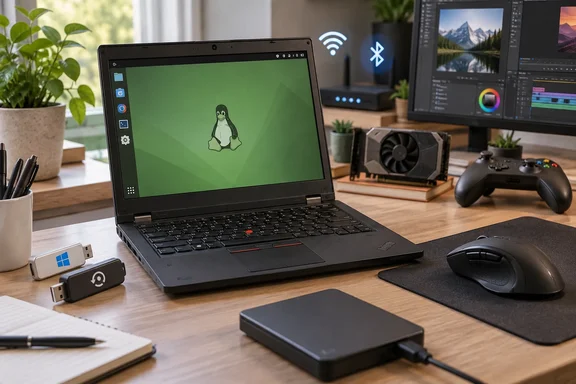
It is also one person’s experience, not a compatibility verdict on Linux Mint or every Y70. Aguilar does not identify his Mint version, wireless adapter, NVIDIA GPU or driver, affected games, or peripheral models. Without those details, the failures he describes cannot be reproduced or assigned a definite cause.
The driver problem is real—but specific
Aguilar reports that Wi-Fi and Bluetooth stopped working, and that a later update left his laptop at a black screen after he had switched to an NVIDIA driver. Those are serious problems when the computer is your daily machine. But “older laptops struggle with Mint” is too broad an explanation: the particular component, driver and kernel matter more than the laptop’s age.
Linux Mint’s own 22.3 release notes provide a concrete example. Mint says the HWE 6.14 kernel shipped with versions 22.2 and 22.3 has issues with older NVIDIA cards requiring the 470 driver. For systems affected by that known issue, Mint recommends installing version 22.1 with its 6.8 kernel; users can subsequently upgrade without switching to the HWE kernel. That corroborates the kind of driver-versus-kernel risk Aguilar worries about. It does not establish that the 470 driver caused his black screen. Mint also documents Driver Manager as its normal route for choosing an NVIDIA driver, rather than treating an outside download as the automatic first step.
There is a counterpoint to the claim that diagnosing Mint hardware always starts with a forum hunt. Mint 22.3’s System Information tool includes PCI device IDs and drivers, USB device details, and GPU acceleration information. It will not repair a failed connection by magic, but it gives users something far better than guessing which wireless chip is inside the case.
The practical lesson: before following a fix for somebody else’s “same laptop,” establish the actual device, Mint version, kernel and driver. A plausible-looking forum answer for different hardware can be the wrong answer for yours.
Applications and games are separate decisions
Aguilar also depended on Reallusion’s iClone, Character Creator and Cartoon Animator. This is where a switch from Windows can become a workflow decision rather than a desktop preference. Reallusion lists Windows 10 and 11 in the operating-system requirements for iClone 8; its Character Creator and Cartoon Animator download pages likewise advertise Windows versions, not native Linux versions. Check the requirements for the specific release you use before assuming an alternative application can open your projects or preserve your workflow.
A virtual machine is not a universal escape hatch, but neither is it true that virtualized graphics can never be accelerated. Capabilities depend on the host, hypervisor and configuration. Notably, Mint’s 22.3 notes describe both display fixes and trade-offs involving 3D acceleration in VirtualBox. For a graphics-heavy creative application, the question is whether a particular setup meets that application’s requirements—not whether a VM exists in principle.
Gaming deserves the same precision. Valve describes Proton as a Steam compatibility tool that lets Windows games run on Linux through Wine. That is an important capability, not a promise that every game will run—or feel—identical to Windows. Aguilar found full-screen gaming on Mint’s Cinnamon desktop less smooth, especially for competitive play, but provides no named game or comparative measurements that would justify blaming Cinnamon’s compositor for everyone’s results. Test the games you cannot do without on the hardware you intend to use.
A working mouse is not necessarily a fully supported mouse
Aguilar’s peripheral complaint captures another easily missed distinction: basic operation versus configuration. Pointing and clicking may work while button assignments, lighting or other paid-for features depend on software unavailable for Linux. The same concern applies to a streaming microphone if its companion application controls the mixes and processing central to your setup.
Community tools can help, but compatibility is model- and feature-specific. Piper’s maintainers say it is a graphical interface for libratbag, that its supported devices depend on that project, and that available features may differ from a manufacturer’s advertised features. That is a reason to check your exact mouse—not a reason to dismiss Piper outright. Aguilar’s broader suggestion that such tools might brick a device is not substantiated for any model in his account.
Before replacing Windows, run a workload audit
If Mint interests you, make the trial about your PC and your work, not someone else’s success story:
- List the hardware you rely on. Identify the wireless adapter, GPU, microphone and precise peripheral models; compare them with the target Mint release’s known issues.
- Test ordinary behavior in a live session. Check wireless and Bluetooth, audio, displays, and whether the machine wakes after closing the lid. A short trial cannot prove long-term update reliability, but it can reveal immediate deal-breakers.
- Check your non-negotiable software and games. Distinguish a native Linux version from a compatibility workaround, and verify whether a proposed replacement handles your actual files and features.
- Keep a recovery path. Back up files and preserve a way to return to Windows before changing the installed operating system.
Aguilar’s decision to leave Mint is understandable on the facts he reports. The stronger conclusion is narrower than “never use Linux Mint”: do not replace a working Windows setup until your essential hardware, applications and games have passed their own tests. Mint may be an excellent everyday desktop for one person and an expensive troubleshooting hobby for another—particularly when the missing feature is the one that pays the bills.
References
- I spent a year on Linux Mint, but I'll never use it again for these reasons How-To Geek · 2026-09-28T00:00:13+00:00
- GitHub - ValveSoftware/Proton: Compatibility tool for Steam Play based on Wine and additional components · GitHub github.com
- GitHub - libratbag/piper: GTK application to configure gaming devices · GitHub github.com