

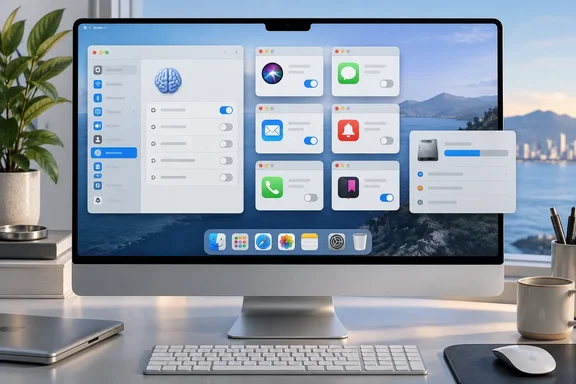
macOS 27 Swaps the Apple Intelligence Master Toggle for Per-Feature Controls
Apple began rolling out macOS 27 on September 14, 2026, alongside iOS 27, iPadOS 27, watchOS 27 and visionOS 27. The headline features were Siri AI and what Apple calls the next generation of Apple Intelligence. Apple's support documentation says these features switch on automatically on eligible devices once they update to the 27.0 releases, provided the device is set to a supported language and region. Nobody has to opt in. That is why the off-switch guidance matters.
Earlier macOS releases worked differently. In the Apple Intelligence era before macOS 27, you went to System Settings and clicked Apple Intelligence & Siri, and the Apple Intelligence option sat at the top of the window, where users could simply toggle it off, then confirm in a dialog. Tom's Guide and TechCrunch both documented that one-step route for earlier releases.
In macOS 27 that route has gone. Fello AI's guide says Apple removed the master toggle, and Apple's own user guides no longer document a single control that disables Apple Intelligence as a whole; they list the features one at a time instead. Apple's new support page, "Turn off and restrict access to Apple Intelligence features on Mac," supports that account. It is a list of separate controls with no global switch. According to Fello AI, users still on iOS 26, iPadOS 26 or macOS Tahoe 26 still have the old master switch.
The result is that "turning off Apple Intelligence" on macOS 27 means changing roughly ten settings spread across System Settings and several apps. The table below brings them together.
The macOS 27 Apple Intelligence Off-Switches, Setting by Setting
Every path below comes from Apple's macOS 27 Mac guide. Apple does not give direct steps for three of the items. For those, it points to other help pages, and the table says so.
| Feature | Where to turn it off in macOS 27 |
|---|---|
| Siri AI (Beta) | System Settings > Siri > Turn Off Siri, then click Turn Off Siri again to confirm |
| Switch to Siri Classic | Turn off Siri as above, click Turn On Siri, then choose Use Siri Classic |
| Messages summaries | Messages > Settings, turn off Summarize Messages |
| Email summaries | Mail > Settings > Viewing, turn off Summarize Message Previews |
| Notification summaries | System Settings > Notifications > Summarize Notifications, turn off Summarize Notifications |
| Personalized Smart Replies in Mail | Mail > Settings > Composing, turn off Personalize Smart Replies |
| Voicemail suggestions in Phone | Phone > Settings > Calls, turn off Suggestions in Voicemail |
| Writing Prompts in Journal | Journal > Settings > General, turn off Get Writing Prompts |
| Call Context cards | Apple points to its "Customize apps Siri has access to" instructions |
| Suggestions from apps | Apple points to the same "Customize apps Siri has access to" instructions |
| Screen Time restrictions | Apple points to "Change Siri Restrictions settings in Screen Time" for yourself, and to its Apple Devices for Kids and Families guidance for a child's device |
Two items need a note. Siri Classic is the older assistant. Choosing it moves you off the Siri AI beta, but it only changes Siri. Summaries, Smart Replies and the other app features have their own toggles and stay on unless you turn them off. Call Context is described in Apple's September 14 announcement as a feature that surfaces relevant information, like a confirmation code or reservation number, when calling a business. It is controlled through Siri's app access settings, not a switch in the Phone app.
The app-access route takes the longest. A macOS 27 walkthrough on the Apple Community forums starts at System Settings > Siri > App Access. For each app, you turn off Learn from this application, turn off Show Siri Suggestions in application if shown, and repeat for each app in the list, of which there should be at least 70. That is a user-written procedure, not Apple's own wording. It does fit Apple's pointer to per-app Siri access controls for Call Context and app suggestions.
Screen Time Makes the Apple Intelligence Choice Stick
Individual toggles are easy to change back, whether by a child, a curious user, or apparently by an update. Fello AI's guide advises that you re-check the list after each major update, since features have come back on before, and use Screen Time whenever the choice needs to hold. The claim that features "have come back on before" is Fello AI's own observation. Apple does not say it.
Screen Time is Apple's restriction layer. In Apple's Mac documentation, you get there through System Settings > Screen Time. A parent or guardian in a Family Sharing group first picks a family member from the pop-up menu. Then you click Content & Privacy, then Intelligence & Siri. The Apple Intelligence option there controls access to features including Image Creation, Writing Tools and Intelligence Extensions. Separate Siri options control Siri & Dictation, explicit language, and web search content in Siri. Apple notes that the available options may vary by country or region.
Screen Time works as a lock, not just a preference. Because it can be protected with a passcode, a restriction set here keeps a feature blocked even if someone switches its toggle back on in an app.
One version caveat applies. The retrieved Apple Screen Time page listed macOS Tahoe 26 and macOS Sequoia 15 in its version selector. Apple's macOS 27 guide now refers to "Siri Restrictions" settings in Screen Time. The labels on a macOS 27 Mac may therefore differ slightly from the Tahoe-era names above, so check the Intelligence & Siri pane on the Mac itself before writing internal instructions.
The macOS 27 release also brought a redesigned Screen Time with new child-account safeguards. Apple's announcement describes a new setup flow for child accounts and says parents can choose which apps a child can use from the start. Separately, Apple's availability notes say Siri AI is not available to users under 13.
The 20GB Claim Collides With Apple's Apple Intelligence Storage Requirements
Neowin, which reported on Apple's new guide, said the bundled AI models take up "roughly ~20GB" of disk space. It based that on unnamed reports and on complaints from Hacker News users about the size of the macOS 27 install. Apple's published requirements give smaller numbers. Apple's "How to get the next generation of Apple Intelligence" page lists up to 14GB of on-device storage for Mac models with M3 or later and at least 12GB of unified memory. For other Apple Intelligence-enabled Macs, it lists up to 8GB.
Those are Apple's stated maximum requirements, not measurements of any particular Mac, and a full macOS 27 install includes much more than the models. A user looking at a much larger total in Storage settings may be seeing the whole OS upgrade. Apple does not break out model storage. Readers should treat 8GB or 14GB as Apple's stated ceiling, depending on the Mac's chip and memory, not 20GB.
The practical problem is real, though. Apple's disable guide covers features and access. It does not describe any way to delete the model files. Tom's Guide said that turning off the old master switch would free up some storage space. Fello AI calls that pre-27 master switch the one that actually reclaims storage. With that switch gone in macOS 27, Apple no longer documents a way to reclaim the space.
An unverified language-mismatch workaround
One Apple Community user describes a workaround. They wrote that they had to set up a language mismatch for Siri that forced the OS to fully remove all the space that Apple Intelligence uses. They switched Siri from "English (United States)" to "English (Australia)" but kept the voice at "American," and it was seemingly only then that the OS cleared out the storage, not immediately.
It fits one part of Apple's own documentation. Apple requires the device language and Siri language to match a supported language. It also warns that if you change the Siri language, Apple Intelligence may be unavailable until the new language finishes downloading and matches the device language. The mismatch trick uses that requirement. It is one user's account, though. The poster was unsure of the timing and described their own result with the word "seemingly," and Apple does not document it as a way to recover storage. It may also affect Siri Classic, dictation or other language-dependent features in ways the post does not describe. Anyone who tries it should note their original settings first and check Storage settings over time instead of expecting space back straight away.
Turning Off Siri AI Is Not the Same as Removing It
People who want a Mac with no AI running at all will find the macOS 27 controls fall short of that. A Hacker News thread posted today asks whether Siri can be disabled on macOS 27 at all. The poster says they disabled Siri- and Apple Intelligence-related services using a third-party "mac-os-debloat" script, yet after restarting could still see a "Siri" process running in Activity Monitor, which on inspection turned out to be "Siri AI.app".
This is a single report, and it involves an unofficial script, not Apple's documented settings. It does not show that Siri AI keeps working after being turned off. It shows that the software is still installed and can still run as a process. The Apple Community author gives a related tip: keep the Apple Intelligence report setting under System Settings > Privacy & Security turned on so that you can verify that Apple Intelligence is truly not functioning. That same user also suggests reviewing Analytics & Improvements and Apple Advertising to see what data is being sent.
Server-side use is another reason some users may want the off switches. Apple says certain features that rely on server-side models, including Siri AI, Intelligent Photo Editing Tools, Image Playground and AFM 3 Cloud models in Shortcuts, are subject to daily usage limits. It adds that expanded access will be available for a fee in the future. Apple has not announced pricing or timing for those paid tiers.
Which Macs and Regions the macOS 27 Controls Cover
These controls only matter on Macs that can run Apple Intelligence in the first place. Apple lists Macs with M1 or later and the MacBook Neo with its A18 Pro chip. Apple Intelligence on macOS 27 supports English, Danish, Dutch, French, German, Italian, Norwegian, Portuguese, Spanish, Swedish, Turkish, Vietnamese, Simplified and Traditional Chinese, Japanese and Korean. Apple says some features may not be available in every region or language.
Siri AI has a narrower rollout. It is a beta, available in English first. Apple says French, Japanese, Korean, Portuguese and Spanish support is coming in October. Mac users in the EU can use Siri AI when set to a supported language, although it is not initially available in the EU on iOS, iPadOS and watchOS. In mainland China, Apple says Siri AI and the other new Apple Intelligence features will not be available while it works through regulatory requirements.
A Mac set to a language that does not support Siri AI will not show the Siri AI controls in the first place. A Mac that meets the language requirements will have Siri AI turned on after the upgrade until someone turns it off.
What this means for you
If you have upgraded an eligible Mac to macOS 27 and don't want Apple Intelligence, work through the settings table once, then lock the result in Screen Time. Don't expect any of it to free up disk space. If you are still on macOS Tahoe 26 and care most about storage or a simple single switch, the old Apple Intelligence toggle remains on that release. That is a factor in deciding when to upgrade.
For IT staff with Macs in a mostly Windows estate, Apple's guide covers user-facing controls and Screen Time only. It says nothing about managed policies for organisation-owned Macs. Any fleet-wide approach needs to be confirmed against your MDM vendor's macOS 27 support rather than assumed from these consumer settings. Treat the settings below as a per-device checklist, not a management policy.
- Turning off Siri or switching to Siri Classic in System Settings > Siri affects Siri only. Messages, Mail, Notifications, Phone and Journal each have their own Apple Intelligence toggle.
- Call Context and app suggestions are controlled through Siri's per-app access settings, which one Apple Community guide says covers at least 70 apps.
- Screen Time's Content & Privacy > Intelligence & Siri pane is the way to make restrictions hold, especially on a child's Mac or a shared Mac.
- Apple lists up to 14GB of Apple Intelligence storage on Macs with M3 or later and at least 12GB of unified memory, and up to 8GB on other supported Macs. That is Apple's ceiling, not the roughly 20GB figure some reports cite.
- None of Apple's documented macOS 27 controls removes the model files. The Siri language-mismatch workaround is an unverified user report, not an Apple-supported procedure.
- Re-check the toggles after each macOS 27 point update, since a new release is the likeliest time for settings to change.
Apple has kept users in control of Apple Intelligence on macOS 27, but it has turned what used to be one switch into a list of settings to maintain. The next changes to watch for are already on Apple's schedule: Siri AI arrives in French, Japanese, Korean, Portuguese and Spanish in October, bringing its default-on behaviour to more Macs, and paid tiers for server-side features are still to be announced. Until Apple documents a supported way to remove the on-device models, anyone who needs that storage back can only stay on macOS Tahoe 26 or rely on an unsupported workaround.
Update: Reported Mac storage readings now reach 30GB (September 28, 2026)
Gadget Hacks reports that iThinkDiff has compiled owner and tester screenshots showing macOS 27 Apple Intelligence-related storage readings from about 14GB to 30.16GB—well above Apple’s published 8GB and 14GB maximum requirement tiers. The highest figure reportedly came from a Release Candidate build, while other readings span beta and public-release systems.
These are not Apple measurements or controlled tests, and the reports do not establish that every gigabyte shown under macOS storage belongs solely to Apple Intelligence. Exact unified-memory configurations and build numbers are also missing for some examples. Still, the readings include systems across several chip generations, including an M1 MacBook Air reportedly near 14GB despite Apple placing that class in the up-to-8GB tier.
For users with 256GB Macs, the reported range could represent a material capacity hit. Gadget Hacks advises recording the Mac’s chip, memory, macOS build, and Storage breakdown before updating, then checking again after the machine reconnects to the internet and completes post-update downloads.
Apple has not explained the discrepancy or provided a separate Apple Intelligence storage category. Until it does, the earlier 8GB and 14GB figures remain published requirements rather than reliable indicators of the storage a particular macOS 27 installation may show.
References
- macOS 27 Apple Intelligence Storage Space: Up to 30GB Used - Gadget Hacks Gadget Hacks · 2026-09-28T17:49:54.058000+00:00
- Here is how to turn off and restrict Apple Intelligence on macOS 27 Neowin · 2026-09-22T19:58:01+00:00
- Change Intelligence & Siri settings in Screen Time on Mac - Apple Support (ZA) support.apple.com