

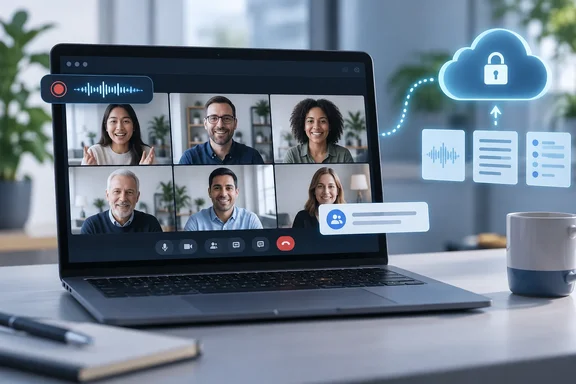
MeetGeek's Desktop App Brings Bot-Free Recording to Windows PCs
The announcement went out through EIN Presswire. It says MeetGeek "has launched its Desktop App for macOS and Windows," and that the app records audio, video and screen from the user's machine in any conferencing tool. That includes calls that were never on a calendar. MeetGeek says the app is live now, is included in its Free plan, and that paid plans start at $9.99 per user per month. Those are the company's own terms and could change.
The Windows support is confirmed by MeetGeek's own documents, not just the press release. The company's desktop app landing page lists both macOS and Windows. The Desktop App Quickstart Guide, updated about two weeks before the announcement, offers separate macOS and Windows downloads and says the app currently supports both platforms. No independent outlet had covered the launch when this was written, so everything here comes from MeetGeek's release and help center.
The desktop recorder itself isn't new. MeetGeek's "Product Updates February 2026" page says a desktop recording experience was introduced that month. At the time it supported only macOS on Apple Silicon (M1 or newer) with Google sign-in. The current quickstart lists Google, Outlook, Apple ID and SSO sign-in. The most accurate reading is that the September announcement marks Windows availability and a broader desktop offering, not the first release of the app. MeetGeek hasn't said exactly when the Windows build first became downloadable.
The Windows details are thin. The quickstart gives no supported Windows versions, minimum hardware, processor architecture (x64 versus Arm), or a feature comparison between the Windows and Mac builds. For IT teams that decide what can be installed on managed PCs, this is the biggest missing piece.
How MeetGeek Desktop Detects and Captures a Teams or Zoom Call
This app is an alternative to how MeetGeek normally works. The company's core product is a Notetaker, which the August 11, 2026 help-center FAQ describes as a bot that joins your scheduled Zoom, Google Meet, and Microsoft Teams calls from your calendar and assists live during the meeting. That bot appears in the participant list, which acts as a built-in notice that the call is being recorded. It's also limited to those three platforms.
The desktop app skips the bot. The quickstart explains that unlike the standard MeetGeek Notetaker (which joins your calls as a participant), the Desktop App captures audio, video, and screen directly from the user's device. The release gives example uses:
- Sales staff recording a call that starts as a Slack Huddle and continues on WhatsApp.
- HR teams recording workshops where no video call is involved.
- Consultants recording a client Zoom call "with nothing added to the participant list."
Detection works like this. Per the quickstart, once you're signed in, the app runs quietly in the background and detects when a meeting is in progress; when it does, a notification appears asking if you'd like to start recording, and you can also start a recording manually at any time. MeetGeek admits the detection can misfire. Detection may occasionally trigger during non-meeting activity (calls, media playback, noisy environments), so users should always confirm the prompt before starting a recording.
For in-person meetings, the app uses the computer's built-in microphone to capture room audio, and MeetGeek advises placing the laptop centrally and reducing background noise. That makes a Windows laptop a room recorder. How well it works depends on the laptop's microphones and the room, which MeetGeek doesn't specify.
The Upload Pipeline Behind "Records Locally"
"Records locally" might sound like the data stays on the PC. It doesn't. According to the quickstart, the file is saved locally when recording stops and then uploaded automatically to MeetGeek for processing. Transcription, summaries and highlights are all produced in MeetGeek's cloud, not on the device. The release says results are available in more than 100 languages.
This creates one practical rule. If an upload fails, for example because the connection drops, users should keep the local recording file and retry the upload from within the app, and not delete the file until the upload succeeds. MeetGeek warns that a file deleted before a confirmed upload won't be processed. Anyone who clears out Downloads or temp folders on a schedule, and any admin with cleanup scripts, should keep that in mind.
Once processing finishes, results arrive by email and appear in MeetGeek's web and mobile apps. According to MeetGeek's Getting Started guide, desktop recordings go into the same workspace as bot-recorded meetings, with the same summaries, highlights and transcripts. The release calls the desktop app the fourth capture method, after the Notetaker, mobile app and Chrome extension, all feeding a single repository. It also mentions a fifth, an upcoming recorder called Wave for phone and WhatsApp calls, but gives no details or date.
Where the Press Release Runs Ahead of MeetGeek's Own Documentation
The release says "the whole of MeetGeek" is now on the desktop. It claims AI Chat runs inside the desktop app for querying meeting history and drafting follow-ups, and that AI Studio brings MeetGeek's Skills and Voice Agents to the desktop. MeetGeek's current quickstart says something different. It states that meeting insights aren't yet viewable inside the desktop app and that this is planned for a future release. It also says Notetaker controls aren't available in the desktop app yet; users manage the bot through the Chrome extension or mobile app instead.
The quickstart may simply be behind a same-day launch. Still, the company's setup guide, published about two weeks before the release, describes a recorder that sends users to the web app to see their results. Windows users should expect that recorder-plus-web-app workflow until the desktop app clearly shows otherwise.
Automatic recording is another inconsistency. MeetGeek's landing page says the app can automatically start recording when a meeting begins, based on the user's calendar or custom rules. But the quickstart's troubleshooting section says no recording starts without your confirmation. For compliance teams this is a real difference. An app that waits for a click behaves very differently from one that starts recording by itself based on rules. The quickstart is more specific and procedural, so it's the safer guide to current behavior. Organizations should still test this on their own machines before relying on either description.
Some integration claims are older than this launch and are documented separately. The release says meetings recorded on the desktop can trigger workflows in more than 10,000 connected apps and be queried from Claude and ChatGPT through MeetGeek's MCP server and connectors. The February 2026 update page documents a Claude connector that uses a MeetGeek API key from the Integrations → Public API settings and was then available in the Claude Desktop app. These are platform features that desktop recordings share, not new capabilities of the Windows app.
Bot-Free Recording Shifts Consent Duty onto the Windows User
Removing the bot is the selling point, and it also removes the most visible sign that a call is being recorded. MeetGeek addresses this directly in the release. It says that because the desktop app records locally, users are responsible for telling participants a conversation is being recorded, in line with local consent laws. By contrast, the Getting Started guide notes that the Notetaker appears as a participant so everyone can see the meeting is being recorded, and it recommends announcing it anyway.
MeetGeek offers some admin controls. The company's August 11 account-preferences guide describes desktop-specific recording reminders that can notify everyone, only the host, or no one, set separately for internal and external meetings. That guide also covers a participant-confirmation consent option, but it doesn't say whether that option applies to desktop recordings. Admins shouldn't assume it does.
The compliance claims in the release come from MeetGeek, not from an independent audit reviewed for this article. These include SOC 2 Type II, ISO 9001, GDPR and CCPA compliance, a HIPAA business associate agreement, and a choice of EU or US data residency. MeetGeek's homepage also says it never uses customer data to train foundation models, on any tier. Organizations that handle regulated data should ask MeetGeek for the actual audit reports and BAA terms before approving the app. That's normal procurement practice, not a sign of a problem.
There's a policy issue here beyond MeetGeek. Tools that record a Teams call without joining it can bypass the meeting-level controls organizers rely on, such as removing an unwanted bot. Blocking the bot is no longer enough to stop recording. Any rule against recording a meeting now has to be enforced by controlling which software runs on the endpoint, plus clear expectations for users.
What this means for you
Individuals can try the app on the Free plan. Windows admins should decide whether to allow bot-free recorders on managed PCs before users install one themselves. Anyone who records external or regulated conversations should settle how participants will be notified before the first recording.
Setup follows MeetGeek's documented steps:
- Download the Windows installer from MeetGeek's desktop-app page and run it.
- Sign in with a MeetGeek account, using Google, Outlook, Apple ID or SSO according to the quickstart.
- Grant microphone access, and camera access if needed. The quickstart's manual path, System Settings → Privacy & Security → Microphone, is the macOS wording. MeetGeek doesn't give Windows-specific steps. In general terms, Windows 11 controls microphone access per app under Settings → Privacy & security → Microphone.
- Confirm the recording prompt when a call starts, or start recording manually. Dismiss prompts triggered by media playback or background noise.
- Keep the local file until the app confirms the upload, then check email or the web app for the transcript and summary.
Key takeaways:
- MeetGeek's desktop recorder now supports Windows. It first shipped in February 2026 for Apple Silicon Macs only.
- Recordings are made on the PC but uploaded to MeetGeek's cloud for transcription, so "local" describes where capture happens, not where the data is processed.
- The quickstart says insights aren't yet viewable inside the desktop app, although the launch release says AI Chat and AI Studio run on the desktop.
- MeetGeek hasn't published supported Windows versions or hardware requirements, so admins should test on representative devices before approving it.
- Because no bot appears in Teams or Zoom, users must tell participants about the recording themselves, and admins can set MeetGeek's desktop recording reminders to help.
- Test whether recording ever starts without a click on your machines, because MeetGeek's landing page and quickstart describe that behavior differently.
For Windows users, the change is simple: a Teams or Zoom call can now be recorded and summarized by MeetGeek without anyone else seeing a bot join. The app currently records, uploads and sends users to the web app for results. Whether it becomes the full desktop workspace MeetGeek promises depends on the in-app insights the company says are still to come. Until then, IT teams should treat it as a capable but thinly documented endpoint recorder and approve or block it on that basis.