

BleepingComputer reported the retirement on September 21, citing Microsoft’s announcement to administrators. Microsoft’s own retirement guidance supplies the operational details—and an important reason to begin before December: it says updates and fixes, including security fixes, are no longer being provided during the retirement period.
Microsoft 365 companions leave the taskbar, not your data
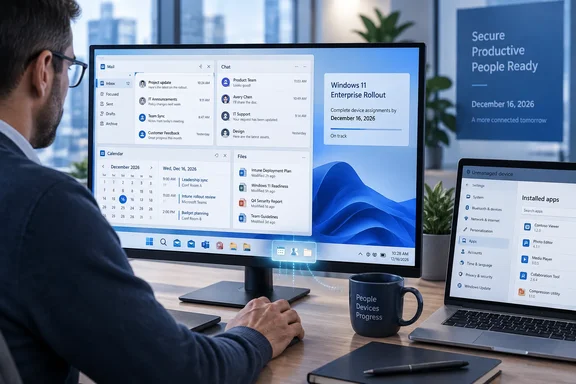
Calendar, People, and Files were additional Windows taskbar entry points into information users already had. Calendar offered a quick view of upcoming appointments and meetings, with meeting search and joining actions. People provided organization and contact searches, while Files helped users find, preview, open, and share documents.
The retirement removes those companion applications. Microsoft explicitly says that files, calendar events, and contacts remain in their Microsoft 365 services and will not be deleted by uninstalling the companions. There is no companion-specific data migration in Microsoft’s retirement procedure.
For users, the loss is the shortcut and its workflow. Someone accustomed to checking a meeting or locating a colleague from the taskbar will need another entry point into that information. Outlook and Teams are Microsoft’s recommended alternatives for calendar and people tasks; file discovery remains available through Windows Search, File Explorer, SharePoint, OneDrive, and Microsoft 365 applications.
Microsoft’s documentation does acknowledge local companion data: cached account details and contact profile images. Its support page says uninstalling the companions removes their related stored files. That local cleanup is separate from deleting the documents, meetings, or contacts that the apps helped users find.
December 16 should be treated as the removal deadline, not a guarantee that every installation will remain usable until then. Microsoft’s retirement page describes the apps as becoming fully non-functional by that point, and organizations may remove them earlier. Its troubleshooting guidance also says that an issue requiring a fix during the retirement period should be addressed by uninstalling the companions.
Automatic Microsoft 365 deployment ends without automatic cleanup
The companions could arrive without a user deliberately choosing to install them. Microsoft’s overview documented automatic installation on Windows 11 devices with Microsoft 365 Apps beginning in late October 2025, delivered silently through the update process. Administrators could opt out.
The retirement guidance identifies three installation routes: Microsoft 365 Apps updates on eligible Windows 11 devices, Intune or another software-distribution tool, and direct installation by users. This makes the installed population broader than a single deployment group an administrator might remember creating.
Microsoft has stopped the Microsoft 365 Apps update route. It has not made that change a tenant-wide uninstall operation, nor does it stop an organization’s own software-management assignments. An existing deployment policy can therefore work against the removal effort.
There is also a configuration detail worth cleaning up: Microsoft says stopping automatic distribution does not clear the Enable automatic installation of Microsoft 365 companion apps setting in the Microsoft 365 Apps admin center. The company recommends clearing it to avoid confusion during removal:
- Open the Microsoft 365 Apps admin center and go to Device Configuration.
- Select the Modern App settings tab, then Microsoft 365 companion apps.
- Clear Enable automatic installation of Microsoft 365 companion apps.
Clearing that setting is configuration housekeeping, not proof that the apps have disappeared. Existing installations still need removal, and any Intune assignments, other software-distribution jobs, internal installer links, or deployment instructions need separate attention.
Intune removal starts by stopping reinstallation
For administrators, the most consequential instruction is to stop deployment before issuing an uninstall. Microsoft specifically warns that a remaining Intune Required assignment can reinstall the companions after they have been removed. An Available for enrolled devices assignment also needs removal to stop users installing the apps through Company Portal.
For an existing Microsoft 365 companion apps Win32 entry, Microsoft documents this sequence:
- In the Intune admin center, open Apps > Windows.
- Select the Microsoft 365 companion apps Win32 app entry, then open Manage > Properties.
- Under Assignments, select Edit.
- Delete the Required assignment to stop enforced installation.
- Delete the Available for enrolled devices assignment to stop Company Portal self-installation.
Organizations using another software-management system should likewise stop its deployment mechanism before removing the apps. Microsoft also advises deleting installer links and deployment instructions from internal software catalogs and documentation, so the retirement does not compete with old onboarding instructions.
Once those installation routes are closed, the documented Intune removal process uses the same Win32 app entry:
- Open Apps > Windows, select the companion apps entry, and go to Manage > Properties.
- Under Assignments, select Edit.
- Create an Uninstall assignment and add all users or devices in the removal scope.
- Track progress under Monitor > Device install status or Monitor > User install status.
Microsoft says this Intune removal method works regardless of how the companions were originally installed. Administrators do not need to remove taskbar pinning or disable automatic startup first.
The prerequisite is having the companion apps Win32 entry in Intune. If it is absent, Microsoft says administrators must add the Win32 app before assigning removal. The retirement instructions do not provide the package preparation details, install commands, or detection rules, so an absent entry cannot be treated as a ready-to-run uninstall workflow. It also does not prove that no device has the companions: they may have arrived through Microsoft 365 Apps updates or direct installation.
Intune reporting determines when companion removal is complete
Issuing an uninstall assignment is the start of cleanup, not its completion. Microsoft advises reviewing devices where removal failed, remains pending, or has not run because the device is offline. Those devices need continued monitoring as they reconnect and check in.
Apps can remain available until users close them or sign out, and some devices may require a restart to finish removal. Microsoft describes this as expected behavior; an app still visible immediately after an uninstall action does not by itself establish a failed deployment.
Microsoft’s completion criterion is that Intune no longer reports the companions as installed on the targeted devices or users, with no remaining failures to investigate. If the apps reappear, the documented first check is for a surviving Required assignment. Remove that assignment, then uninstall again.
Unmanaged Windows 11 PCs need a user-led uninstall
Microsoft places responsibility for managed-device removal on tenant administrators. On a device the organization does not manage, the user must uninstall the companions. Communications should preserve that boundary rather than telling every employee to perform a manual removal.
Before uninstalling, users should know that removing one companion removes all three. Calendar, People, and Files are removed together, so the procedure is not a way to keep one of the companions while discarding another.
Microsoft documents the following Settings route:
- Open Windows Settings > Apps > Installed apps.
- Search for Microsoft 365 companions.
- Open the three-dot menu beside that entry.
- Select Uninstall, then confirm.
The alternative is to search Windows for the Calendar, People, or Files companion, right-click the matching app, and select Uninstall. If that menu is not shown, Microsoft says to select the Apps tab after entering the app name. Searching Settings for the suite name provides a more specific target than relying on the generic word “Calendar” or “Files.”
Unpinning a companion or turning off its Start app minimized when you log in setting does not perform this removal. Those controls change access or startup behavior; Microsoft’s retirement procedure calls for uninstalling the applications.
Plan Microsoft 365 companion removal around users’ existing workflows
Administrators should begin controlled removal rather than waiting for December 16, and pair it with a short explanation of where users can perform their usual tasks. Microsoft recommends sending that notice before or at the time of uninstallation.
The replacement guidance is a choice of existing tools, not a promise of an identical taskbar experience. Outlook and Teams cover calendar and people information. Windows Search, File Explorer, SharePoint, OneDrive, Word, Excel, and PowerPoint offer relevant routes to files. Microsoft also identifies Copilot as an option for finding information from partial details, but removal does not depend on adopting it.
The concrete decisions are straightforward:
- Treat December 16, 2026, as the final retirement boundary and schedule removal earlier, because Microsoft says fixes are already no longer being provided.
- Stop Intune and other deployment paths before uninstalling, and remove internal installer links that could bring the companions back.
- Tell users that Calendar, People, and Files will disappear together, while their underlying Microsoft 365 data remains available.
- Give unmanaged-device users the Windows Settings removal steps instead of assuming an administrator can reach their PCs.
- Keep monitoring managed devices until removal has completed, including machines that were offline and any installations restored by lingering assignments.
The remaining work is an endpoint cleanup and a modest workflow change. Organizations that close deployment paths, explain the replacement entry points, and verify removal can finish the transition ahead of December without moving users’ calendars, contacts, or files.