

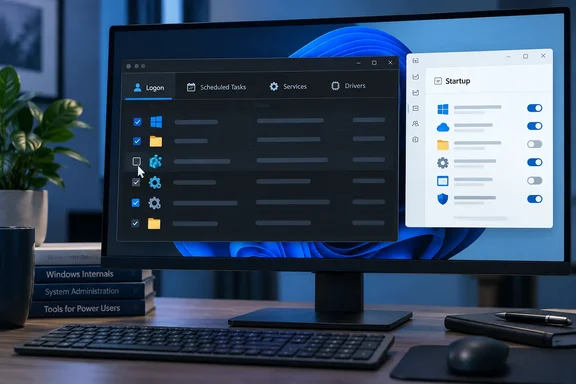
XDA Developers recently argued that Autoruns exposes the startup items Task Manager hides. Microsoft's own documentation backs the main point. The headline promise of "everything" goes too far, though, and some of the cleanup advice needs a few warnings before you start deleting things.
What Autoruns actually is
Mark Russinovich's Sysinternals team built Autoruns, and Microsoft now distributes it. Microsoft's Sysinternals index lists it as Autoruns v14.3 (June 17, 2026) and says the tool lets you see what programs are configured to startup automatically when your system boots and you login. Autoruns also shows you the full list of Registry and file locations where applications can configure auto-start settings.
The tool's documentation page shows the same version and date. The download is about 3 MB and contains both the graphical Autoruns and a command-line version called Autorunsc. Microsoft also offers a "Run now from Sysinternals Live" option if you'd rather not download anything.
Microsoft's own description is confident: the utility has the most comprehensive knowledge of auto-starting locations of any startup monitor. The documentation says Autoruns covers:
- Startup folder entries and the Run and RunOnce registry keys
- Explorer shell extensions, toolbars and browser helper objects
- Winlogon notifications and boot-execute images
- Auto-start services and drivers
- Scheduled tasks and WMI entries
- AppInit DLLs, image hijacks and Known DLLs
- Winsock providers, media codecs, printer monitors and LSA security providers
Notice the word Microsoft uses: configured. Autoruns lists what is set up to start automatically. That's different from a live list of every process running right now, and a listed entry isn't proof that it runs at every boot.
Section summary: Autoruns is Microsoft's own tool for inspecting auto-start settings. It's current (v14.3), free and portable. It shows what is configured to launch, which isn't the same as a guaranteed list of what does launch.
Why Task Manager shows you less
XDA's argument is simple. Task Manager's Startup apps tab is built for convenience. It shows the common sign-in apps people are most likely to switch off, not every way software can start itself. XDA lists scheduled tasks, services, deeper registry keys and Explorer add-ons as launch methods the Startup apps tab doesn't present as toggles.
That broad point holds up, because Microsoft documents those categories in Autoruns. XDA goes further and says Task Manager only scans the personal Startup folder, the all-users Startup folder and the "standard" registry keys. Microsoft doesn't publish that level of implementation detail, so read it as XDA's description rather than an official specification.
The real difference is between boot and login, and between different kinds of entry:
| Startup mechanism | When it typically matters | Shown as a Task Manager Startup app? |
|---|---|---|
| Logon entries (Run keys, Startup folders) | At user sign-in | Usually, for common entries |
| Scheduled tasks | On a trigger or schedule, which may be at logon | Not as a Startup apps toggle |
| Services and drivers | During system boot or on demand | No |
| Explorer shell extensions | When File Explorer loads them | No |
| Known DLLs, AppInit, Winsock | System-level loading | No |
A scheduled task that fires ten minutes after sign-in won't slow your boot. A badly behaved shell extension might make right-click menus sluggish without touching boot time at all. These are separate problems, and Autoruns helps with all of them because it shows the whole map instead of just the obvious items.
Section summary: Task Manager covers the common cases. Autoruns covers the rest. Just don't assume every item Autoruns shows is slowing down your boot.
Getting Autoruns running
Get it from Microsoft's Sysinternals site, not a random download mirror. Several lookalike "Autoruns download" sites exist, and some list version numbers that don't match Microsoft's current release.
- Download Autoruns and Autorunsc from the Microsoft Sysinternals Autoruns page, or launch it through Sysinternals Live.
- Extract the ZIP archive. There's no installer.
- Pick the right binary. As Windows Report notes, use Autoruns64.exe if you have 64 bit Windows, and Autoruns.exe if you have 32 bit Windows. On modern Windows 11 hardware that means the 64-bit build.
- Run it as administrator for full system visibility. Windows Report recommends this, and it makes sense because services, drivers and machine-wide registry locations aren't something a standard user context can fully manage.
- Accept the license prompt when it first launches, then let the scan fill in.
You'll know it worked when you see a tabbed window led by Everything, followed by category tabs such as Logon, Explorer, Scheduled Tasks, Services, Drivers and more. Microsoft's own documentation warns that you'll probably be surprised by how many executables launch automatically. It's right.
Reading the results without panicking
The Everything tab combines all of Autoruns' supported categories. That's useful for scrolling, but it's a long list. The category tabs are easier to work through. Logon and Scheduled Tasks are usually the best places to start on a home PC.
Cut down the noise
XDA suggests opening Options and turning on the filters that hide Windows and Microsoft entries, so the first-party items you shouldn't touch drop out of view. Microsoft's documentation names this feature Hide Signed Microsoft Entries and says it helps you focus on third-party items. It also describes a filter for showing only non-Windows entries. Exact menu labels can vary between versions, so look for both options in the Options menu.
One caveat: hiding something doesn't make it safe or unsafe. A legitimate third-party utility can be unsigned. A Microsoft-signed entry can still be the thing you need to look at when troubleshooting.
Check before you change
For any entry you don't recognise, Microsoft documents several tools:
- Properties: inspect the executable behind the entry.
- Jump to Entry: open the registry key or folder where the auto-start is configured.
- Process Explorer integration: if Process Explorer is running and the image is active, open its process properties directly.
- Scan options: turn on signature verification and VirusTotal lookups.
Read the VirusTotal options carefully. Microsoft's documentation says you must accept VirusTotal's terms of service, and that an option can upload files VirusTotal hasn't seen before. On a work laptop or any machine holding sensitive internal binaries, don't switch on uploads casually. Hash lookups and file uploads are very different things from a privacy point of view.
Disable first, delete later
Microsoft's documentation describes two actions. Unchecking an entry's box disables it. Delete removes the configuration entry entirely. The first can be undone by ticking the box again. The second can't be undone so easily. Disable an entry, reboot, use the PC for a few days, and delete it only once you're sure nothing broke.
Section summary: Filter the list, look into anything unfamiliar, and disable before you delete. Autoruns makes changes easy, so be careful.
Colours, "File not found," and the cleanup advice
According to XDA, entries marked "File not found" appear in yellow and are "reliably safe to remove" because they point at files that no longer exist. Pink entries, XDA says, are items Windows hasn't verified, which isn't the same as malicious. XDA's examples include qBittorrent and SignalRgb. XDA also says the many "File not found" entries under Known DLLs can be ignored, describing them as often 32-bit equivalents of 64-bit Windows entries.
Microsoft's Autoruns download page doesn't document those colour meanings or say that these entries are safe to remove. The colour coding is a well-known part of the interface, but treat XDA's cleanup rules as a practitioner's opinion rather than official policy:
- An entry pointing to a missing file is usually harmless leftover config, but it can also be a sign of an incomplete uninstall that a reinstall would expect to find. Disabling it is the cautious choice. Deleting it is a judgment call.
- Leaving the Known DLLs tab alone is good practical advice. That's system territory, and very few home users have any reason to change it.
- Pink/unverified means look into it, not delete it.
The author's findings, and what they show
XDA's writer reported two examples from their own PC. A OneDriveSetup logon entry was still there months after they removed OneDrive. And a scheduled task for SanDisk Dashboard's notification manager was still present even though Dashboard wasn't enabled in Task Manager's startup list.
These are one person's observations, not tested general behaviour. Neither one proves the entry was slowing the machine. Still, the SanDisk case shows the main point well: switching an app off in Startup apps doesn't touch a scheduled task that the same software created. Many vendor utilities set themselves up in more than one place, and Task Manager only shows one of them.
A note on the "bloatware" framing
XDA opens by saying Microsoft's "prime directive" has been to push useless features on Windows users. Plenty of Windows 11 owners feel that way, but it's opinion. It also sits awkwardly with the main advice, which is to hide Microsoft entries in Autoruns because they're the ones you shouldn't remove. In practice, the clutter Autoruns turns up on most home PCs comes from third-party updaters, RGB and peripheral software, game launchers and leftovers from software you uninstalled long ago.
Also keep your expectations in check. Microsoft's documentation describes what Autoruns can show you. It doesn't promise faster boots. Whether removing an entry speeds anything up depends on what that entry was doing.
For IT pros: Autorunsc
Administrators get more out of the command-line version. Microsoft's documentation shows Autorunsc can:
- Target categories with
-a(for example,tfor scheduled tasks,sfor services and non-disabled drivers,lfor logon, or*for everything) - Output CSV (
-c), tab-delimited (-ct) or XML (-x) - Verify signatures (
-s), show hashes (-h) and hide Microsoft entries (-m) - Scan a specific user, or all profiles with
*, or an offline Windows system with-z
That last option is useful for incident response: you can mount a suspect system's disk and inventory its auto-starts without booting it. Export CSVs from a clean reference image and from a problem machine, then compare them, and you'll often find the culprit quickly.
The bottom line
XDA's main point is correct: Task Manager's Startup apps tab shows only part of what Windows is configured to start, and Autoruns, Microsoft's free Sysinternals tool, now at v14.3, shows much more of it. Download it from Microsoft and start with the Logon and Scheduled Tasks tabs. Look up anything unfamiliar, and disable before you delete. And be skeptical of any guide that tells you to delete everything highlighted in a certain colour.
References
- This free Microsoft tool exposes all the startup apps that Task Manager hides from you XDA · 2026-10-01T16:30:17+00:00
- Autoruns - Sysinternals | Microsoft Learn learn.microsoft.com
- Autoruns Sysinternals Explained: Speed Up Windows Boot Time windowsreport.com