

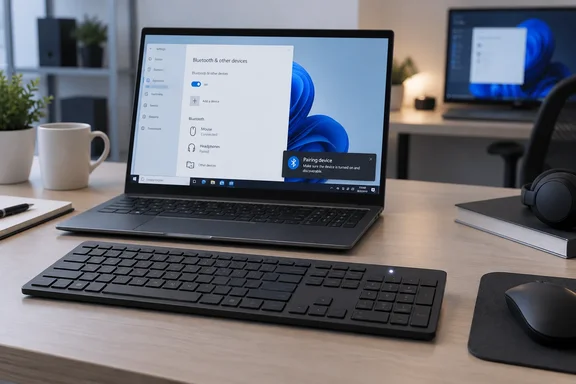
The Microsoft Bluetooth Keyboard pairs with one button and a Swift Pair prompt
This keyboard is the 2019 model with dedicated Office and Emoji keys. Office Watch, which bought one with its own money for a hands-on review, pointed out that this is the Microsoft Bluetooth Keyboard released in October 2019, not the Microsoft Designer Bluetooth Keyboard released in 2018. The names are close enough to cause confusion, so check which keyboard you have before following any guide. Microsoft now lists it among "Microsoft accessories" on its Surface support site.
Microsoft's pairing procedure has three steps:
- Press and hold the pair button on the bottom of the keyboard for 5 seconds, until the LED starts to flash.
- On your Windows PC, select Connect if a notification appears for your keyboard, then wait for it to get set up.
- If no notification appears, select Start > Bluetooth & devices > Add a device > Bluetooth, then select Microsoft Bluetooth Keyboard from the list.
The notification in step 2 comes from Swift Pair, a Windows feature. Microsoft's general Windows pairing guide says a Swift Pair device triggers a Windows notification when it is nearby, in pairing mode and discoverable. The first time you use Swift Pair, Windows asks whether to allow it, and you have to select Yes before the Connect prompt appears. If you declined that prompt at some point, the manual route in step 3 is the way in.
Pairing is a success when the keyboard types and appears under Bluetooth & devices. Microsoft's Windows guide says that once a device is paired and Bluetooth is on, the two reconnect automatically whenever they're in range. You shouldn't need to repeat the process after a reboot.
Microsoft's Windows 10 1903 requirement for the Office and Emoji keys has disappeared from the page
The current page states one requirement for everything. To get set up, use the Office key, or use the Emoji key, you'll need a PC that's running Windows 11 or Windows 10 with support for Bluetooth 4.0 or later. This keyboard supports Swift Pair in Windows for faster pairing.
Earlier versions of the page, still cached on Microsoft's support servers, split the requirement in two. To get set up, you'll need a PC that's running Windows 10 with support for Bluetooth 4.0 or later. Separately, to use the Office key or the Emoji key, you'll need a PC that's running Windows 10 Version 1903 or later. The older text also sent Windows 10 users through a different Settings path: Settings > Devices > Bluetooth & other devices > Add Bluetooth or other device > Bluetooth > Microsoft Bluetooth Keyboard > Done.
For most readers the change makes no practical difference. Any supported Windows 10 PC is well past version 1903, and Windows 11 meets the requirement by default. It still matters if you maintain old, frozen Windows 10 images, such as kiosks, lab machines or line-of-business PCs pinned to an early feature update. On those machines, going by the older wording, the keyboard can pair and type while the Office and Emoji keys do nothing.
Windows 10 also has a support problem of its own. Microsoft's pairing guide notes that support for Windows 10 ended on October 14, 2025, and that free Windows Update fixes and technical assistance stopped after that date. The keyboard page still lists Windows 10, but the keyboard doesn't change the lifecycle of the PC it's attached to.
The two routes also sit in different places depending on the OS:
| Task | Windows 11 route | Windows 10 route |
|---|---|---|
| Turn Bluetooth on | Start > Settings > Bluetooth & devices | Start > Settings > Devices > Bluetooth & other devices |
| Add the keyboard manually | Bluetooth & devices > Add a device > Bluetooth | Add Bluetooth or other device > Bluetooth |
| Quick toggle | Bluetooth tile in quick settings (Network, Sound or Battery icon) | Bluetooth tile in action center |
When Swift Pair stays silent, the Bluetooth & devices page takes over
A missing Swift Pair notification doesn't mean the keyboard is faulty. Office Watch's hands-on found that pairing was not the smooth or 'Swift Pair' experience that Microsoft boasts about, and that the second keyboard didn't seem to have Swift Pair at all. The reviewer also reported that after a few tries, the standard Bluetooth connection works fine. That was one outlet's experience with two units in 2019. It's still a useful reminder that the manual route is a normal way to pair, and Microsoft's own page lists it as the fallback.
The same review described a step Microsoft's page leaves out. After selecting the keyboard from the list, you type the displayed security code on the keyboard then press Enter. If Windows shows a PIN during manual pairing, type it on the Bluetooth keyboard, not on your laptop's built-in keyboard. The review also said the pairing button was on the back, while Microsoft's page says the bottom. Go by Microsoft's placement and find the button by feel if needed.
If the keyboard doesn't show up in the manual list either, check the PC before blaming the keyboard. Microsoft's Windows pairing guide sets out the conditions:
- The PC has to have Bluetooth. Microsoft notes that a USB Bluetooth adapter can add Bluetooth to a Windows device that lacks it.
- Bluetooth has to be switched on in Settings or quick settings.
- The keyboard has to be discoverable, which here means the LED is flashing after the five-second hold.
- On Windows 11, if a device doesn't appear, Microsoft suggests the Bluetooth devices discovery setting may need to be set to Advanced.
The Bluetooth version requirement comes into play here too. A built-in or add-on radio older than Bluetooth 4.0 doesn't meet Microsoft's stated requirement. The support page points readers who don't know their PC's Bluetooth version to a separate Microsoft article on checking it.
Three flashes and off: the troubleshooting branches for the Microsoft Bluetooth Keyboard
Microsoft's shared troubleshooting page for its mice and keyboards lists the Microsoft Bluetooth Keyboard as a covered model. Its most useful clue for this keyboard is the LED. If the pairing light flashes three times and then turns off, Microsoft says the keyboard is already paired with another PC within range. The fix is to go to that PC, remove the keyboard from its Bluetooth device list, then return to the PC you want to use and pair again. This happens often when a keyboard moves between desks, or between a home desktop and a laptop.
A keyboard that won't light up at all points to power. Microsoft's troubleshooting page says to open the battery compartment, check that the batteries are seated the right way, and replace them if that doesn't help. As a power test, it suggests holding the pairing button for 5–7 seconds. If the light blinks, the device has power. If it doesn't, check or replace the batteries. That 5–7-second window comes from the general troubleshooting page. The keyboard's own setup instruction says five seconds, until the LED flashes, and the flashing LED is the signal that counts in both cases.
If the keyboard has power but still won't connect or behave, Microsoft's troubleshooting pages suggest these steps in a sensible order:
- On Windows 11, run the automated Bluetooth troubleshooter in the Get Help app. Microsoft recommends starting there.
- Turn Airplane mode on for 10–15 seconds, then off again.
- Temporarily disconnect other Bluetooth devices. Microsoft says having too many connected at once can interfere with a mouse or keyboard connection.
- Remove the keyboard from Bluetooth & devices (More options > Remove device on Windows 11) and pair it again.
- Turn Bluetooth off, wait 10 seconds, and turn it back on.
- Check Windows Update and restart the PC.
- Try the keyboard with another PC. If it works there, the problem is probably the original computer.
Microsoft's general Bluetooth troubleshooting page lists the usual reasons pairing fails: the device isn't in pairing mode, is out of range, has a low battery, or runs into a driver, service or update problem. The same page also covers a separate symptom. If the special keys stop working while normal typing is fine, Microsoft's accessory troubleshooting says the PC may be missing updates. Updating Windows, and checking with your PC maker if the machine isn't a Surface, is the documented fix.
The troubleshooting page also explains one behavior that people often mistake for a fault. To save battery, Bluetooth devices hibernate after 8–10 minutes of inactivity, so there can be a delay of several seconds before input registers again. Microsoft describes this in terms of a Bluetooth mouse, but if the keyboard seems to drop the first keystrokes after a coffee break, this is the likely cause. The connection hasn't failed.
Office key, Emoji key and Mouse and Keyboard Center set the limits of customization
The Emoji key is the simpler of the two. Microsoft says to press the Emoji key and select the emojis that say it all for you, and describes it as a quick way to add emojis just like you would on your phone. In practice it opens the emoji picker. Trusted Reviews, citing The Verge, reported at launch that you won't actually be able to assign your most-used emoji to the key or incorporate it into a shortcut. Microsoft's page doesn't mention any customization for the key either.
The Office key does more. According to Trusted Reviews, the Office key will replace the right Windows key and offer a quick route to launching the Office for Windows 10 app. It also works as a modifier: holding the Office key and W will open Microsoft Word, for example, while holding the Office key and X will open Excel. That behavior dates from the 2019 launch. Microsoft's current keyboard page names the Office key only in its requirements and doesn't document its shortcuts. Treat the shortcut list as launch-era reporting rather than a current specification.
The Office key also sits where the right Windows key would be. If you rely on the right-hand Windows key, you'll need to use the left one on this keyboard.
Both special keys only work with Windows. Office Watch said the keyboard can connect to any device supporting Bluetooth 4.0-4.2, including Macs, iPhones, iPads and Chromebooks. The review added that the Office, Emoji, Windows and other special keys have no effect on those platforms. Microsoft's support page only covers Windows, so connecting it to anything else goes beyond what Microsoft documents.
For everything else, Microsoft points to two places. Typing behavior is under Start > Settings > Time & language > Typing. Microsoft also recommends its free Mouse and Keyboard Center app for personalizing Microsoft keyboards and mice. The app is presented as an optional tip, not a setup requirement, and the keyboard pairs and types without it. If typed characters don't match what appears on screen, Microsoft's troubleshooting page says to check that the keyboard's input language matches the display language under Time & language settings.
What this means for you
If you're pairing one of these keyboards today, the decision is quick. Try the five-second hold and the Swift Pair prompt once, and if nothing appears, go straight to the manual Bluetooth & devices route rather than retrying. IT staff handing these keyboards out across desks should expect two common calls: Swift Pair not appearing, and keyboards still paired to a previous machine. Both have documented fixes. Anyone running an old, frozen Windows 10 build should know that basic typing and the special keys had different requirements in Microsoft's earlier guidance.
- The keyboard needs Windows 11 or Windows 10 and a Bluetooth 4.0 or later radio. A USB Bluetooth adapter is Microsoft's documented option for PCs without Bluetooth.
- Earlier Microsoft guidance required Windows 10 version 1903 or later for the Office and Emoji keys, so very old builds may pair without those keys working.
- Three LED flashes followed by the light going off mean the keyboard is paired to another nearby PC. Remove it there first, then pair where you want to use it.
- If Windows shows a security code during manual pairing, type it on the Bluetooth keyboard and press Enter.
- The Emoji key opens the picker and, based on launch reporting, can't be reassigned. The Office key replaces the right Windows key and does nothing outside Windows.
- Mouse and Keyboard Center is optional. Typing settings are under Settings > Time & language > Typing.
The Microsoft Bluetooth Keyboard is a 2019 product still being documented for 2026 Windows. Microsoft's updates to its support page show that. The Windows 11 paths replaced the old Devices menu, and the separate 1903 requirement for the special keys was folded into a single line. The pairing process hasn't changed in that time. The more lasting question is platform support. With Windows 10 out of free support since October 2025, most of these keyboards will be used with Windows 11 from here on, and the Windows 11 Bluetooth & devices route and the Get Help troubleshooter are the ones to learn.