

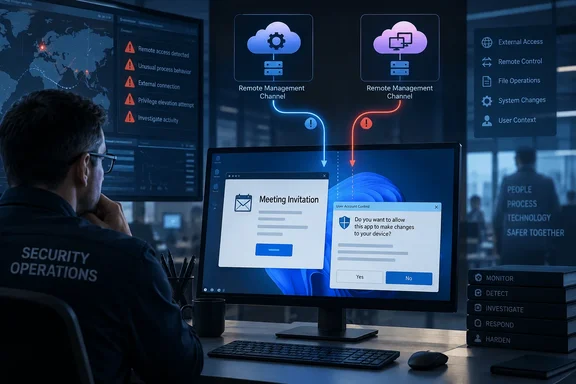
Microsoft is clear that it did not observe exploitation of ScreenConnect itself. There is no ScreenConnect vulnerability to patch here. Both tools worked exactly as designed. The attackers simply controlled them instead of the victim's IT department.
What happened, in short
- Timeframe: Microsoft observed the activity in July 2026.
- Targets: Organizations in multiple industries. Microsoft has not attributed the campaign to a named threat actor and tracks it as unattributed activity.
- Initial payload: A legitimate, signed MSP360 RMM installer, version 2.5.0.67, renamed to look like a document, invitation, or software installer.
- Second stage: The MSP360 agent ran PowerShell to download and silently install a ConnectWise ScreenConnect client.
- Follow-on activity: The attackers used ScreenConnect to deliver tools for credential access, information collection, and reducing defender visibility.
- Related activity: In a separate July intrusion set, the legitimate Faronics Deploy Agent (
FaronicsDeployAgent.exe) played the same first-stage role and was also used to install ScreenConnect.
The lures: invitations, PDF readers, and a fake SSA statement
The phishing emails linked to attacker-controlled landing pages. These pages imitated document-sharing portals, invitation workflows, Adobe Reader download pages, Zoom installation pages, and business collaboration platforms. Microsoft lists these lure themes:
- Workplace meeting requests
- Zoom and Google Meet installation prompts
- Adobe Acrobat and PDF reader updates
- RSVP invitations and e-cards
- Job offer documents
- Document review and signature requests
- DHL and package-delivery content
Example file names included ZoomSetup_Installation_v2.5.0.67_oid[redacted].exe, RSVP_INVITATION_E_CARD_rmm_v2.5.0.67_oid[redacted].exe, and SSA.GOV_STATEMENT_rmm_v2.5.0.67_oid[redacted].exe. Microsoft also shows a tax-document lure. The names differed, but Microsoft's analysis found that many of the downloads were the same MSP360 installer package.
The payloads were hosted in several places: attacker-owned domains, websites Microsoft assessed as compromised, and legitimate cloud services including Amazon S3, Cloudflare R2, Dropbox, GitLab, and Supabase. Microsoft says this let the actor swap delivery infrastructure quickly while reusing one payload. For defenders, that means blocking a single domain achieves very little.
Section summary: One signed installer, many disguises, and hosting on services most corporate proxies allow by default.
Installation: the UAC prompt is where it succeeds or fails
This detail should get help desk attention. The attack only worked if the user approved a User Account Control (UAC) elevation prompt.
In successful cases, the file ran from the user's Downloads folder. It dropped NSIS-style installer helpers (System.dll, nsExec.dll, UAC.dll) and relaunched itself through an elevation workflow. After elevation, Microsoft saw it:
- Use
eventcreate.exeto write "Begin installation" and "End installation. MSP360 de Success." events under the source MSP360 RMM Agent installer - Put MSP360 plugins and binaries in
C:\Program Files\RMM Agent\ - Run
dotnet --list-runtimesto check which .NET runtimes were installed - Stop any existing MSP360 services and register two services, RMM.Agent.exe and RMM.Agent.Launcher.exe
- Add registry autorun entries so the MSP360 tray components start at user sign-in
- Create an inbound Windows Firewall allow rule for UDP port 48678 to
C:\Program Files\RMM Agent\RMM.Agent.exe
When users declined or cancelled the UAC prompt, the installation stopped. Microsoft found no services, no persistence, and no working remote management on those machines. That is a strong argument for standard-user accounts and for teaching staff that a "PDF invitation" asking for admin rights is a warning sign.
How this differs from earlier RMM abuse
RMM abuse isn't new, but this chain works differently from the best-known government warning. In the joint CISA, NSA, and MS-ISAC advisory AA23-025A from January 2023, CISA described a campaign in which cyber criminal actors sent phishing emails that led to the download of legitimate RMM software—ScreenConnect (now ConnectWise Control) and AnyDesk. In that case, CISA noted that the actors did not install downloaded RMM clients on the compromised host. Instead, the actors downloaded AnyDesk and ScreenConnect as self-contained, portable executables configured to connect to the actor's RMM server.
| CISA AA23-025A (2022 activity) | Microsoft's July 2026 campaign | |
|---|---|---|
| RMM tools | ScreenConnect, AnyDesk | MSP360 RMM, then ScreenConnect; Faronics Deploy Agent in a separate case |
| Delivery | Help-desk-themed phishing and callback lures | Meeting, PDF, Zoom, RSVP, job-offer, and delivery lures |
| Install method | Portable executables, no install | Full service install after UAC elevation |
| Persistence | Runs in the user's context | Windows services, Run keys, firewall rule, second RMM channel |
The trade-offs are different. The portable approach avoids admin rights, and CISA warned that it lets attackers work without the need for administrative privilege and full software installation—effectively bypassing common software controls and risk management assumptions. The 2026 chain gives up that stealth in exchange for durable, service-level persistence and a backup channel. It also leaves more evidence behind: services, event log entries, firewall rules, and registry changes.
The second channel: ScreenConnect via PowerShell and msiexec
After MSP360 was installed, the RMM.Agent.exe service started PowerShell. The script:
- Changed the execution policy for the current session
- Used
Invoke-WebRequestto downloadClientSetup.msifrom attacker-controlled infrastructure - Installed it silently with
msiexec.exe /qn
The result was a ScreenConnect client (ScreenConnect.ClientService.exe, ScreenConnect.WindowsClient.exe, and supporting components). It came with service registrations, uninstall entries, and authentication-related registry changes. The client connected to attacker infrastructure and gave the actor a channel independent of MSP360. If defenders found and removed one agent, the other would still work.
The attackers then used ScreenConnect's built-in RunFile feature to transfer and run files staged in:
C:\Users\%user%\OneDrive\Documents\ScreenConnect\Temp\C:\Users\%user%\Documents\ScreenConnect\Temp\
Frequently observed file names included WindowsUpdate.exe, WindowsSecurity_PIN.exe, WindowsSecurity_Password.exe, WindowsPassKey.exe, DefenderControl.exe, DefenderDT.exe, PhoneLinkPrompt.exe, Passwords.EXE, HideFromControlPanel.exe, SCHider.exe, BannerHider.exe, WebBrowserBookmarksView.exe, and WebBrowserPassView.exe. Microsoft says many of these names were chosen to look like Windows, Defender, Phone Link, or security components. The tools are associated with credential theft, information collection, running more payloads, and reducing visibility.
Some names suggest what the tools do. "Hider" utilities appear designed to hide the remote session or its traces from the user. The browser credential viewers speak for themselves. This is our reading of the file names, not a Microsoft function-by-function analysis. Microsoft also doesn't say every tool appeared on every compromised device.
Section summary: MSP360 got the attackers in, ScreenConnect kept them in, and RunFile delivered the tools.
How Defender flags it
Microsoft lists these Defender XDR detections:
| Stage | Detection |
|---|---|
| Initial access | Defender Antivirus: SupportScam:Win32/RogueMSP.MU!MTB |
| Execution | Defender for Endpoint: Suspicious usage of remote management software; Uncommon remote access software |
| Persistence | Anomaly detected in ASEP registry; Suspicious file registered as a service |
| Credential access | Possible theft of passwords and other sensitive web browser information |
Microsoft's advanced hunting queries cover four areas:
- MSP360 installer presence: Search
DeviceFileEventsfor the installer's SHA-256. - RMM-launched PowerShell: Search
DeviceProcessEventsfor PowerShell started by an MSP360-signed process, or msiexec installing a.msifrom a\Temp\path withRMM.Agent.exeas the parent. - ScreenConnect network connections: Find URLs contacted by
ScreenConnect.ClientService.exe,ScreenConnect.WindowsClient.exe, orScreenConnect.Client.exethat also appeared in the earlier MSP360-launched activity. - RunFile payloads: Find processes whose initiating command line includes
ScreenConnect.WindowsClient.exe,RunFile,\Documents\, and\Temp\.
Three of the queries look back 30 days. That is a query setting, not the length of the campaign, so extend it if your retention allows. Treat any hits as leads to investigate. Many MSPs legitimately run MSP360 or ScreenConnect.
What admins should do now
Microsoft's guidance comes down to a short checklist:
- Inventory approved RMM tools. Know which remote tools you use and who operates them. Require MFA on those platforms wherever possible.
- Block the rest. Use App Control for Windows (which can mark specific certificates as untrusted) or AppLocker publisher rules to block unapproved signed RMM software. Defender for Endpoint's block certificate action can also block specific signed applications.
- Hunt for unapproved installations. If you find one, reset passwords for the accounts that installed the RMM services. If a system-level account did the install, investigate further.
- Turn on cloud-delivered protection in Microsoft Defender Antivirus or your third-party equivalent.
- Consider attack surface reduction rules. Microsoft points to "Use advanced protection against ransomware" and "Block process creations originating from PsExec and WMI commands." It warns the second rule can cause compatibility problems on some servers, but recommends deploying it on other systems.
Useful additions based on general practice:
- Remove local admin rights. The failed installations show that a declined UAC prompt stopped this campaign.
- Check for UDP 48678 firewall rules pointing at
RMM.Agent.exeon machines your MSP doesn't manage with MSP360. - Search the Application event log for the source "MSP360 RMM Agent installer."
- Look for both agents on one machine. MSP360 and ScreenConnect installed on the same endpoint within minutes of each other is unusual for most legitimate setups.
Indicators of compromise
- MSP360 installer SHA-256:
108ef7e628d7a20bd6241a5b57149e27a6061f467123eb64061975559f8f73dc - SHA-1:
f34330d4c6e0aa978dc3af40360c14b31ad51127. Microsoft says the signing certificate on this sample has since been revoked. - Domains contacted by malicious ScreenConnect sessions:
adswre[.]cfd,trews[.]cfd,adsaw[.]cfd,swedcorry[.]stefneyv[.]com,ojsuyw[.]niyari[.]org,bunstar[.]harej[.]si,sdfghj[.]rd-team[.]ru
Microsoft also published SHA-256 hashes for four MSP360 Agent Service samples and about two dozen utilities delivered through ScreenConnect. Check them against your own telemetry before blocking.
The bottom line
This campaign shows why detecting "malware" isn't enough. Every major component was legitimately signed software doing what it was built to do. Microsoft's report doesn't mean MSP360 or ScreenConnect installations are suspicious in general. It means any remote-access tool your organization didn't approve should be treated as a possible backdoor.
Nearly four years after CISA's advisory, the lesson still applies. The difference now is that attackers are installing two remote-access tools so that removing one doesn't lock them out.
References
- Phishing Abuses RMM Tools for Persistent Access Microsoft Security Blog · 2026-09-29T21:39:27+00:00
- Protecting Against Malicious Use of Remote Monitoring and Management Software | CISA cisa.gov
- Protecting Against Malicious Use of Remote Monitoring ... media.defense.gov